
Creating eye-catching social media videos no longer requires expensive software or professional editing experience. With Canva’s intuitive drag-and-drop interface and built-in design tools, beginners can produce polished, scroll-stopping videos in minutes. Whether the goal is promoting a product, sharing tips, or building a personal brand, Canva makes video editing accessible to everyone.
TLDR: Canva offers beginners an easy way to create stunning social videos fast by using pre-designed templates, mastering text animation, leveraging transitions and timing, and optimizing audio and export settings. By focusing on consistency, pacing, and platform-specific formatting, creators can significantly boost engagement. Simple edits, when applied strategically, often outperform overcomplicated designs. With the right approach, anyone can turn a basic concept into a professional-looking video.
1. Start with Professionally Designed Templates
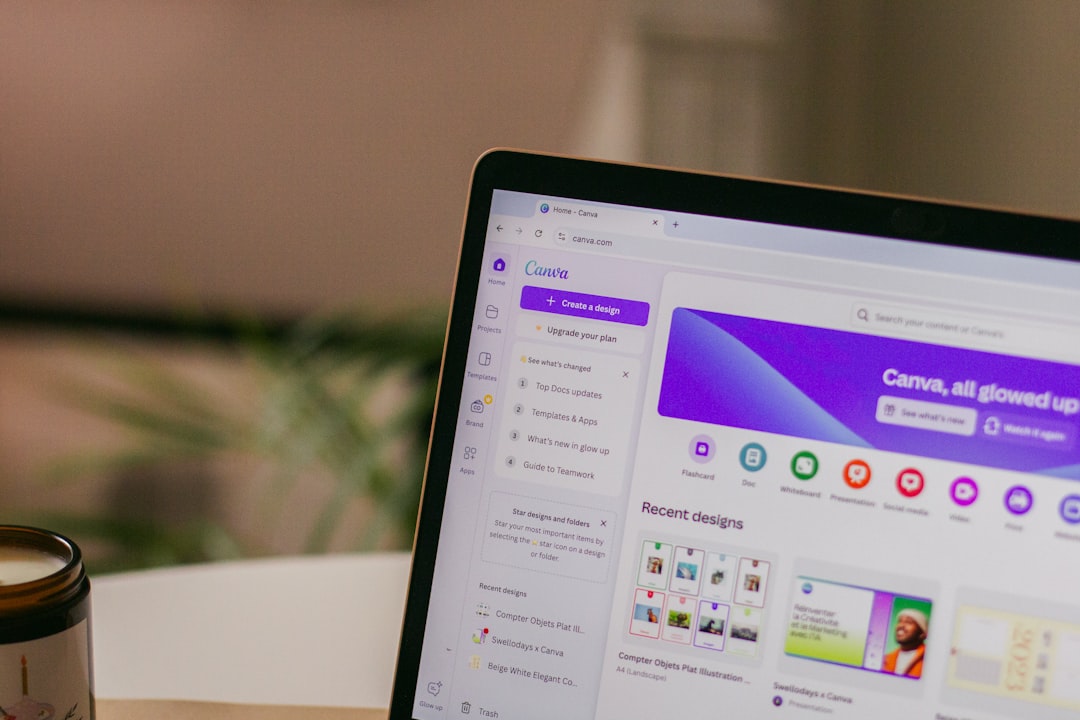
One of the biggest advantages beginners have in Canva is instant access to thousands of ready-made video templates. Instead of starting with a blank canvas, creators can choose designs tailored for platforms such as TikTok, Instagram Reels, YouTube Shorts, or Facebook Stories.
Why templates matter:
- Save time by eliminating layout guesswork.
- Ensure proper dimensions for each social platform.
- Maintain visual structure with balanced text, visuals, and spacing.
Beginners are encouraged to search Canva’s template library using specific keywords such as minimal promo video, motivational reel, or product launch video. Narrowing results increases the likelihood of finding a template that aligns with a brand’s aesthetic.
After selecting a template, users should customize key elements rather than leaving it unchanged. This includes:
- Replacing stock images with brand photos or videos.
- Updating fonts to match brand identity.
- Adjusting color schemes to reflect brand guidelines.
The goal is not to reinvent the design but to personalize it. Beginners often make the mistake of over-editing templates. Instead, they should respect the template’s structure and focus on subtle improvements.
2. Master Text Animation for Visual Impact
Text animation is one of the fastest ways to make social videos feel dynamic and engaging. Since many users watch videos without sound, animated text becomes essential for capturing attention and delivering key messages.
In Canva, text elements can be animated using built-in effects like Fade, Slide, Rise, Typewriter, and Pop. Applying the right animation depends on the video’s tone:
- Professional content: Subtle animations like Fade or Rise.
- Youthful or energetic brands: Bounce or Pop effects.
- Educational content: Typewriter animations for step-by-step explanations.

Best practices for text animation:
- Keep animations consistent across scenes.
- Avoid stacking multiple animation effects on one slide.
- Highlight only the most important words to avoid clutter.
Timing is just as important as animation style. Canva allows users to adjust how long each slide appears. Beginners should aim for short, punchy scenes between 2–5 seconds to maintain viewer interest. If the content requires longer explanations, they can break text into smaller segments across slides.
Subtle motion can significantly elevate a simple static design. Even adding gentle animation to a logo or call-to-action button can increase conversion rates.
3. Use Smart Transitions and Timing to Improve Flow
A_common mistake among beginners is ignoring transitions between scenes. Abrupt cuts can feel jarring, while poorly chosen transitions may appear amateurish. Canva provides smooth transitions like Dissolve, Slide, Circle Wipe, and Match Movement that help create natural flow.
How to choose the right transition:
- Dissolve: Best for professional or calm branding.
- Slide: Creates directional movement and energy.
- Match & Move: Great for storytelling transitions.
Beginners should avoid using a different transition for every slide. Consistency enhances professionalism. A single transition style used throughout the video often looks cleaner than multiple flashy effects.
Equally important is timeline management. Canva’s timeline editor allows precise adjustments to clip length. Creators should:
- Trim unnecessary pauses.
- Align text appearance with key visual moments.
- Keep total video length aligned with platform best practices (e.g., under 30 seconds for Reels).
Maintaining rhythm keeps viewers engaged. Videos that drag or feel rushed lose attention quickly. Proper pacing transforms basic content into a polished presentation.
4. Optimize Audio and Export Settings for Each Platform
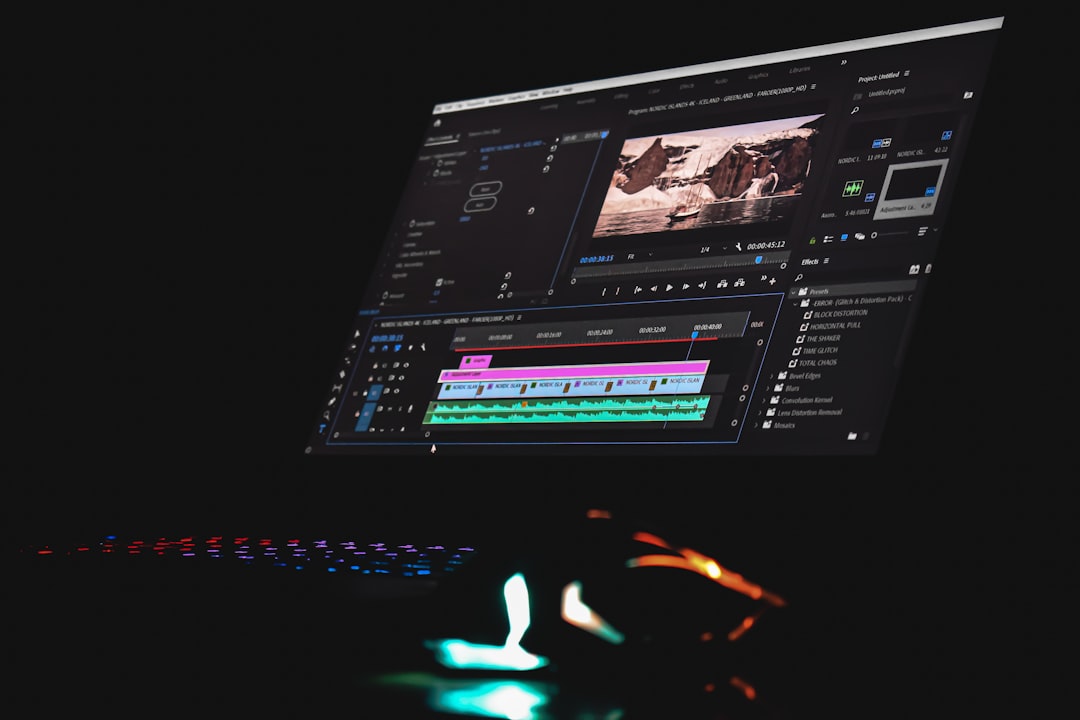
Even visually stunning videos can fail if audio quality is poor or formatting is incorrect. Canva includes built-in music tracks, sound effects, and voiceover recording tools that help beginners create immersive experiences.
Audio tips for beginners:
- Lower background music volume to avoid overpowering voiceovers.
- Use trending music styles relevant to your audience.
- Ensure voice recordings are clear and free from background noise.
Captions should also be added when possible, as many viewers consume social media videos with the sound turned off. Canva allows users to manually add captions or import text overlays for accessibility and engagement.
Finally, exporting in the correct format is crucial:
- Instagram Reels & TikTok: Vertical 1080×1920 resolution.
- YouTube: Horizontal 1920×1080 resolution.
- Stories: Full vertical screen format.
Uploading a video with the wrong dimensions can result in awkward cropping or compression. Before exporting, beginners should double-check alignment, margins, and audio levels.
Additional Pro Tips for Faster Results
While mastering the four core tips above delivers impressive improvements, beginners can accelerate their workflow further with these strategies:
- Create a Brand Kit: Save brand colors, fonts, and logos for quick access.
- Duplicate Successful Projects: Repurpose high-performing videos.
- Use Stock Videos: Canva’s library provides high-quality footage for B-roll.
- Keep Calls-to-Action Clear: End videos with direct, simple instructions.
The most successful social content is rarely the most complex. Instead, it balances simplicity, clarity, and visual consistency.
Conclusion
Canva has transformed video editing from a technical skill into a creative process accessible to all. By starting with templates, applying thoughtful text animation, refining transitions and timing, and optimizing audio and exports, beginners can quickly produce professional-looking content.
Consistency and clarity remain the foundation of effective social videos. Rather than overwhelming viewers with excessive effects, creators should focus on delivering concise, visually appealing messages.
With regular practice and strategic editing choices, even first-time users can craft content that captures attention and drives engagement.
Frequently Asked Questions (FAQ)
-
Is Canva good for beginners with no video editing experience?
Yes. Canva’s drag-and-drop interface and pre-designed templates make it one of the easiest platforms for beginners to start creating social videos immediately. -
Can Canva videos look professional?
Absolutely. When users apply consistent branding, clean transitions, and thoughtful animation, Canva videos can rival professional edits for social platforms. -
How long should social media videos be?
Most platforms favor short-form content between 15 and 60 seconds. However, ideal length depends on platform guidelines and audience behavior. -
Does Canva include music for free?
Canva offers a library of free and premium audio tracks. Free users can access a large selection, while Pro users unlock additional options. -
What resolution should be used for Instagram Reels?
The recommended resolution is 1080×1920 pixels in vertical format to ensure optimal display quality. -
Can Canva remove video backgrounds?
Yes, but background removal for videos is typically available in Canva Pro and works best with clear subject separation.

I’m Sophia, a front-end developer with a passion for JavaScript frameworks. I enjoy sharing tips and tricks for modern web development.
