
It is frustrating when Vivaldi Browser does not show the same bookmarks on all your devices. You save useful pages, open another computer or phone, and then they are gone. That can slow down work, break your routine, and make the browser feel unreliable. Sometimes the problem is small. Sometimes it sits in sync settings, the Vivaldi account, the browser profile, or the encryption password.
This guide explains what the issue means, why it happens, how to fix it, and how to stop it from coming back.
What does “Vivaldi bookmarks not syncing” mean?
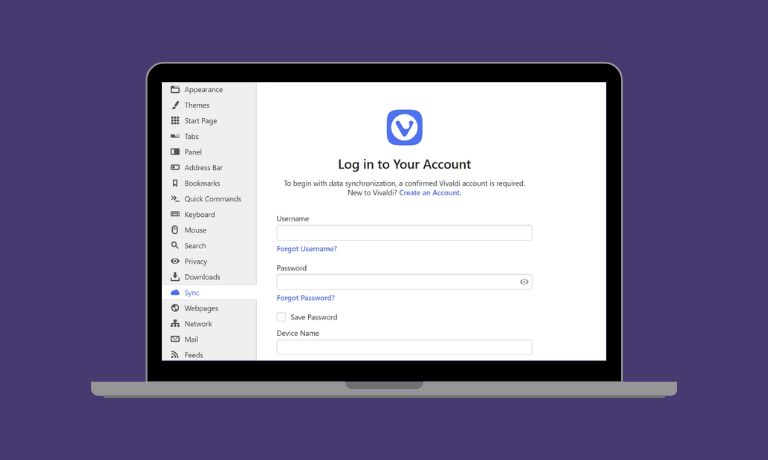
When Vivaldi bookmarks are not syncing, the browser is not moving bookmark data the way it should between devices, sessions, or profiles. In simple words, your saved links stay on one device but do not appear on another. You may sign in, open the browser, and still not see the same bookmark bar, bookmark folders, or saved pages. That usually means Vivaldi Sync is connected in some way, but the synced data is not updating fully. The browser can look normal on the surface, yet the bookmark information is missing, delayed, or stuck.
Users usually notice this in the Bookmark Manager, on the bookmark bar, or inside Sync settings after signing in to a Vivaldi account. It often shows up when moving from a desktop to a laptop, from one browser profile to another, or from one device to a mobile device. You might also notice that one device keeps old bookmarks while another has new ones.
Common causes of Vivaldi bookmarks not syncing
This problem can happen for several reasons, depending on your browser settings, account details, or device connection.
Below are the most common causes you should check first.
- The bookmark sync option is off in Vivaldi Sync settings, so the browser signs in but does not transfer bookmark data.
- The device uses the wrong Vivaldi account, which means it connects to a different sync history and a different bookmark set.
- The encryption password does not match the current sync chain, so Vivaldi cannot read protected synced data.
- One computer or phone runs an older Vivaldi Browser version, and that version may not sync well with newer builds.
- The wrong browser profile is active, and that profile may hold different local bookmarks, settings, and sync preferences.
- A VPN, proxy, firewall, or unstable internet connection interrupts the browser’s link to the sync server.
- The synced data is damaged, delayed, or blocked by a temporary sync service problem.
How to fix Vivaldi when bookmarks are not syncing?
In most cases, you can fix this problem by checking your sync settings, account details, browser version, and network connection one step at a time. Sometimes the answer is quick. Other times, you may need to reset sync and start fresh.
Fix #1: Turn on bookmark syncing in Vivaldi
This problem often starts here. A user signs in to Vivaldi Sync, but the browser is not set to sync bookmarks at all. So the account looks active, yet the bookmark bar stays empty on the second device. When you enable the bookmark option, Vivaldi can begin to upload and download bookmark folders, saved links, and related bookmark data between devices. That is why this is one of the first settings to check.
Follow the steps below to easily check bookmark sync settings.
- Open Vivaldi Browser.
- Go to Settings.
- Open the Sync section.
- Sign in to your Vivaldi account if needed.
- Check whether Bookmarks is enabled.
- Save the setting.
- Wait a little and check the Bookmark Manager again.
Fix #2: Sign in with the same Vivaldi account on all devices
A lot of sync issues happen because one device uses a different Vivaldi account. It sounds small, but it changes everything. Each account can hold different synced data, bookmark folders, tabs, notes, and settings. So if your desktop uses one account and your laptop uses another, the bookmarks will not match.
Once the same account is active on every device, the browser can pull the same bookmark set more reliably.
Here are the following steps which help you to confirm the correct Vivaldi account.
- Open Vivaldi on your first device.
- Go to the Sync or account area.
- Check the signed-in email or account name.
- Repeat the same check on the second device.
- Compare both account details carefully.
- Sign out of the wrong account if needed.
- Sign back in with the correct one.
Fix #3: Re-enter the encryption password
Vivaldi Sync uses an encryption password to protect synced data. If that password is wrong, old, or entered differently on another device, the browser may connect but still fail to show bookmarks. This can feel confusing because the user is signed in, yet the bookmark folders do not appear. When the correct encryption password matches the sync chain, Vivaldi can unlock the protected data and continue the sync process.
You can perform the following steps to re-enter the encryption password.
- Open Sync settings in Vivaldi.
- Find the encryption or synced data option.
- Enter the correct encryption password again.
- Save the change.
- Restart Vivaldi Browser.
- Wait for the sync process to finish.
- Open the Bookmark Manager and check your saved links.
Fix #4: Update Vivaldi Browser on every device
An old browser version can create sync trouble, especially if one device is up to date and another is not. The sync service, account handling, and bookmark logic may not behave the same across versions. So the browser may not refresh the same bookmark data everywhere. Once all devices run the latest Vivaldi Browser version, sync tends to work in a cleaner, smoother way.
Try these simple steps to quickly update Vivaldi Browser.
- Open Vivaldi.
- Open the browser menu.
- Go to About Vivaldi or the update section.
- Check for available updates.
- Install the latest version.
- Restart the browser.
- Repeat the same process on your other devices.
Fix #5: Check the correct browser profile
Sometimes sync is not broken at all. The user is just inside the wrong browser profile. Vivaldi profiles can hold different local bookmarks, settings, bookmark bars, extensions, and sync choices. So one profile may show your main bookmark folders, while another looks empty. Once you switch to the right profile, the expected bookmarks may already be there, which saves time and avoids a full reset.
Below are the steps that will guide you to check the correct browser profile.
- Open Vivaldi.
- Click the profile icon or profile menu.
- Check which profile is active.
- Switch to another profile if one exists.
- Open the Bookmark Manager.
- Compare the bookmark list.
- Stay on the profile with the correct data.
Fix #6: Restart Vivaldi and refresh the sync connection
Sometimes the browser session gets stuck. The sync status may stop updating, the connection to the sync server may hang, or the bookmark data may sit there without loading.
A full restart can clear that temporary block and let the browser reconnect. It is a simple fix, yes, but it often helps when bookmarks are delayed, partially loaded, or not showing after sign-in.
Follow these easy instructions to refresh the sync connection without any confusion.
- Save any open work or tabs.
- Close Vivaldi fully.
- Wait a few seconds.
- Open the browser again.
- Go to the Sync section.
- Check whether the sync status refreshes.
- Look at the bookmark bar and Bookmark Manager again.
Fix #7: Disable VPN, proxy, or firewall blocks temporarily
A VPN, proxy, firewall, or unstable network can interrupt the connection between Vivaldi Browser and the sync server. When that happens, bookmark data may fail to upload or download. This does not always mean your internet is fully broken.
Sometimes only the sync service gets blocked. Once the connection path is clear again, the browser may sync bookmark folders and saved pages normally.
The following steps will show you how to test network blocks properly.
- Check whether a VPN is active.
- Turn it off for a short test.
- Review your proxy settings.
- Pause strict firewall filtering if it is safe to do so.
- Reopen Vivaldi Browser.
- Start sync again.
- Check whether bookmarks now appear.
Fix #8: Reset sync and restore from a clean sync state
If the other fixes do not work, the synced data or sync chain may be damaged. That can stop bookmark syncing even when the settings look correct. A sync reset gives the browser a clean start and can rebuild the connection between your Vivaldi account, the sync service, and your devices. Still, be careful here. Back up your bookmarks first so you do not risk losing important saved pages.
These are the exact steps you need to follow to reset sync successfully.
- Export your bookmarks as a backup.
- Open Vivaldi Sync settings.
- Find the option to reset or reconnect sync.
- Sign out of sync if required.
- Reset the sync connection carefully.
- Sign back in with your Vivaldi account.
- Re-enable bookmark syncing and wait for data to reload.
Prevention tips to avoid bookmark sync issues in Vivaldi
A few simple habits can help stop this problem from coming back. They also make your bookmark data safer and make Vivaldi Sync more steady over time.
- Keep Vivaldi Browser updated on every device.
- Use the same Vivaldi account on your desktop, laptop, and mobile device.
- Store your encryption password in a safe place so you do not lose access to synced data.
- Check sync settings after reinstalling the browser or setting up a new device.
- Make sure you are using the correct browser profile before you assume sync is broken.
- Test your internet connection if bookmark syncing becomes slow or incomplete.
- Export bookmarks now and then as a backup copy.
Final thoughts
In short, this issue usually means Vivaldi Sync cannot properly read, send, or update bookmark data between your devices. The most common causes are simple things like disabled sync settings, the wrong Vivaldi account, an incorrect encryption password, an outdated browser version, the wrong browser profile, or a blocked network path. Some users also run into damaged synced data or a temporary sync server issue. So yes, the problem feels annoying, but most of the time it comes from a small setup issue that you can fix.
Try the fixes one by one and do not rush past the account, profile, and encryption checks. Those are common trouble spots. If the problem stays, contact Vivaldi Support or use the official help resources for deeper sync help. And if this guide helped you, share it with someone else or leave a comment with what fixed the problem on your device.

I’ve been into SEO and blogging for over 7 years. I help websites show up higher on search engines. I really enjoy writing helpful guides, especially about gaming and tech stuff.
