
You launch ARC Raiders expecting it to start normally. Instead a window pops up saying the game couldn’t start and shows error code 30005 with a message like CreateFile failed with 32. At that point the game just stops. No loading, no retry, just blocked.
It feels confusing because nothing looks broken. The game is installed, your system is fine, yet it refuses to start.
This error usually comes from Easy Anti-Cheat, the system that protects the game. It is strict, and sometimes too strict. When something looks unusual, even if it is harmless, it blocks the game from launching.
The good part is this error is fixable. You just need to understand what is stopping the anti-cheat from working.
What Is Error Code 30005 in Arc Raiders
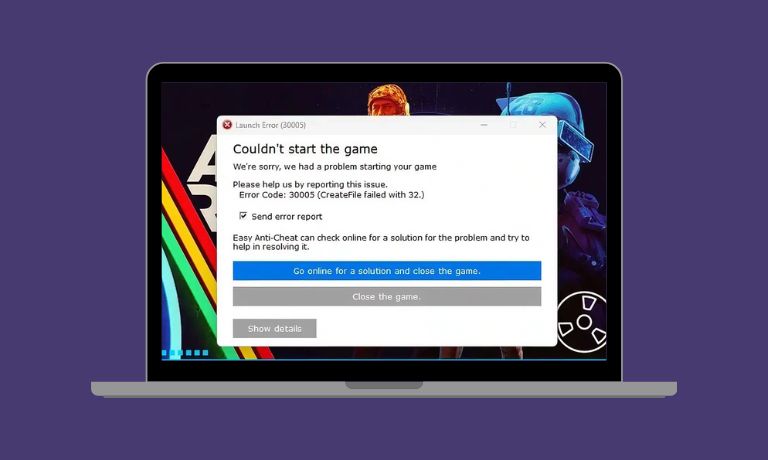
Error code 30005 is linked to Easy Anti-Cheat. This system runs before the game starts and checks if everything is safe. If it finds a problem, it stops the launch.
The message CreateFile failed with 32 means a file that the anti-cheat needs is already being used by another process. In simple words, something else is holding that file and Easy Anti-Cheat cannot access it.
Because of that, the system blocks the game completely. It does not try to ignore the issue, it just stops everything to stay safe.
Why Arc Raiders Shows Error Code 30005
This error does not come from one single cause. It usually happens when something interferes with Easy Anti-Cheat.
Here are the most common reasons:
- A file is already in use by another program
- antivirus or Windows Defender blocking access
- corrupted Easy Anti-Cheat files
- missing administrator permissions
- Background apps are conflicting with the game
- leftover processes from previous sessions
Sometimes you don’t even notice these things running. But in the background, they can stop the game from starting.
How to Fix Arc Raiders Error Code 30005
If you are facing this issue in ARC Raiders, go through these fixes one by one. Don’t rush. Try each step properly and then check if the game launches.
1. Restart Your PC
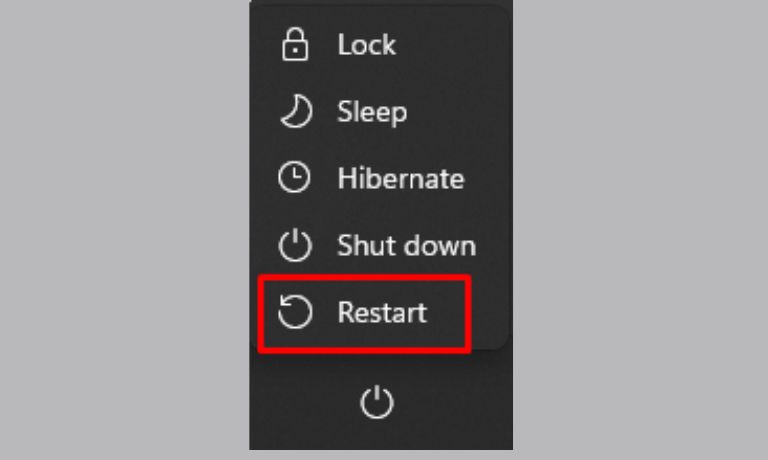
Start with a simple restart. It clears temporary processes and releases locked files that may still be in use.
Sometimes another program holds a file without you noticing. Restarting resets everything and gives the system a clean state. After restarting, launch the game again and see if the error disappears.
2. Close Background Applications
Many apps run quietly in the background and can lock files without showing anything on screen. These include overlays, recording tools, or even some system utilities.
Easy Anti-Cheat may detect these and stop the game.
Follow these steps:
- Press Ctrl + Shift + Esc to open Task Manager
- Look for unnecessary running apps
- Right-click and end those tasks
- keep only important system processes
After closing them, try launching the game again.
3. Run the Game as Administrator
Permissions matter more than most people think. If the game or Easy Anti-Cheat does not have full access, it may fail to read or write required files.
Running as an administrator gives it proper control over system files.
Right click on the game launcher or shortcut and choose “Run as administrator”. Then start the game normally and check if it works.
Read Also: How to Fix ARC Raiders Error ART00004
4. Repair Easy Anti-Cheat
If Easy Anti-Cheat files are damaged or incomplete, the game will not start properly. Repairing it resets those files without reinstalling the whole game.
Follow these steps:
- Go to the game installation folder
- Open the EasyAntiCheat folder
- Find EasyAntiCheat_Setup.exe
- Run it and click repair
Once done, try launching the game again.
5. Verify Game Files
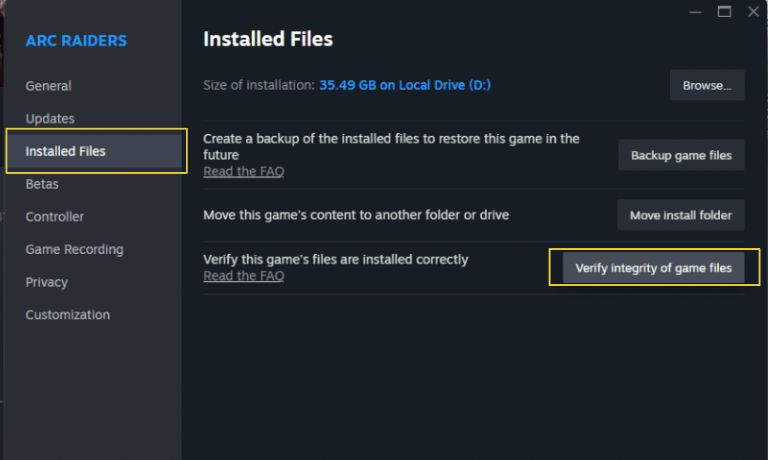
Sometimes game files get corrupted during installation or updates. Even one missing or broken file can cause this error.
Verifying files checks everything and replaces what is damaged.
Steps depend on your launcher:
- Open Steam or Epic Games Launcher
- Go to your game library
- Find Arc Raiders
- Click verify integrity of game files
Wait for the process to complete, then launch the game.
6. Disable Antivirus Temporarily
Antivirus programs are useful, but they can sometimes block safe files by mistake. Easy Anti-Cheat often gets flagged because it interacts with system-level processes.
This creates a conflict where the anti-cheat cannot access required files.
Temporarily disable your antivirus and then launch the game. If it works, you may need to add the game or Easy Anti-Cheat as an exception.
7. Delete the Problematic File
In some cases, a specific file gets locked and causes the error repeatedly. Removing that file allows Easy Anti-Cheat to recreate it.
This step is a bit more technical, but still simple if followed carefully.
- Open the EasyAntiCheat folder
- Locate the file mentioned in the error or related logs
- Delete that file
- Restart your PC
After that, launch the game and the file will be created again automatically.
8. Reinstall Easy Anti-Cheat
If repairing does not work, reinstalling is the next step. This ensures all files are fresh and correctly placed.
- Open EasyAntiCheat setup again
- Choose uninstall
- Then install it again
Once done, try launching the game.
9. Update Windows
Outdated system files can also create compatibility issues. Easy Anti-Cheat depends on certain Windows components to work correctly.
Go to Windows Update and check for updates. Install any pending updates, restart your system, and then launch the game again.
What Is Easy Anti-Cheat and Why It Causes This Error
Easy Anti-Cheat is a security system used in many multiplayer games. Its job is to prevent cheating by monitoring how the game runs and what programs interact with it.
Because of this, it is very strict. It does not take risks. If it detects anything unusual, even something harmless like a background tool, it blocks the game.
This strict behavior is the reason behind error 30005. The system cannot access a file or detects a conflict, so it stops the launch to avoid any possible issue.
Does This Error Come from Your System or the Game
This error can come from both sides. In many cases it is related to your system, especially background apps, permissions, or antivirus settings.
But sometimes it can also come from the game setup itself, like corrupted files or incomplete Easy Anti-Cheat installation.
That’s why fixing it step by step helps. You slowly remove possible causes until the game runs normally again.
How to Prevent Error Code 30005 in the Future
You don’t need to do anything complex. Just keep your system clean and stable.
- Avoid running too many background apps while gaming
- Keep your Windows updated
- Add game files to antivirus exceptions if needed
- Verify game files after updates
- Restart your PC before long gaming sessions
These small habits reduce the chance of running into the same issue again.
Final Thoughts
Error code 30005 may look technical, but the fix is usually simple. Most of the time it comes down to a file conflict or permission issue.
Take it slow, try each fix properly, and you’ll likely solve it without much trouble.
If this guide helped you, share it with others who might be stuck. And if your issue is still not solved, tell me what you’re seeing, we’ll figure it out together.

I’ve been into SEO and blogging for over 7 years. I help websites show up higher on search engines. I really enjoy writing helpful guides, especially about gaming and tech stuff.
