Quick Answer: If your Xbox 360 update failed, the issue is usually linked to internet connection, corrupted update data, storage problems or an incomplete system update. Start by restarting the console, checking the Xbox Live connection, clearing the system cache and then try the USB offline update if the normal update still fails.
Xbox 360 is older now, so update problems can happen more often than before. You may turn on the console, try to connect to Xbox Live and then suddenly see an update failed message. Annoying, especially when you just wanted to play.
Let me clear this simply. The update can fail because the console cannot download it properly, cannot install it properly, or does not have clean storage to complete the update. The good thing is, many of these problems can be fixed at home.
Why Xbox 360 Updates Fail?
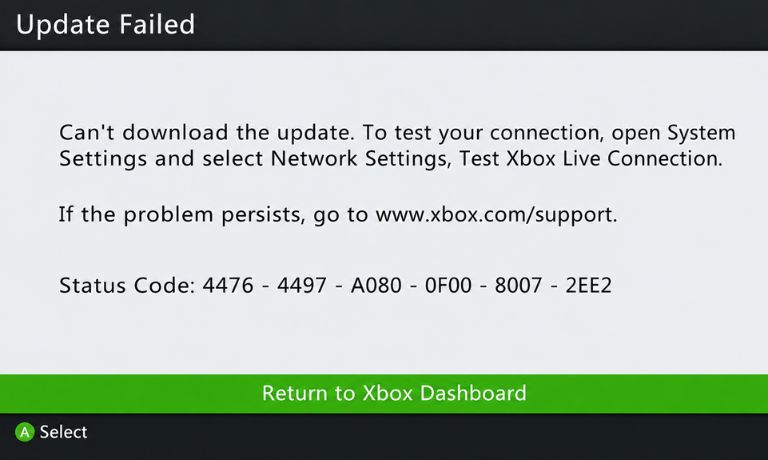
Xbox 360 updates can fail for a few common reasons. Sometimes the internet connection drops while the update is downloading. Sometimes the update file becomes corrupted. And sometimes the console storage has a problem, especially if the hard drive or USB storage is old.
Common reasons include:
- Weak or unstable internet connection
- Xbox Live connection problem
- Corrupted update file
- Not enough storage space
- Bad or loose hard drive
- USB storage conflict
- Old system cache causing trouble
Not every failed update means the Xbox 360 is broken. But if the same error keeps recurring, you need to check both the internet connection and storage.
First Check Before Trying Fixes
Before making bigger fixes, check the basics first. It sounds simple, but it saves time.
Make sure your internet is working on another device. Check if your Xbox 360 has enough storage space. Remove extra USB drives if you do not need them. Also make sure the power cable is connected properly and the console does not turn off during update.
If Xbox Live is experiencing a service issue, the update may fail on their end. In that case, waiting is better than changing every setting on your console.
How to Fix the Xbox 360 Update Failed Error
Start with the easy fixes first. Do not jump directly to factory reset. Most Xbox 360 update failed errors are fixed by restart, connection check, cache clearing or offline USB update.
Fix 1: Restart the Xbox 360 and Try Again
A restart can clear a temporary update glitch. If the console got stuck during download or install, a clean restart may help.
Try it this way:
- Turn off your Xbox 360
- Unplug the power cable
- Wait 30 to 60 seconds
- Plug the power cable back in
- Turn on the console
- Try the update again
This is a small fix, but it is worth trying first. If the update failed because of a short system glitch, the console may install it properly after restarting.
Fix 2: Check Your Internet Connection
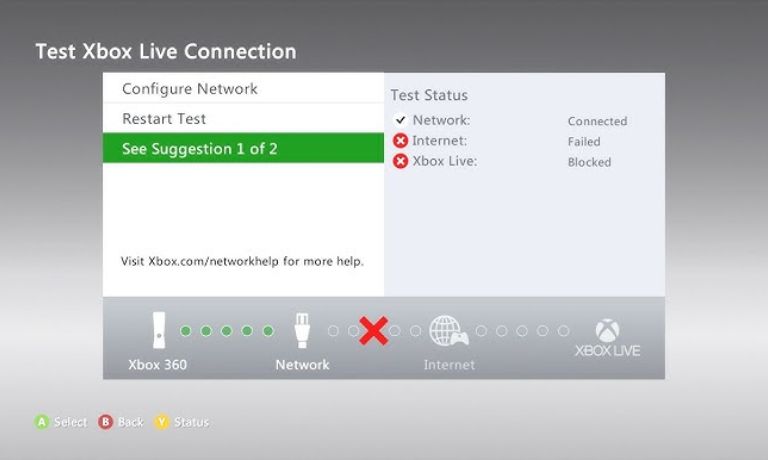
If you are updating through Xbox Live, the internet connection matters. A weak Wi-Fi signal can stop the update download or make it fail halfway.
Check your connection like this:
- Go to Xbox 360 network settings
- Run the connection test
- Check if Xbox Live connects properly
- Restart your router if needed
- Move the console closer to the router
- Use Ethernet if possible
My honest opinion, if you have an Ethernet cable, use it for the update. Xbox 360 is older, and a wired connection can be more stable than Wi-Fi.
If the network test fails, fix the internet connection first. The update will keep failing if the console cannot reach Xbox Live properly.
Fix 3: Clear the Xbox 360 System Cache
The system cache stores temporary update and system files. Sometimes these files become corrupted and cause update errors.
Clearing cache does not delete your profile, saved games or achievements. It mainly removes temporary system data.
You can clear it like this:
- Press the Guide button on the controller
- Go to Settings
- Open System Settings
- Choose Storage
- Highlight your storage device
- Press Y for device options
- Select Clear System Cache
- Confirm the action
- Restart the console
After clearing cache, try the update again. This fix is very useful when the console keeps failing at the same update point.
Fix 4: Remove and Reconnect Storage Devices
Xbox 360 update failed errors can also happen when the storage device is loose, damaged or causing conflict. This is more common on older consoles with hard drives, memory units or USB storage.
Turn off the console first, then check the storage.
- Remove extra USB drives
- Reconnect the Xbox 360 hard drive
- Check if the hard drive feels loose
- Try updating without extra storage attached
- Use another USB drive if needed
If the console has an old hard drive, it may disconnect or fail during update. That can stop the installation even if the update file downloads fine.
If the update works after removing a USB drive, that drive was probably causing the conflict.
Fix 5: Free Up Storage Space
Your Xbox 360 needs enough free space to download and install the update. If storage is almost full, the update may fail or stop before finishing.
Check storage first, then remove things you do not need.
You can delete:
- Old demos
- Unused game installs
- Extra videos
- Old update files
- Games you no longer play
- Temporary files if shown
Do not delete saved games unless you are sure. Save data is important.
After freeing space, restart the console and try the update again. If the console asks where to save the update, choose the main storage device with enough free space.
Fix 6: Try the Offline USB Update Method
If the online update keeps failing, the USB offline update can help. This method is useful when the console cannot download the update properly from Xbox Live.
You will need a USB flash drive and a computer.
Basic process:
- Use a USB flash drive
- Format it correctly, usually FAT32
- Download the official Xbox 360 system update file from Microsoft
- Extract the update files if needed
- Copy the update folder to the USB drive
- Plug the USB into the Xbox 360
- Restart the console
- Follow the update prompt
Make sure the update files are copied properly. If the Xbox does not detect the USB update, the folder may be in the wrong place or the USB may not be formatted correctly.
Use official update files only. Do not download system update files from random sites.
Fix 7: Check for Corrupted Profiles or System Data
Sometimes corrupted profile data or system data can create update problems. This is not always the main cause, but it can happen.
If the update fails after signing in, try signing out and updating before opening games. You can also check your storage for corrupted files.
Look for files that show as corrupted or incomplete. If you see a corrupted file related to an update or profile, remove it only if you are sure it is not important save data.
Be careful here. Do not randomly delete profiles or saved games. If needed, move important saves to another storage device before removing anything.
Fix 8: Factory Reset or Repair as a Last Resort
If nothing works, factory reset or repair may be the last option. Do not start with this because it can remove data and settings.
Before resetting, back up anything important if possible. If the console has hardware problems, a reset may not fix it.
Use this last step when:
- Update fails every time
- Cache clearing does not help
- USB update does not work
- Storage looks damaged
- Console freezes during update
- Hard drive keeps disconnecting
If the Xbox 360 is very old, hardware failure is possible too. The hard drive, storage port or internal system may be causing the update to fail.
If you are not sure, ask a repair technician before wiping everything.
Online Update vs Offline USB Update
Both update methods can work, but they are useful in different situations.
| Update method | Best for | What you need |
|---|---|---|
| Online update | Normal Xbox Live updates | Stable internet connection |
| Offline USB update | Failed downloads or no internet update | USB drive and computer |
| Cache clear before update | Corrupted temporary update data | Xbox storage settings |
| Storage check | Failed install or repeated update error | Free space and working drive |
If your internet is stable, try online update first. If it keeps failing, then move to USB update.
How to Avoid Xbox 360 Update Problems
You cannot avoid every update problem, especially on older hardware. But you can reduce the chances.
Keep some free storage space on the console. Avoid turning off the Xbox during updates. Use a stable internet connection, and if possible, use Ethernet for system updates.
Also remove extra USB devices when updating. Too many storage devices can sometimes confuse the console.
Clearing cache once in a while can also help if the console starts acting slow or update errors keep coming back.
Simple maintenance helps. Not perfect, but helpful.
Commonly FAQs
Why does my Xbox 360 say update failed?
It usually means the console could not download or install the system update. The cause may be internet problems, corrupted update data, storage issues or Xbox Live connection trouble.
How do I fix Xbox 360 update failed?
Start by restarting the console, checking internet, clearing system cache and freeing storage space. If that does not work, try the offline USB update method.
Can you update Xbox 360 with USB?
Yes, you can update Xbox 360 with a USB flash drive using the official Xbox 360 system update file. The USB must be formatted correctly and the update files must be copied properly.
Does Xbox 360 still receive updates?
Xbox 360 may still need system updates for some services or compatibility, but it is an older console. Update availability and online services can vary over time.
Will clearing cache delete my Xbox 360 saves?
No, clearing the system cache should not delete saved games, profiles or achievements. It removes temporary system files and old update data.
Final Thoughts
If your Xbox 360 update failed, start with the simple fixes first. Restart the console, check internet, clear cache and check storage. If the normal update keeps failing, the offline USB update is usually the next best step.
If even the USB update does not work, the issue may be corrupted storage or old hardware.

I’ve been into SEO and blogging for over 7 years. I help websites show up higher on search engines. I really enjoy writing helpful guides, especially about gaming and tech stuff.