
Adobe Premiere Pro is a powerful editing platform, but power alone does not guarantee speed. Professional editors consistently deliver projects faster not because they work longer hours, but because they rely on refined workflows. Optimizing how you ingest, organize, and execute edits within Premiere Pro can dramatically reduce friction and enhance focus. If you are still relying on default settings and manual processes, there is significant performance potential left untapped.
TL;DR: Speed in Premiere Pro is less about working harder and more about working smarter. By mastering proxy workflows, building custom keyboard shortcuts with streamlined workspaces, and automating repetitive tasks using presets and adjustment layers, you can cut editing time significantly. These three workflow hacks reduce technical bottlenecks and cognitive load. Implement them correctly, and you will notice measurable gains in turnaround speed and project consistency.
1. Use a Smart Proxy Workflow for Smooth Playback
One of the most common performance bottlenecks in editing comes from high-resolution footage. 4K, 6K, and RAW files strain even powerful systems, leading to laggy playback, delayed scrubbing, and inefficient editing sessions. Instead of fighting your hardware, professional editors rely on a proxy workflow.
A proxy workflow allows you to edit using lower-resolution copies of your footage, then automatically relink to full-resolution media for export. This provides fluid playback while preserving final quality.

How to Implement a Proxy Workflow
- Create Proxies on Ingest: In the Media Browser, check “Ingest” and choose “Create Proxies.”
- Select an Efficient Preset: Use formats like ProRes Proxy or Cineform Low Resolution.
- Toggle Proxies Easily: Add the “Toggle Proxies” button to your Program Monitor toolbar.
The key advantage is consistency. Instead of rendering previews repeatedly or lowering playback resolution manually, proxies provide stable performance from the start of the edit to final export.
Why This Matters:
- Reduces playback lag.
- Minimizes render interruptions.
- Improves responsiveness when adding effects.
- Enhances multitasking on mid-range systems.
For teams working remotely or across shared storage systems, proxies also improve transfer speeds and collaboration. Smaller files move faster across networks, making review cycles more efficient.
In professional environments, proxy usage is not optional—it is standard practice. If you are not already integrating proxies into your workflow, this single change can immediately transform your editing speed.
2. Build a Custom Keyboard Shortcut System and Workspace Layout
Every time you reach for a menu option instead of using a shortcut, you introduce friction. Over the course of hundreds of cuts, trims, and adjustments, these micro-delays add up. Premiere Pro’s default keyboard layout is functional, but not optimized for your personal editing style.
Serious editors treat keyboard mapping as a performance tool, not an afterthought.
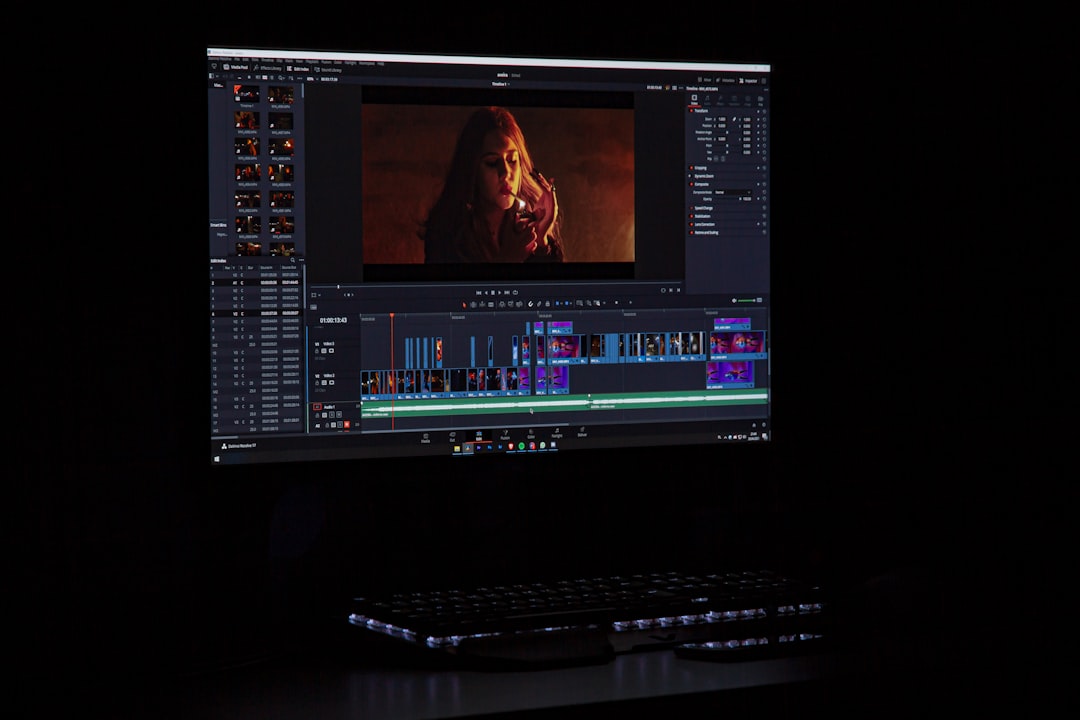
Essential Shortcut Categories to Customize
- Ripple Trim Next/Previous Edit to Playhead
- Add Edit (Cut)
- Enable/Disable Clip
- Apply Default Transition
- Add Marker
Consider grouping frequently used functions around your dominant hand. Many professional editors map trimming tools to easily reachable keys such as Q, W, E, R, A, and S, minimizing hand movement.
Optimizing Workspaces for Focus
Premiere Pro allows you to create custom workspaces tailored to specific tasks:
- Assembly Workspace: Emphasize the Project panel and Timeline.
- Color Workspace: Maximize Lumetri scopes and controls.
- Audio Workspace: Prioritize Essential Sound and track meters.
Switching between task-specific workspaces reduces clutter and mental fatigue. Instead of scanning dozens of panels, you see only what matters for the task at hand.
Advanced Efficiency Tip: Assign keyboard shortcuts to switch between workspaces instantly. This eliminates repetitive panel rearranging and keeps your attention on storytelling rather than interface management.
When implemented consistently, customized shortcuts and workspace optimization can reduce editing time by 20–30% on dialogue-heavy or fast-cut projects.
3. Automate Repetitive Tasks with Presets and Adjustment Layers
Repetition is one of the biggest hidden time drains in editing. Applying the same color correction, transitions, scaling adjustments, or audio processing settings manually to each clip is inefficient and prone to inconsistency.
The solution is systematic automation through presets and adjustment layers.

Create and Use Effect Presets
If you frequently apply a specific Lumetri color grade, vignette, or sharpening setup, convert it into a preset:
- Right-click the effect in the Effect Controls panel.
- Select “Save Preset.”
- Name it clearly and categorize it for easy access.
This allows instant application across multiple clips without reconfiguring parameters.
Leverage Adjustment Layers for Global Control
Instead of applying color correction to every clip individually, use an adjustment layer:
- Create an adjustment layer in the Project panel.
- Place it on a track above your footage.
- Apply color effects to the adjustment layer.
This method ensures uniform grading and allows real-time scene-wide modifications. If a client requests a tonal adjustment, you modify one layer—not fifty individual clips.
Use Master Clip Effects for Interview Footage
For talking-head interviews shot under consistent lighting, apply color correction at the master clip level. This propagates changes across every instance of the clip in the sequence.
Why Automation Matters:
- Increases consistency across projects.
- Reduces error from manual duplication.
- Accelerates revision cycles.
- Improves scalability for larger productions.
Professional editors often build preset libraries over years of work. These libraries become proprietary toolkits that significantly reduce setup time on new projects.
Integrating All Three Hacks Into a Cohesive Workflow
Each of these workflow hacks delivers measurable gains individually. However, their true impact emerges when combined:
- Proxies ensure smooth playback.
- Keyboard shortcuts and workspaces eliminate interface friction.
- Presets and adjustment layers remove repetitive tasks.
Together, they create an editing environment that feels responsive, controlled, and efficient. Instead of reacting to technical slowdowns, you stay immersed in creative decision-making.
It is also important to treat workflow optimization as an ongoing process. Monitor where your time is lost:
- Are you repeatedly rendering previews?
- Are you searching through menus?
- Are you applying identical settings manually?
Every repeated frustration signals a workflow opportunity.
Final Thoughts
Speed in Adobe Premiere Pro is not the result of shortcuts in craftsmanship. It is the product of intentional system design. A well-structured workflow reduces distractions, safeguards consistency, and allows you to focus on narrative structure, pacing, and emotional impact.
By using a disciplined proxy workflow, engineering a personalized shortcut layout with task-specific workspaces, and automating repetitive tasks through presets and adjustment layers, you establish a professional-grade editing foundation.
The difference between an average editor and a high-performing one is rarely artistic talent alone. More often, it is operational efficiency. Master these three workflow hacks, and you will not only edit faster—you will edit with greater clarity, control, and confidence.

I’m Sophia, a front-end developer with a passion for JavaScript frameworks. I enjoy sharing tips and tricks for modern web development.
