
ClassicGames.me lets users play retro console games right in the browser using built-in emulators. But sometimes when you visit the site or try to load a game, you might get a message saying “Network Error” or see the game stuck on a black screen.
This usually means the site couldn’t load the emulator or the game ROM properly. It breaks the whole experience; nothing loads, and you can’t play. The issue can come from your browser, your internet, or the site itself.
This guide explains what the error means, why it shows up, how to fix it, and how to prevent it from happening again.
What Does the “Network Error” on ClassicGames.me Mean?
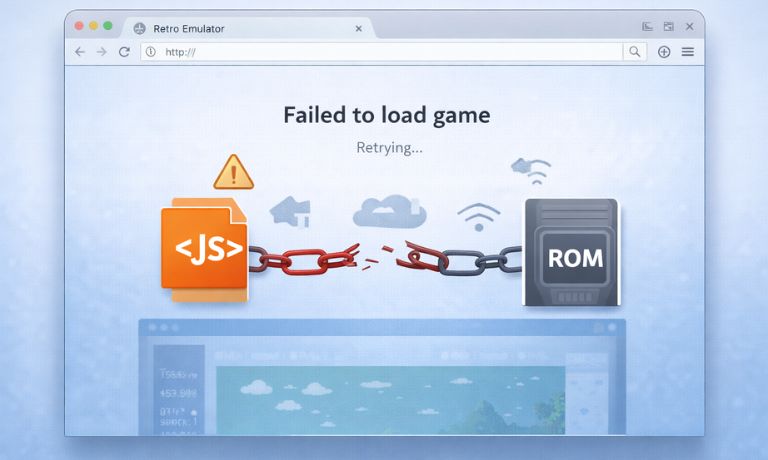
The error appears when the emulator fails to connect to its resources, like the ROM file, a JavaScript module, or the canvas engine.
It usually happens when:
- The game file (ROM) fails to download
- The emulator script doesn’t load due to a blocked connection
- A browser extension (like an ad blocker) prevents the emulator from running
- A WebSocket connection fails which emulators often use to stream ROM data or sync input
This is not a game bug. It’s either a browser/network issue or a server-side failure from ClassicGames.me’s side.
Common Causes of the Error
Understanding what causes the network error helps you pick the right fix. Here’s what most users run into:
- Server Downtime: ClassicGames.me may be offline or overloaded. This is common when the site has traffic spikes.
- Ad Blockers or Extensions: Many browser tools block scripts, emulator code, or even ROM file links.
- Browser Cache Corruption: Old or damaged cache can stop the emulator from loading fully.
- Poor Internet Connection: Slow or unstable networks may cause timeout errors during game load.
- Disabled JavaScript or WebGL: The site relies on these technologies to run games.
- Firewall or Antivirus Blocking the Site: Some security tools flag game scripts as suspicious.
These are the most common sources of this problem, and luckily, most of them are fixable on your end.
Fixes for ClassicGames.me Network Error
Try each fix step-by-step. You don’t have to do them all, just go until one works.
Fix #1 – Refresh the Page or Use Incognito Mode
Sometimes, the emulator or ROM just fails to load once. A page refresh can trigger a successful connection the second time. If that doesn’t help, open the site in Incognito or Private Mode, which disables most extensions and loads everything fresh.
Incognito is especially useful if the problem comes from a cached script or a blocking extension.
Fix #2 – Turn Off Ad Blockers or Browser Extensions
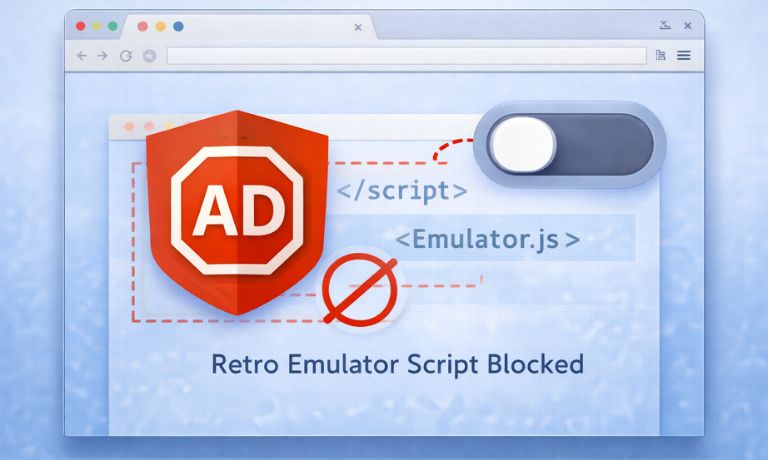
ClassicGames.me depends on JavaScript files and remote ROM loading, which many privacy-focused extensions block by default. Even if you don’t see ads, the emulator may still be getting blocked in the background.
Steps:
- Go to your browser’s extensions list
- Temporarily disable ad blockers (like uBlock Origin, AdGuard, etc.)
- Refresh ClassicGames.me
- Try launching a game again
If it works after this, you can whitelist the site in your extension settings to avoid turning everything off in the future.
Fix #3 – Clear Your Browser Cache
A corrupted or outdated cache can prevent the site from loading new scripts or game files correctly. Even if the page loads, the emulator might be stuck using broken files.
How to do it:
- Open your browser settings
- Go to Privacy > Clear Browsing Data
- Select only Cached images and files
- Click Clear Data
- Close and reopen the browser
- Visit ClassicGames.me again
This helps reset any broken scripts or stored emulator sessions.
Fix #4 – Switch Browsers
If nothing loads in your current browser, try a different one. Some browsers have tighter security or don’t fully support emulator engines.
Test ClassicGames.me in:
- Firefox
- Microsoft Edge
- Brave
- Safari (if on macOS)
This helps confirm if the problem is browser-specific. Some users report issues only in Chrome with certain extensions or settings active.
Fix #5 – Check Your Internet Connection
The emulator and game files are loaded directly from a CDN or external server. If your network is slow or unstable, the connection may fail before the file loads.
Try:
- Restarting your router
- Switching to a mobile hotspot or different Wi-Fi
- Testing your speed at fast.com or speedtest.net
- Avoid streaming or downloads while loading the site
Even a short lag can stop the ROM from loading fully, which causes the network error.
Fix #6 – Make Sure JavaScript and WebGL Are Enabled
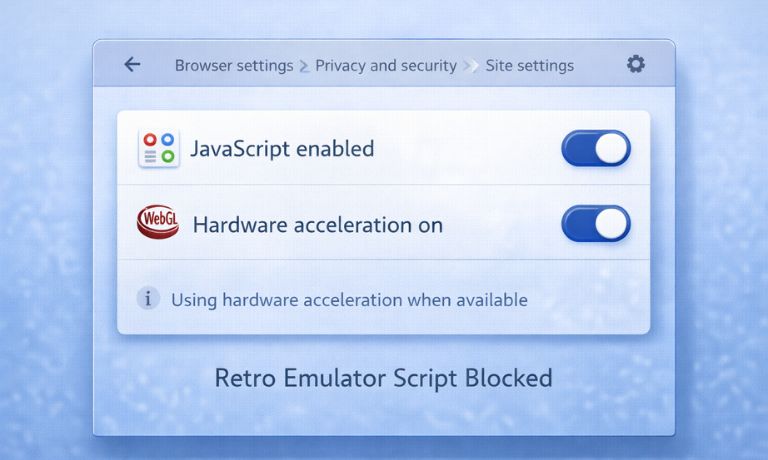
ClassicGames.me needs JavaScript to load the emulator and WebGL/Canvas to render the game in your browser. If either is disabled or blocked, the emulator won’t work.
To check:
- Open browser settings
- Make sure JavaScript is enabled
- Make sure Hardware Acceleration is on (this enables WebGL)
- Restart your browser after making changes
If you’re using strict security or privacy settings, try relaxing them for the site or switching to Incognito.
How to Know If the Site Is Down (And Not You)
If none of the fixes work, the issue might be on the server side. To check:
- Go to https://downforeveryoneorjustme.com and type in ClassicGames.me
- Check the browser Console (F12) for red errors, especially failed file loads or timeout errors
- Look up Reddit, Discord servers, or forums, other users often report downtime fast
If others are having the same issue, it’s likely a temporary server outage. There’s nothing to fix on your end, just wait and try again later.
Prevention Tips (Keep the Site Working Smoothly)
- Keep your browser updated
- Whitelist ClassicGames.me in ad blockers and antivirus tools
- Use fast, stable internet
- Clear cache regularly (monthly)
- Don’t disable JavaScript or WebGL
- Avoid using strict privacy extensions while gaming
These tips help the site load cleanly and prevent errors before they start.
Conclusion
The ClassicGames.me Network Error happens when your browser or network blocks the game from loading. Most of the time, it’s something small, an extension, a cache issue, or a slow connection.
Follow the fixes one by one. If nothing works, it’s probably a problem on the server side. That happens sometimes, and you’ll just need to wait.
Once it’s fixed, everything should work as normal, no progress lost, no reloading required. If this guide helped, share it. Still not working? Drop a comment or try another browser to see if that solves it.

I’ve been into SEO and blogging for over 7 years. I help websites show up higher on search engines. I really enjoy writing helpful guides, especially about gaming and tech stuff.
