
You launch Blue Protocol, the game starts loading, and then nothing happens. The screen stays stuck, the loading bar does not move, and you never reach the game world. This feels frustrating because the launcher opens fine, but the game itself refuses to continue. When this happens again and again, it makes the game feel broken.
This guide explains what it means when Blue Protocol gets stuck on the loading screen, where the issue appears, why it happens, how to fix it step by step, and how to avoid it in the future.
What Does “Stuck on Loading Screen” Mean in Blue Protocol?
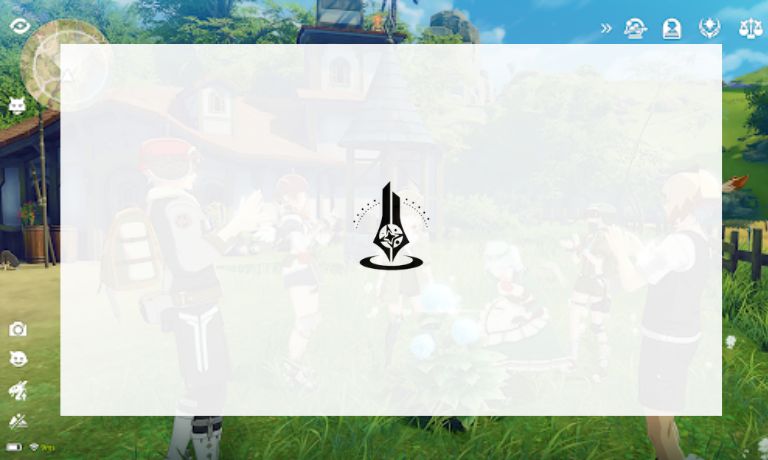
When Blue Protocol is stuck on the loading screen, it means the game client cannot finish loading required data from servers or local files. Blue Protocol is an online RPG, so it must verify your account, connect to game servers, and load world data before gameplay starts. If any part of this process fails, the game stays on the loading screen instead of moving forward.
This issue usually appears after login or when entering the game world. Some players see an endless loading animation. Others get a black screen after loading starts. The problem can occur during first launch or after updates, depending on server load and system setup.
Common Causes of Blue Protocol Stuck on Loading Screen
This issue can happen for several reasons related to servers, network, or local system files. Below are the most common causes.
- Blue Protocol servers are overloaded or offline
- Account authentication delay
- Internet connection instability
- DNS or routing problems
- Corrupted or missing game files
- Firewall or antivirus blocking the game
- Outdated system drivers
How to Fix Blue Protocol Stuck on Loading Screen?
Blue Protocol loading issues usually happen when the game cannot complete server checks or load required files. The fixes below focus on server status, network stability, and game file health. Apply each fix one by one.
After every fix, restart the game and check if it loads properly.
Fix #1: Check Blue Protocol Server Status
If Blue Protocol servers are offline or under heavy load, the game may stay stuck on the loading screen. When servers cannot respond correctly, the client keeps waiting and never finishes loading.
Follow the steps below to check the server status.
- Open a web browser
- Visit official Blue Protocol pages
- Check Bandai Namco announcements
- Look for maintenance updates
- Review recent server outage posts
If servers are down, wait until service is restored.
Fix #2: Restart Game, Launcher, and System
Temporary system data or stuck background services can prevent Blue Protocol from loading correctly. When the game runs for long periods or closes improperly, cached sessions may block the next launch. Restarting clears memory, resets background processes, refreshes the launcher, and rebuilds temporary network sessions used during login. This fix is especially useful when the game worked earlier and suddenly stopped loading without any updates or changes.
Close Blue Protocol completely, exit the launcher, restart your PC, then open the launcher again and start the game fresh.
Fix #3: Check Internet Connection Stability
An unstable internet connection can interrupt server communication while the game loads. Small drops or packet loss can freeze the loading screen even if the connection seems active.
Pause downloads, avoid streaming apps, and use a wired connection if possible before launching the game again.
Fix #4: Disable VPN or Proxy
VPNs and proxy services can route traffic through regions not supported by Blue Protocol. This can block server authentication and cause loading to stall.
Follow these easy instructions to disable VPN or proxy services.
- Close Blue Protocol
- Open your VPN or proxy app
- Disconnect from the active server
- Exit the app completely
- Open network settings
- Make sure no proxy is enabled
Restart the game after disabling.
Fix #5: Allow Blue Protocol Through Firewall
Firewall or antivirus software can block game traffic. When blocked, Blue Protocol cannot finish loading server data.
Here are the following steps which help you allow the game through the firewall.
- Open Windows Security
- Go to Firewall and network protection
- Click Allow an app through firewall
- Select Change settings
- Find Blue Protocol in the list
- Allow both private and public access
- Save changes and restart the game
This restores server access.
Fix #6: Verify Game Files
Corrupted or missing files can stop the game from loading properly, especially after updates or crashes.
Follow the steps below to verify game files.
- Open the game launcher
- Go to your library
- Select Blue Protocol
- Open game settings
- Choose Verify or Repair files
- Wait for the scan to complete
Launch the game again after verification.
Fix #7: Clear Game Cache
Old cache files can conflict with new updates and cause loading freezes.
Perform the following steps carefully to clear the game cache.
- Close the game and launcher
- Open the game cache folder
- Delete temporary cache files
- Restart your PC
- Launch Blue Protocol again
Fix #8: Update System and Drivers
Outdated system files or graphics drivers can cause compatibility issues during loading.
Follow these steps to update your system and drivers.
- Check for system updates
- Install all pending updates
- Update graphics drivers
- Restart your PC
- Launch the game again
Updated systems run more smoothly.
Fix #9: Reinstall Blue Protocol
If none of the fixes work, the game installation may be damaged beyond repair.
Here are the following steps which help you reinstall the game.
- Uninstall Blue Protocol
- Restart your PC
- Download the latest version
- Install the game again
- Launch and test loading
This is the final solution.
Prevention Tips to Avoid Blue Protocol Loading Screen Issues
Prevention helps reduce repeat issues and saves time later. These habits improve stability.
- Keep Blue Protocol updated
- Avoid VPNs while playing
- Restart your router weekly
- Use a stable internet connection
- Allow the game through firewall
- Close background apps
- Monitor server announcements
Conclusion
In short, Blue Protocol stuck on loading screen means the game cannot complete server or file checks. This usually happens because of server load, network instability, or corrupted game data. While the issue looks serious, most players fix it with simple steps.
Try the fixes one by one and follow the prevention tips to avoid future problems. If the issue continues, contact Bandai Namco support with your system details. If this article helped you, leave a comment and share it with other Blue Protocol players who may be stuck on the same screen.

I’ve been into SEO and blogging for over 7 years. I help websites show up higher on search engines. I really enjoy writing helpful guides, especially about gaming and tech stuff.
