
You launch the game, everything looks fine, and then it suddenly crashes with a fatal error. That moment is annoying, especially when you just want to play. The Half Sword fatal error matters because it can stop the game from opening, crash it during loading, or close it in the middle of a fight. When this happens, progress stops and time feels wasted.
This guide helps you understand what the error means, why it happens, how it is usually fixed, and what you can do to stop it from coming back.
What Is the Half Sword Fatal Error?
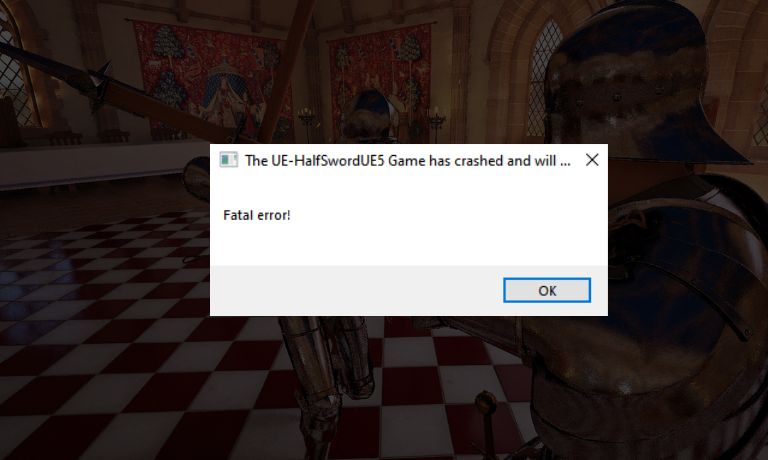
The Half Sword fatal error means the game runs into a critical problem it cannot recover from. When this happens, the system forces the game to close to avoid further damage or instability. This does not automatically mean your computer is broken. In most cases, it points to a software conflict, missing files, or a compatibility issue between the game and your system.
Players usually see this error while running Half Sword on Windows. It can appear when launching the game, during loading screens, or suddenly while playing. The crash often happens without warning, which makes it feel random.
Common Causes of Half Sword Fatal Error
This error can appear for different reasons, and the exact cause depends on your system setup and how the game runs. Sometimes the problem comes from drivers or missing files. Other times, background software interferes with the game. Knowing the common causes helps you avoid guessing.
Common causes include:
- Outdated or incompatible graphics drivers
- Missing or corrupted game installation files
- Low system memory or unsupported hardware
- Problems with DirectX or Visual C++ components
- Conflicts with background apps or game overlays
- Antivirus or firewall blocking game files
- Bugs in early or unstable game builds
How to Fix Half Sword Fatal Error?
This fatal error usually appears when something goes wrong between the game, your system, and required game files or drivers. Sometimes the issue comes from missing files. Other times, Windows settings or background apps cause trouble. Go through the fixes below one by one. After each fix, launch the game again and check if the crash stops.
Fix #1: Restart the Game and Steam Client
Small glitches can build up when the game or Steam runs for a long time. Restarting clears temporary memory and resets background processes. Close the game fully, exit Steam, wait a few seconds, then open Steam again and launch Half Sword. In many cases, the fatal error disappears after a clean restart.
Fix #2: Verify Half Sword Game Files on Steam
Missing or corrupted files are a common cause of fatal errors. Verifying game files checks the installation and replaces anything broken.
Follow the steps below to verify game files:
- Open Steam
- Go to Library
- Right-click Half Sword
- Select Properties
- Open Installed Files
- Click Verify integrity of game files
Once Steam finishes, launch the game again.
Fix #3: Update Your Graphics Drivers
Outdated or incompatible graphics drivers can crash games without warning. Half Sword relies on proper GPU support to run smoothly. Updating drivers helps fix compatibility problems and stability issues.
Check your GPU brand, download the latest driver from the official site, install it, then restart your PC before launching the game again.
Fix #4: Run the Game as Administrator
Sometimes Windows blocks game files from accessing required system resources. Running the game as administrator gives it proper permissions.
You can try this by closing the game, locating the game executable, right-clicking it, selecting Run as administrator, and then starting the game normally. This often fixes crashes caused by permission limits.
Fix #5: Disable Overlays and Background Applications
Overlays and background apps can interfere with how the game runs. Programs like screen recorders, FPS counters, or chat overlays sometimes conflict with game engines.
Before launching the game, close unnecessary background apps and disable overlays in Steam or other software. Once the system runs lighter, the fatal error may stop appearing.
Fix #6: Check DirectX and Visual C++ Components
Half Sword depends on DirectX and Visual C++ files to run correctly. If these components are missing or outdated, the game can crash at launch or during loading.
Make sure DirectX is installed and Visual C++ Redistributable packages are present on your system. Reinstalling these components often fixes fatal errors related to system libraries.
Fix #7: Lower Graphics Settings or Resolution
High graphics settings can overload some systems, especially if hardware is near the minimum requirement. When the game pushes the system too hard, it can crash.
Lower the resolution and graphics settings from the game options, then restart the game. If the crash stops, you can slowly increase settings later to find a stable balance.
Prevention Tips to Avoid Half Sword Fatal Error in the Future
Preventing fatal errors saves time and avoids repeated crashes. Small habits can make games more stable, especially titles that are still being updated. You do not need advanced tools. Simple care helps the most.
Here are easy prevention tips you can follow:
- Keep your graphics drivers updated
- Update Windows regularly
- Verify game files after major updates
- Avoid heavy background applications while playing
- Disable unnecessary overlays
- Watch for official game patches or updates
Conclusion
In short, the Half Sword fatal error means the game hits a critical problem and cannot continue running. The issue often comes from drivers, game files, system conflicts, or unfinished game updates. Most causes are common and manageable.
If the error keeps happening, take things step by step instead of rushing. Use prevention habits and wait for official fixes when needed. If this guide helped you, share it with other players and leave a comment about what worked on your system.

I’ve been into SEO and blogging for over 7 years. I help websites show up higher on search engines. I really enjoy writing helpful guides, especially about gaming and tech stuff.
