
Seeing “No Config URL Available for the Current Service” in OBS Studio can stop your stream before it even starts. You click Start Streaming, and nothing connects. OBS fails to retrieve the server details it needs. This usually happens when the streaming service settings are wrong or authentication fails. Whether you stream on Twitch, YouTube Live, Kick, or a custom RTMP server, this error blocks the connection.
In this guide, you’ll learn what it means, why it appears, how to fix it with 7 clear solutions, and how to prevent it.
What Is OBS No Config URL Available Error?
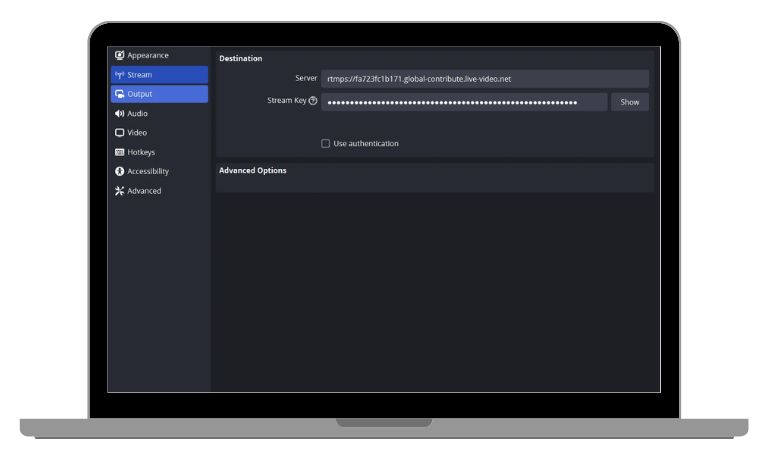
OBS Studio connects to platforms like Twitch and YouTube using a configuration URL linked to an RTMP ingest server. When you select a streaming service inside OBS Settings, the software attempts to fetch the correct server endpoint. If OBS cannot retrieve this configuration URL, it cannot map the stream key to the right ingest server. That stops the connection immediately. This may happen due to authentication failure, incorrect service selection, expired OAuth login, invalid stream key, or network problems. Without a valid server URL, OBS has no destination for your broadcast data.
You usually see this message in the Stream tab inside OBS Settings or when clicking Start Streaming. It may also appear after reconnecting your account or switching streaming platforms.
Common Causes of OBS No Config URL Available
This error often relates to streaming service configuration or network restrictions. Below are the most common causes.
- Wrong streaming service selected in OBS Studio
- Expired or incorrect stream key
- OBS Studio not updated to the latest version
- OAuth account authentication failure
- Internet connection or DNS issue
- Firewall blocking OBS network access
- Custom RTMP selected without proper server URL
If any of these occur, OBS cannot retrieve the service configuration.
How to Fix OBS No Config URL Available for the Current Service?
To resolve this issue efficiently, review your streaming service settings and account connection. In most cases, one of the fixes below restores proper server configuration.
Fix #1: Select the Correct Streaming Service
Choosing the wrong platform prevents OBS from loading the correct ingest server.
Follow the steps below to easily select the correct service.
- Open OBS Studio.
- Click Settings.
- Go to the Stream tab.
- Check the Service dropdown menu.
- Select Twitch, YouTube, Kick, or your correct platform.
- Click Apply and restart OBS.
Selecting the correct platform allows OBS to fetch the proper configuration URL.
Fix #2: Re-enter or Regenerate Stream Key
An invalid stream key breaks the link between OBS and the streaming platform.
Here are the following steps which help you to regenerate the stream key.
- Log in to your streaming platform dashboard.
- Go to Stream Settings.
- Generate a new stream key.
- Copy the new key.
- Paste it into OBS under Stream Key.
- Click Apply and try streaming again.
A fresh key often resolves connection errors.
Fix #3: Reconnect Account Using OAuth
If you logged in through account authentication, the session may have expired.
Try these simple steps to reconnect your account.
- Open OBS Settings.
- Go to Stream.
- Click Disconnect next to your account.
- Click Connect Account.
- Log in again through the browser popup.
Once authentication refreshes, OBS can fetch the server endpoint again.
Fix #4: Update OBS Studio
An outdated OBS version may fail to communicate with updated streaming APIs. Open the Help menu and check for updates. Install the latest version of OBS Studio. Restart your computer after updating. New versions include service compatibility updates and bug fixes. If your streaming platform changed its API recently, updating OBS is often necessary.
Fix #5: Check Internet and DNS Connection
Network instability can prevent OBS from retrieving the configuration URL.
The following steps will show you how to check your connection properly.
- Open a web browser and test internet access.
- Restart your router.
- Disable any custom DNS temporarily.
- Flush DNS using Command Prompt if needed.
- Restart OBS after reconnecting.
Stable internet is required for service endpoint retrieval.
Fix #6: Disable Firewall or Add OBS Exception
Windows Firewall or macOS security settings may block OBS from accessing the network.
Perform the following steps carefully to allow OBS access.
- Open Windows Security or macOS Firewall settings.
- Locate Firewall options.
- Add OBS Studio to allowed apps.
- Save changes.
- Restart OBS and test streaming again.
If OBS cannot access outbound traffic, it cannot retrieve server configuration.
Fix #7: Manually Configure Custom RTMP Server
If you selected Custom streaming service, OBS requires a manual server URL.
Follow these easy instructions to configure RTMP properly.
- Open OBS Settings.
- Go to Stream.
- Select Custom under Service.
- Enter the correct RTMP server URL.
- Paste the stream key.
- Click Apply and test stream.
Without both server URL and stream key, OBS cannot connect.
Prevention Tips to Avoid OBS No Config URL Available Error in Future
Preventing this error helps ensure smooth streaming sessions. Because OBS depends on proper service configuration and stable network access, keeping settings updated reduces connection failures.
- Keep OBS Studio updated
- Use official account connection instead of manual keys when possible
- Verify stream key after changing passwords
- Avoid switching services without updating settings
- Maintain stable internet connection
- Allow OBS in firewall settings
- Test your stream before going live
Conclusion
In short, OBS shows “No Config URL Available for the Current Service” when it cannot retrieve a valid server endpoint. This usually happens due to wrong service selection, expired stream key, authentication issues, network problems, or firewall restrictions. Without a valid ingest server URL, OBS cannot start streaming.
Work through the fixes step by step. Most users solve the issue by reconnecting their account or updating OBS. If the problem continues, check the official support page of your streaming platform. If this guide helped you, leave a comment and share it with other streamers facing the same issue.

I’ve been into SEO and blogging for over 7 years. I help websites show up higher on search engines. I really enjoy writing helpful guides, especially about gaming and tech stuff.
