
You open League of Legends, ready to queue up, and suddenly you see the message: “Sorry, we’ve detected a problem with your installation.” It stops the Riot Client from launching the game, and that feels annoying, especially after a patch update. This error usually points to broken or missing game files on your Windows PC.
In this guide, you’ll learn what the message means, why it appears, and how to fix it using 7 clear solutions.
What Does This League of Legends Installation Error Mean?
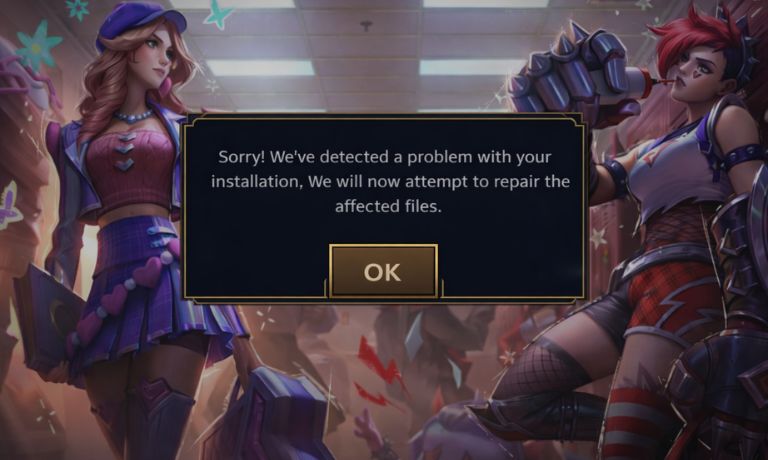
This error means the Riot Client cannot verify the game files inside your League of Legends installation folder. When Riot Games pushes a patch update, the client checks file integrity before launching. If some files are missing, corrupted, or blocked by Windows Defender or antivirus software, the verification fails.
Sometimes Riot Vanguard, which runs as an anti-cheat service in the background, also affects how the game loads. The issue usually stays on your local system, not on Riot servers. That means your internet might be fine, but your installation directory has a problem.
You often see this error after a patch download, during file verification, or right when launching the League client from the Riot Games launcher.
Common Causes of the Installation Problem
This issue happens for technical reasons linked to corrupted files or system conflicts.
- Corrupted League of Legends game files in the installation directory
- Interrupted patch update due to unstable internet
- Riot Client background service failing to start
- Riot Vanguard not running properly in Windows Services
- Windows Defender Firewall blocking game files
- Antivirus software deleting key installation components
- Low disk space or damaged hard drive sectors
How to Fix the League of Legends Installation Error
Fixing this error depends on whether the problem comes from broken files, permissions, or Riot services. In most cases, players solve it without reinstalling Windows. Try the fixes below one by one.
Fix #1: Restart Riot Client and Your PC
Sometimes the Riot Client or Vanguard service gets stuck in memory. Try these simple steps to quickly restart Riot Client properly.
- Close the Riot Client completely
- Open Task Manager
- End all Riot and League processes
- Restart your computer
- Launch Riot Client again
This refreshes background services and clears temporary conflicts.
Fix #2: Run League of Legends as Administrator
Windows permissions sometimes block file access inside the game folder. Follow the steps below to easily run League as Administrator.
- Right-click the League of Legends shortcut
- Select Run as Administrator
- Confirm the User Account Control prompt
- Wait for the Riot Client to open
- Attempt to launch the game
Administrator access allows the game to modify and verify its installation files.
Fix #3: Use Hextech Repair Tool
Riot Games provides an official tool called the Hextech Repair Tool. It scans and repairs corrupted League files.
Here’s how you can use the Hextech Repair Tool in just a few steps.
- Download the tool from the official Riot Games support page
- Install and open it
- Select Force Repatch
- Allow the scan to complete
- Restart your PC
This tool checks file integrity and replaces damaged files automatically.
Fix #4: Check Riot Vanguard Service
Riot Vanguard must run correctly for the game to launch. Perform the following steps carefully to check Vanguard service.
- Press Windows + R
- Type services.msc and press Enter
- Find Vanguard service in the list
- Make sure it is running
- Set Startup Type to Automatic
If Vanguard is disabled, the game may not verify installation correctly.
Fix #5: Disable Antivirus or Firewall Temporarily
Security software may block League of Legends files during patch updates. Windows Defender or third-party antivirus tools sometimes quarantine game components.
Open your antivirus dashboard and temporarily disable protection. Then try launching League again. If it works, add League of Legends and Riot Client to the allowed list before turning protection back on.
Fix #6: Repair Game Files Through Riot Client
The Riot Client includes a built-in repair option. The following steps will show you how to repair League files properly.
- Open Riot Client
- Click the settings icon
- Locate the Repair option
- Start file verification
- Wait until the process finishes
This process rechecks installation files and replaces missing components.
Fix #7: Reinstall League of Legends Completely
If the error continues, a clean reinstall often fixes deep corruption. These are the exact steps you need to follow to reinstall League successfully.
- Uninstall League of Legends from Control Panel
- Delete leftover folders in Program Files and AppData
- Restart your computer
- Download the latest installer from the official Riot Games website
- Install the game again
- Launch and test
A fresh installation removes broken files that repairs cannot fix.
Prevention Tips to Avoid Installation Errors in the Future
Preventing this error saves time and frustration. Simple follow given tips:
- Keep Windows 10 or Windows 11 updated
- Maintain stable internet during patch downloads
- Avoid force closing Riot Client during updates
- Allow League through firewall settings
- Keep enough free disk space on your hard drive or SSD
- Restart your PC after major updates
- Avoid modifying game files manually
Conclusion
In short, the “Sorry, we’ve detected a problem with your installation” message usually appears because of corrupted game files, interrupted patch updates, Riot Vanguard issues, or security software conflicts. The problem is typically local to your Windows system and can be fixed with repair tools or reinstall steps.
Try each fix carefully and check the result before moving to the next one. If the issue continues, contact Riot Games Support for official assistance.
If this guide helped you, share it with other League players and leave a comment about which fix worked for you.

I’ve been into SEO and blogging for over 7 years. I help websites show up higher on search engines. I really enjoy writing helpful guides, especially about gaming and tech stuff.
