
What Does “A Device Which Does Not Exist Was Specified” Mean?
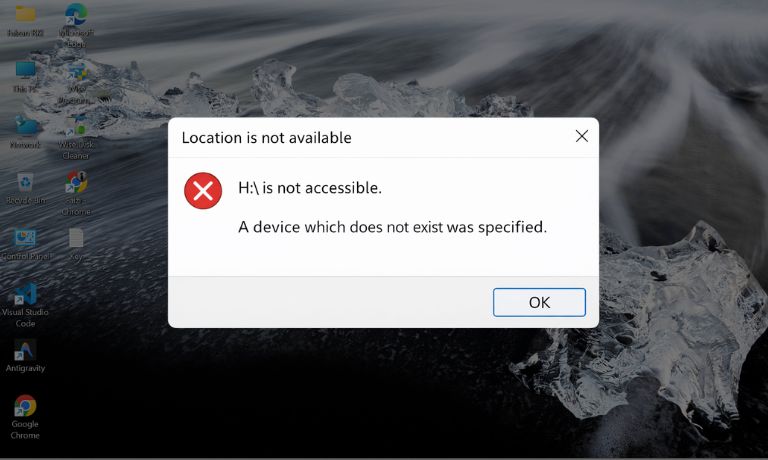
In Microsoft Windows, this message appears when the operating system tries to access a storage device but fails to communicate with it properly. The system may detect the device in Disk Management or File Explorer, but it cannot read the data stored on the disk. This problem usually occurs when the storage controller, file system, or device connection becomes unstable. When Windows attempts to perform a file operation such as copying, reading, or installing data, the process fails and the error message appears.
Most users see the error while opening a disk volume in Windows File Explorer or using Command Prompt commands that access storage drives.
Common Causes of This Error
Several factors can interrupt communication between Windows and a storage device. Sometimes the issue comes from hardware connections, while other cases involve file system corruption or outdated drivers.
Below are the most common causes you should know.
- corrupted disk partition or damaged file system
- bad sectors on a hard disk drive or storage device
- loose or damaged USB or SATA cable
- outdated storage controller drivers
- failing storage hardware
- insufficient power for external hard drives
- corrupted NTFS or FAT32 file system
- temporary Windows system glitch
For example, if the storage device contains damaged sectors, Windows may fail to read the data stored there. When the system attempts to access the disk, it reports the device error.
How to Fix “A Device Which Does Not Exist Was Specified” in Windows?
In many cases the error appears due to temporary communication problems or storage corruption. The solutions below focus on reconnecting the device, repairing the disk structure, and restoring normal access.
To resolve this issue efficiently, try the following fixes.
Fix 1 – Restart the Computer
Temporary system processes sometimes interfere with disk access operations. Restarting Windows refreshes the hardware connection and reloads storage drivers.
Follow the steps below to restart the system.
- Save any open work on your computer
- Open the Windows Start menu
- Click the power icon
- Select Restart
- After reboot, try accessing the drive again
A simple restart often clears temporary system errors.
Fix 2 – Reconnect the Storage Device
Loose or unstable connections between the computer and the storage device can cause communication failures.
Here are the following steps which help you reconnect the storage device.
- Disconnect the external drive from the computer
- Inspect the USB or SATA cable for damage
- Wait a few seconds before reconnecting the device
- Connect the drive securely to the computer
- Try accessing the files again in File Explorer
Stable hardware connections improve device detection.
Fix 3 – Run the CHKDSK Command
The CHKDSK utility checks the storage drive for file system errors and bad sectors.
Follow these steps to run CHKDSK.
- Open the Start menu and search for Command Prompt
- Run Command Prompt as administrator
- Enter the command to scan and repair the drive
- Press Enter to begin the scan
- Wait for Windows to complete the repair process
CHKDSK often repairs corrupted partitions and restores disk access.
Fix 4 – Update Storage Drivers
Outdated storage drivers can interrupt communication between Windows and the storage device.
Follow the steps below to update drivers.
- Open Device Manager on your computer
- Locate the storage controllers section
- Right-click the storage device driver
- Select Update Driver
- Install the latest available version
Updated drivers help maintain stable communication with storage hardware.
Fix 5 – Check Disk Using Windows Tools
Windows includes built-in tools that scan drives for logical errors.
The following steps will show you how to check the disk properly.
- Open File Explorer
- Right-click the affected drive
- Select Properties
- Open the Tools tab
- Run the error-checking tool
This process helps repair minor file system problems.
Fix 6 – Try a Different USB Port
Sometimes the issue occurs because the USB port cannot provide stable communication.
Follow these easy instructions to test another port.
- Disconnect the external drive
- Locate another USB port on the computer
- Connect the storage device to the new port
- Wait for Windows to detect the drive
- Attempt to open the device again
A working port may restore normal drive access.
Fix 7 – Use Data Recovery Software
If the drive remains inaccessible, specialized data recovery software may retrieve important files.
Perform the following steps carefully to recover data.
- Install reliable file recovery software
- Launch the program
- Select the affected storage device
- Start a deep scan for lost files
- Recover accessible data to another drive
Recovery software may retrieve files even from damaged disks.
Fix 8 – Replace the Storage Device
If the error appears repeatedly, the storage device may be failing. Mechanical hard drives often develop bad sectors or hardware wear over time.
These are the exact steps you need to follow to protect your data.
- Back up all accessible files immediately
- Avoid further use of the failing drive
- Purchase a replacement storage device
- Transfer recovered data to the new drive
- Monitor the new device with disk health tools
Replacing faulty hardware prevents further data loss.
Prevention Tips to Avoid Device Errors
Storage device errors can often be avoided through proper maintenance and careful usage. Following good storage practices helps reduce the risk of disk corruption.
Here are some helpful prevention tips you can follow.
- back up important files regularly
- safely eject external drives before disconnecting them
- maintain stable power supply for external drives
- keep storage drivers updated
- monitor disk health using diagnostic tools
- replace aging drives before failure
- use high quality USB and SATA cables
Maintaining a healthy storage environment helps prevent device access problems.
Conclusion
The “a device which does not exist was specified” error usually occurs when Windows cannot communicate with a storage device correctly. Common causes include corrupted file systems, damaged disk sectors, unstable hardware connections, or failing storage drives. By checking connections, running disk repair tools, and updating drivers, many users can restore access to their data.
If the problem continues after troubleshooting, the safest option is to recover your files and replace the storage device. If this guide helped solve your issue, consider sharing your experience in the comments so others facing the same error can benefit from your solution.

I’ve been into SEO and blogging for over 7 years. I help websites show up higher on search engines. I really enjoy writing helpful guides, especially about gaming and tech stuff.
