
It can feel annoying when your Redtiger 4K dash cam stops working, especially when the front or rear camera fails during a drive. You expect it to record everything clearly, but instead you get no video, a blank screen, or missing footage. This matters because a dash cam helps with safety, evidence, and daily driving peace of mind.
In this guide, you will learn what the problem means, why it happens, how to fix it, and how to prevent it from coming back again.
What does “Redtiger dash cam not working” mean?
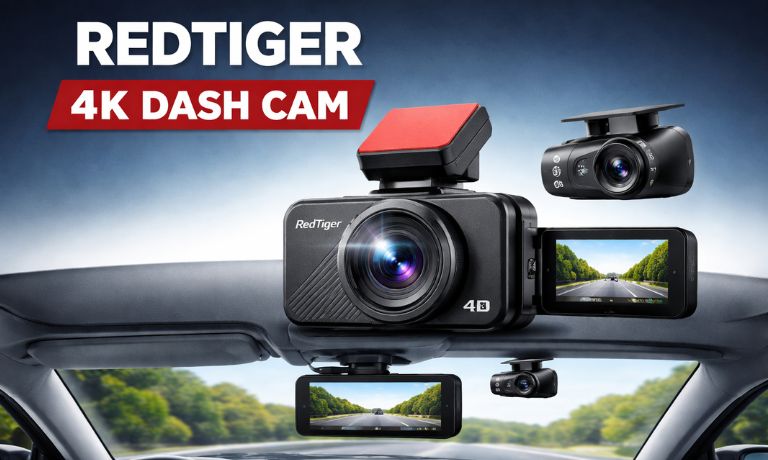
When a Redtiger 4K dash cam does not work, it usually means the device is not recording video, not showing the front or rear camera feed, or not turning on at all. The dash cam system may fail to detect the rear camera, or the front camera may stop saving video files to the microSD card. In some cases, the screen display may stay black, freeze, or only show one camera view instead of both. This problem can affect loop recording, video playback, and overall camera performance inside your vehicle.
You will usually notice this issue on the dash cam screen display, during driving, or when checking recorded footage on the memory card. Some users see it when the rear camera does not appear, while others notice missing files during playback or an SD card error message.
Common causes of Redtiger dash cam not working
This issue can happen due to power problems, storage errors, or connection faults. Below are the most common causes you should check.
- Loose or damaged rear camera cable that interrupts the video signal
- Faulty power adapter or weak voltage from the car battery
- Unsupported or corrupted microSD card that cannot store recordings
- Incorrect recording settings inside the dash cam menu
- Outdated firmware causing system bugs or camera errors
- Improper installation of the rear camera or wiring
- Overheating or unstable temperature inside the vehicle
How to fix Redtiger 4K dash cam not working?
In most cases, you can fix this issue by checking the power supply, camera connections, storage card, and system settings step by step. Sometimes the problem is simple, like a loose cable. Other times, it may need a reset or firmware update.
Fix #1: Check the power connection
This issue often starts with power. If the dash cam is not getting stable power from the cigarette lighter adapter or hardwire kit, it may not turn on or may shut down randomly. Once the device receives proper voltage from the car battery, it can start recording normally again.
Follow the steps below to easily check the power connection.
- Make sure the power cable is firmly plugged into the dash cam
- Check the cigarette lighter adapter or USB port
- Turn on the car ignition
- Look for any loose or damaged wires
- Try another power port if available
- Watch the screen for power response
- Confirm the device starts recording
Fix #2: Reconnect the rear camera cable
A common issue is a loose or damaged rear camera cable. If the cable is not properly connected, the dash cam may not detect the rear camera at all. Once the connection is secure, the rear view should appear again on the display.
Here are the following steps which help you to reconnect the rear camera cable.
- Locate the rear camera cable
- Disconnect it carefully from the main unit
- Check for bends or damage in the wire
- Reconnect it firmly into the port
- Turn on the dash cam
- Check the screen display
- Confirm both cameras are visible
Fix #3: Format or replace the microSD card
The dash cam depends on a microSD card to store video files. If the card is corrupted, full, or not compatible, recording may stop completely. Once you format or replace the memory card, the device can start saving new footage again.
You can perform the following steps to format the microSD card.
- Insert the microSD card into the dash cam
- Open the settings menu
- Find the format option
- Select format memory card
- Confirm the action
- Wait for the process to finish
- Restart the dash cam
Fix #4: Check camera and recording settings
Sometimes the issue is not hardware. It comes from incorrect settings inside the dash cam system. Recording options, camera mode, or display settings may be disabled or misconfigured. When corrected, the dash cam can resume normal operation.
Try these simple steps to quickly check camera settings.
- Open the dash cam settings menu
- Go to recording settings
- Ensure loop recording is enabled
- Check front and rear camera options
- Verify resolution settings
- Save changes
- Restart the device
Fix #5: Restart the dash cam
Sometimes the system freezes or stops responding. A simple restart can refresh the device and clear temporary glitches. This helps the dash cam reconnect to the camera system and storage.
Here’s how you can restart the dash cam in just a few seconds.
- Turn off the dash cam
- Disconnect the power cable
- Wait for a few seconds
- Reconnect the power
- Turn the device back on
- Wait for it to load
- Check recording status
Fix #6: Update firmware
Outdated firmware can cause bugs, camera errors, or recording issues. A firmware update can fix known problems and improve system stability. After updating, the dash cam may detect the rear camera and record properly again.
Follow these easy instructions to update firmware without confusion.
- Visit the official Redtiger support page
- Download the latest firmware file
- Copy the file to the microSD card
- Insert the card into the dash cam
- Turn on the device
- Allow the update to install
- Restart the dash cam
Fix #7: Inspect the rear camera hardware
If the rear camera still does not work, the hardware itself may be damaged. The lens, cable, or internal sensor may have a fault. In that case, the dash cam cannot receive a proper video signal.
Check the camera physically. Look for cracks, cable wear, or connection damage. If you see clear damage, the rear camera may need replacement or repair through Redtiger support.
Fix #8: Perform a factory reset
If nothing else works, the system settings or sync between components may be broken. A factory reset clears all settings and restores the dash cam to its original state. After reset, the system can rebuild its configuration.
These are the exact steps you need to follow to reset the dash cam successfully.
- Open the settings menu
- Find the reset option
- Select factory reset
- Confirm the action
- Wait for the device to restart
- Set up the dash cam again
- Test both front and rear cameras
Prevention tips to avoid dash cam issues
Simple habits can help keep your Redtiger dash cam working properly and avoid future problems.
- Use a high-quality microSD card that supports 4K recording
- Keep firmware updated to avoid bugs
- Check power cables and connections regularly
- Avoid extreme heat inside the car
- Install the rear camera correctly
- Restart the device occasionally
- Monitor recording status from time to time
Final thoughts
In short, this issue means your dash cam is not recording or detecting the front and rear cameras correctly. Most of the time, the problem comes from power issues, cable connections, SD card errors, wrong settings, or outdated firmware. These are common and fixable problems if you go step by step.
Try each fix carefully and check the device after every step. If the problem still does not go away, contact Redtiger support or use the product warranty for help. If this guide helped you, share it with others or leave a comment with what worked for you.

I’ve been into SEO and blogging for over 7 years. I help websites show up higher on search engines. I really enjoy writing helpful guides, especially about gaming and tech stuff.
