
The Surface Book 2 is widely praised for its premium design, powerful performance, and vibrant PixelSense display. However, some users have encountered an annoying issue over time: yellow screen spots appearing on parts of the display. These discolorations can range from faint warm patches to clearly visible yellow blotches that interfere with viewing quality. If you’ve noticed this issue on your device, you’re not alone — and more importantly, there are practical explanations and potential solutions.
TLDR: Yellow spots on a Surface Book 2 screen are usually caused by pressure damage, heat exposure, adhesive wear, LCD aging, or battery swelling. Some cases can be reduced with software adjustments or display recalibration, but hardware-related causes may require screen replacement. Identifying the root cause early can prevent further damage. In severe cases, professional repair is the safest solution.
What Do Yellow Screen Spots Look Like?
Yellow spots on the Surface Book 2 display typically appear as:
- Faint warm-tinted circular patches
- Uneven color temperature in certain areas
- Visible yellow or brownish discoloration near screen edges
- Localized spots that become more visible on white backgrounds
The issue is often most noticeable when viewing white documents, browsing websites, or using creative apps with light backgrounds.
Image not found in postmetaMain Causes of Yellow Screen Spots
1. Pressure Damage on the LCD Panel
One of the most common reasons for yellow spots is physical pressure applied to the display. Even small, repeated pressure — such as carrying the device tightly packed in a bag or placing heavy objects on top — can damage underlying LCD layers.
LCD screens consist of multiple delicate layers. When compressed, these layers may slightly shift or become uneven, producing discoloration that often appears yellowish.
Signs this may be the cause:
- The spot aligns with where pressure was applied
- The discoloration appeared after transportation or impact
- No overheating or system issues are present
2. Heat Exposure and Overheating
Another major contributor to screen discoloration is prolonged heat exposure. The Surface Book 2 packs powerful hardware into a slim chassis, and excess heat can affect display components over time.
When the adhesive layers bonding the display begin to deteriorate due to heat, they may create yellow-tinted blotches. This is particularly common if the device frequently runs demanding applications like video editing software or games.
Heat sources include:
- Heavy CPU or GPU workloads
- Poor ventilation during usage
- Charging while performing intensive tasks
- Using the device in hot environments
3. Aging LCD Backlight or Panel Degradation
All LCD screens naturally degrade over time. After years of use, the backlight system may begin to shift in color temperature. Instead of maintaining a neutral white tone, certain areas can develop a warmer, yellow hue.
This is often gradual and may not indicate immediate hardware failure. However, as the panel continues to age, the discoloration can become more noticeable.
This cause is more likely if:
- The device is several years old
- The yellowing appears evenly along edges
- The discoloration increases gradually
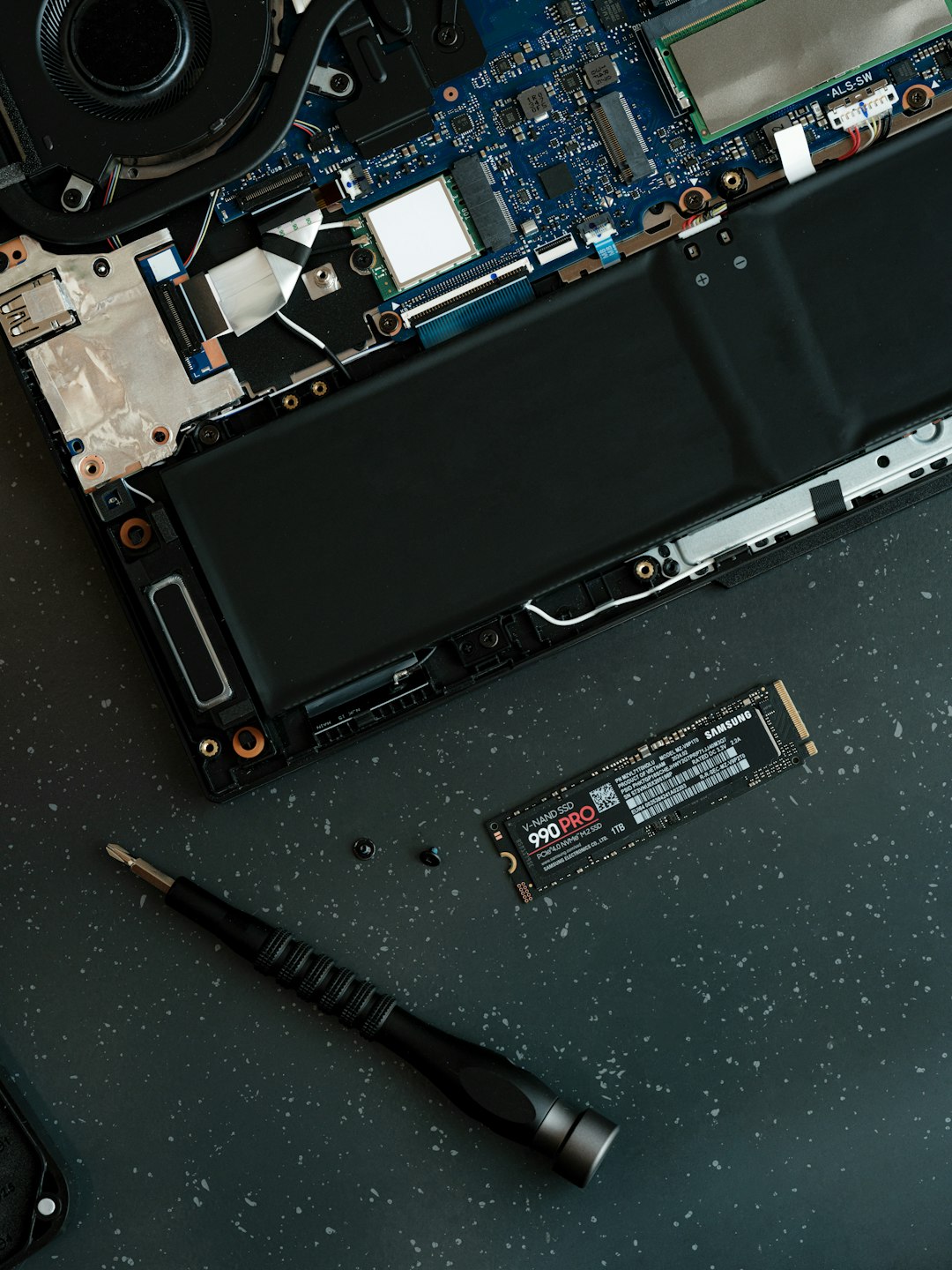
4. Battery Swelling
A more serious — though less common — cause is battery swelling. Lithium-ion batteries inside the Surface Book 2 can expand over time due to age or charging cycles.
If the battery located behind the display begins swelling, it can press against the LCD panel, creating visible yellow pressure marks.
Warning signs of battery swelling include:
- Screen slightly separating from frame
- Bulging chassis
- Trackpad lifting or becoming uneven
- Reduced battery life combined with screen discoloration
If you suspect this issue, stop using the device immediately and consult a professional technician. Swollen batteries can pose safety risks.
5. Adhesive Burn or “Mura” Effect
Manufacturing adhesives used in display assembly can degrade over time. When exposed to heat cycles, these adhesives occasionally cause localized yellow tinting — commonly referred to as mura effects.
This type of spot is often irregular in shape and may seem embedded deep within the display layers.
How to Diagnose the Problem
Before assuming the worst, follow these simple steps:
- Open a pure white image in full-screen mode.
- Increase brightness to maximum.
- Look for consistency in color across the display.
- Check if the yellow spot shifts when adjusting viewing angle.
If the discoloration remains fixed regardless of angle and content, it is likely hardware-based rather than a software issue.
Potential Solutions
1. Adjust Color Calibration Settings
In minor cases, the issue may be related to color calibration rather than permanent damage.
Try these steps:
- Open Windows Color Management
- Reset display calibration settings
- Disable night light mode
- Check for adaptive brightness settings
While this won’t fix physical discoloration, it may minimize its visibility.
2. Update Graphics Drivers
Outdated or corrupted display drivers can sometimes cause unusual color rendering. Visit the official device update section and ensure:
- Intel graphics drivers are up to date
- Windows updates are fully installed
- Firmware updates specific to Surface devices are applied
This is a quick fix that can resolve software-layer color distortions.
3. Reduce Operating Heat
If heat is contributing to the problem, changing usage habits can prevent worsening:
- Use the laptop on hard, flat surfaces
- Avoid blocking ventilation areas
- Limit heavy multitasking when charging
- Consider a cooling pad for demanding workloads
Lower operating temperatures extend display life and reduce adhesive breakdown.
4. LCD Screen Replacement
If the yellow spot is due to internal LCD damage, the only permanent fix is display replacement. Surface Book 2 screens are precision-assembled units, meaning replacement should be done by a qualified technician.
Keep in mind:
- Third-party repairs may affect device integrity
- Professional servicing ensures correct adhesive bonding
- Cost may be substantial due to the premium design
5. Battery Replacement (If Swelling Is Detected)
When battery expansion is the root cause, replacing the battery is critical. Continuing to use the device can worsen display damage and pose safety hazards.
Never attempt DIY battery repairs unless you have professional experience with sealed devices.
When Should You Seek Professional Help?
Consider professional repair if:
- The yellow spot grows over time
- Touch functionality becomes affected
- The screen begins separating from the chassis
- You suspect battery swelling
Ignoring these symptoms can lead to higher repair costs later.
Can Yellow Screen Spots Be Prevented?
While some aging effects are inevitable, you can reduce risk by:
- Avoiding excessive pressure when transporting
- Using a protective sleeve
- Keeping the device cool
- Avoiding prolonged high-brightness use unnecessarily
- Maintaining healthy charging practices
Preventive care significantly extends the display’s visual integrity.
Is It Worth Repairing?
The answer depends on severity and overall device condition. If your Surface Book 2 still performs well and the discoloration is minor, calibration adjustments may be sufficient.
However, if the yellow spots are distracting, expanding, or linked to hardware damage, replacing the display restores full visual quality.
Since the Surface Book 2 remains a capable device even years after release, investing in a repair may still be worthwhile compared to purchasing a new high-end laptop.
Final Thoughts
Yellow screen spots on the Surface Book 2 can be frustrating, especially on a premium device known for display excellence. The good news is that understanding the root cause — whether pressure, heat, aging, adhesive breakdown, or battery swelling — helps you determine the right course of action.
Some cases are cosmetic and manageable, while others signal deeper hardware concerns. Early diagnosis, proper maintenance habits, and professional repair when necessary will keep your device functional and visually sharp for years to come.
By staying informed and proactive, you can ensure your Surface Book 2 continues delivering the high-quality experience it was designed to provide.

I’m Sophia, a front-end developer with a passion for JavaScript frameworks. I enjoy sharing tips and tricks for modern web development.
