
An iPad that refuses to charge can interrupt work, school, travel, entertainment, and communication. In many cases, the problem is not the iPad itself but the charging cable, power adapter, outlet, charging port, or software state. A careful troubleshooting process helps an owner identify whether the issue is simple and fixable at home or serious enough to require professional repair.
TLDR: If an iPad will not charge when plugged in, the owner should first check the cable, adapter, outlet, and charging port for damage, dirt, or loose connections. A restart, force restart, or software update can also resolve charging problems caused by temporary glitches. If the iPad shows no charging symbol, overheats, has liquid damage, or still will not charge after basic checks, it may need battery service or hardware repair.
Start With the Charging Basics
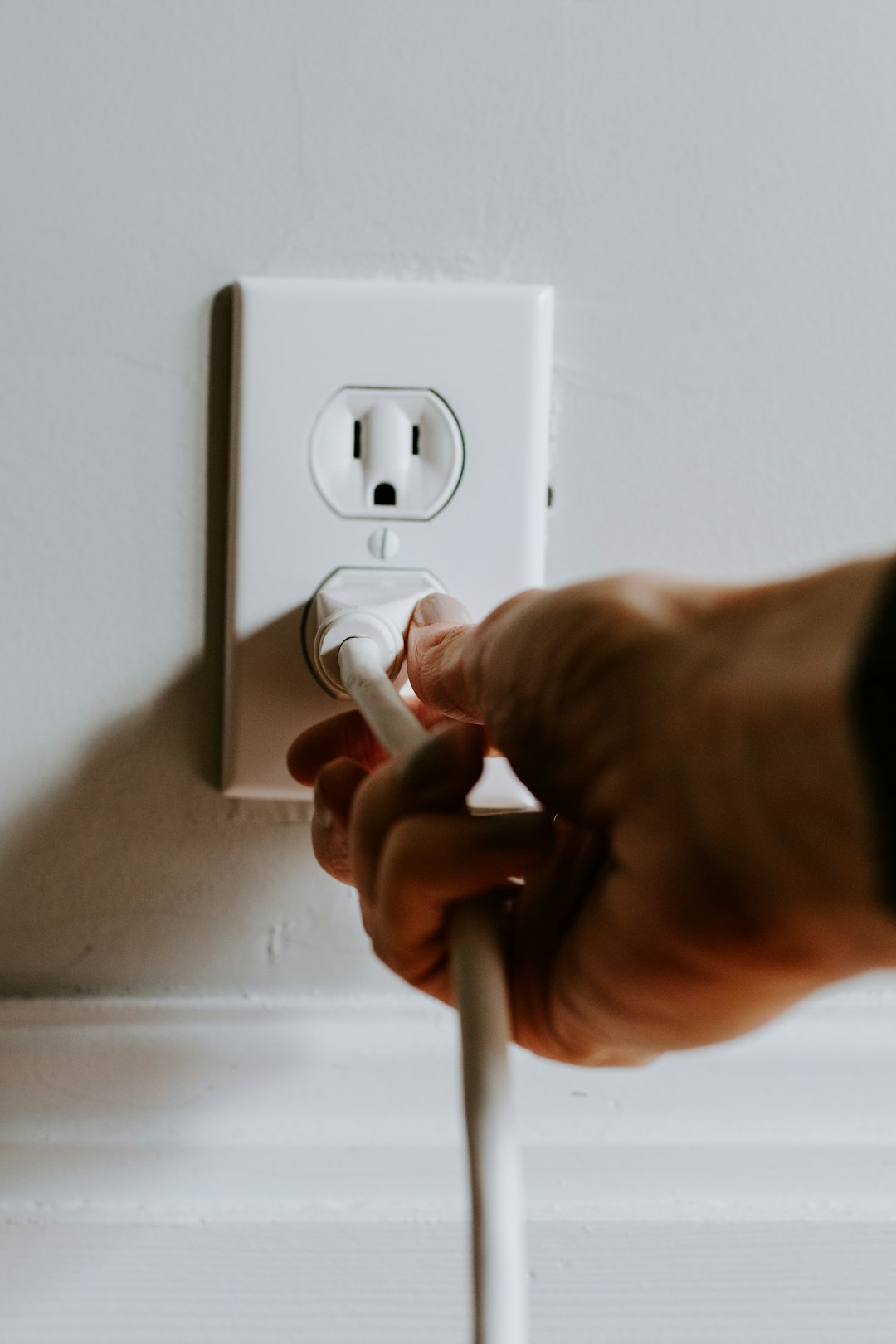
The first step is to confirm that the charging setup is actually delivering power. An iPad may appear to be plugged in, but a loose connector, faulty cable, weak adapter, or dead wall outlet can prevent charging. The person troubleshooting the device should look for the charging icon in the battery area of the screen. On many iPads, a lightning bolt appears inside or beside the battery icon when power is being received.
If the iPad is completely drained, it may not turn on immediately. In that case, it should remain connected to power for at least 20 to 30 minutes. A deeply discharged battery can take several minutes before showing the low battery screen or Apple logo. If nothing appears after that waiting period, further checks are needed.
- Confirm the outlet works: Plug in another device, such as a lamp or phone charger.
- Check the cable connection: Make sure the cable is fully seated in the iPad and adapter.
- Look for the charging symbol: The battery icon should indicate that power is connected.
- Wait if the battery is empty: A completely drained iPad may need time before it responds.
Inspect the Charging Cable
A damaged cable is one of the most common reasons an iPad will not charge. Cables can fail internally even when they look acceptable from the outside. However, visible signs often provide clues. Frayed ends, exposed wires, bent connectors, scorch marks, discoloration, and cracked insulation all suggest the cable should no longer be used.
The owner should try a different cable that is known to work. If the iPad starts charging with another cable, the original cable is the likely problem. It is best to use an Apple certified or high quality replacement cable, especially for USB C or Lightning charging. Low quality cables may charge slowly, disconnect randomly, or fail to communicate properly with the iPad.
Some cables work for data transfer but fail to deliver proper charging power. Others may charge an iPhone but not an iPad because the iPad requires more power. Testing with a reliable cable removes much of the guesswork.
Check the Power Adapter
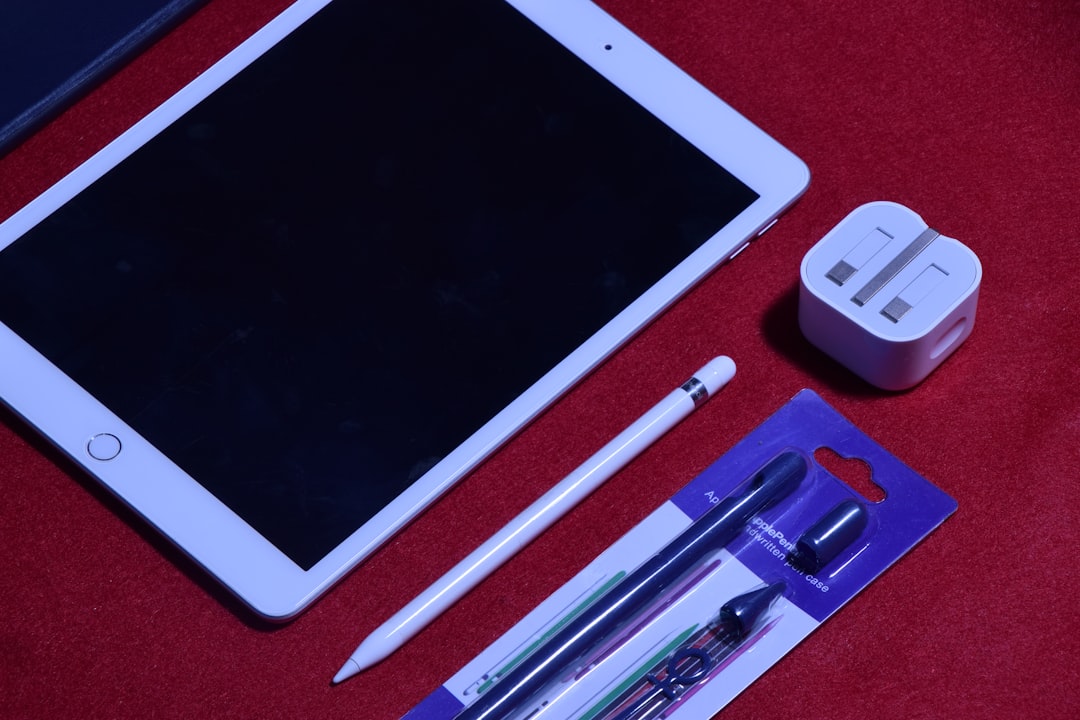
The power adapter is just as important as the cable. An iPad usually needs more wattage than a small phone charger can provide. If a low power adapter is used, the iPad may charge very slowly, show “Not Charging,” or fail to increase the battery level while the screen is on.
The person checking the adapter should review the wattage printed on it. Many iPads work best with adapters rated at 10W, 12W, 18W, 20W, or higher, depending on the model. A MacBook USB C charger can often charge an iPad safely, because Apple devices negotiate the appropriate power level. However, damaged, counterfeit, or extremely cheap power bricks should be avoided.
To test the adapter, another working adapter can be used with the same cable. If the iPad charges with a different adapter, the original adapter may be defective. If both adapter and cable work with another device but not the iPad, attention should shift to the iPad’s port, software, or battery.
Examine and Clean the Charging Port
A dirty charging port can prevent a solid connection. Dust, lint, pocket debris, pet hair, and corrosion can collect inside the port over time. Even a small amount of packed lint can stop a Lightning or USB C connector from seating fully. The cable may feel slightly loose, or it may only charge when held at a certain angle.
The iPad should be powered off before inspection. A flashlight can help reveal debris inside the port. If dirt is visible, it should be removed very carefully. A soft, dry brush or a wooden toothpick can be used with gentle movements. Metal tools, liquids, and compressed air used too aggressively can damage the pins inside the port.
Cleaning should be done slowly and carefully. If the port appears bent, burned, green, rusty, or physically broken, professional service is safer than further probing.
Restart or Force Restart the iPad
Software can also prevent normal charging behavior. A temporary system glitch may stop the battery indicator from updating or interfere with charging recognition. A normal restart is a simple and safe step. The owner can shut the iPad down, wait about 30 seconds, then turn it back on and reconnect the charger.
If the iPad is frozen, unresponsive, or stuck on a black screen, a force restart may help. The method depends on the model. For iPads without a Home button, the user presses and quickly releases the volume button nearest the top button, presses and quickly releases the other volume button, then holds the top button until the Apple logo appears. For iPads with a Home button, the Home button and top button are held together until the Apple logo appears.
A force restart does not erase data. It simply forces the device to reboot. If the iPad begins charging afterward, the issue may have been a temporary software fault.
Look for Temperature Problems
An iPad may stop charging if it is too hot or too cold. Apple devices include temperature protection to prevent battery damage. If the iPad has been left in direct sunlight, inside a hot car, near a heater, or in freezing conditions, charging may pause until the device returns to a normal temperature range.
The iPad should be moved to a cool, dry, shaded environment. Cases that trap heat can be removed temporarily. The device should not be placed in a refrigerator or freezer, because rapid temperature changes can cause condensation. Once the iPad returns to room temperature, charging can be attempted again.
Check for Moisture or Liquid Damage
Liquid exposure can interfere with charging and may create a safety risk. If the iPad has recently been exposed to rain, spills, bathroom steam, pool water, or wet hands, it should not be forced to charge. Charging a wet device can cause corrosion or electrical damage.
The device should be disconnected immediately and allowed to dry in a well ventilated area. It should not be heated with a hair dryer, placed in rice, or shaken aggressively. If liquid entered the charging port, a repair professional should inspect it before further use. Corrosion may not be visible at first, but it can worsen over time.
Update iPadOS
Outdated software can occasionally cause charging, battery reporting, or power management problems. If the iPad still has enough battery to operate, the owner should check for an iPadOS update. Software updates often include bug fixes that improve battery performance and device stability.
The update can be found under Settings > General > Software Update. The iPad should ideally be connected to Wi Fi and have sufficient battery before starting. If the iPad cannot charge at all, updating may not be possible until the charging issue is partially resolved.
Review Battery Health and Charging Behavior
All rechargeable batteries degrade over time. An older iPad may have a battery that no longer holds a charge or accepts power properly. Signs of battery wear include sudden shutdowns, rapid battery drain, swelling, overheating, or a battery percentage that jumps unpredictably.
If the iPad charges only to a certain percentage, drains quickly after unplugging, or shuts off even when the battery indicator shows power remaining, the battery may be worn out. A swollen battery is especially serious. Symptoms can include a lifted screen, separation along the edges, pressure marks on the display, or a warped case. In that situation, the device should be powered off and inspected by a professional as soon as possible.
Try Charging From a Different Power Source
Sometimes the charging source is the problem. A computer USB port, car charger, power bank, or docking station may not provide enough power for an iPad. The device may charge slowly or not at all, especially if the screen is on or demanding apps are running.
A direct wall outlet with a suitable power adapter is usually the best test. Extension cords, damaged power strips, and loose outlets should be avoided during troubleshooting. If the iPad charges from one source but not another, the issue is likely the original power source rather than the tablet.
Consider Accessory Interference
Some cases, keyboard attachments, hubs, and adapters can interfere with charging. A thick case may prevent the connector from inserting completely. A USB C hub may fail to pass through enough power. A magnetic keyboard or dock may create confusion if it is not seated properly.
The owner should remove all accessories and connect the charger directly to the iPad. If charging resumes, each accessory can be tested one at a time. This process identifies whether a case, hub, dock, or keyboard is responsible.
Reset Settings if Charging Problems Continue
If cable, adapter, outlet, temperature, and port checks do not reveal the cause, a settings reset may help. This does not erase photos, apps, or personal files, but it does restore system settings such as Wi Fi networks, Bluetooth pairings, and preferences.
The option is found under Settings > General > Transfer or Reset iPad > Reset > Reset All Settings. This step is more advanced than a restart, but it can resolve persistent configuration problems. A backup is still recommended before making significant system changes.
When Professional Repair Is Needed
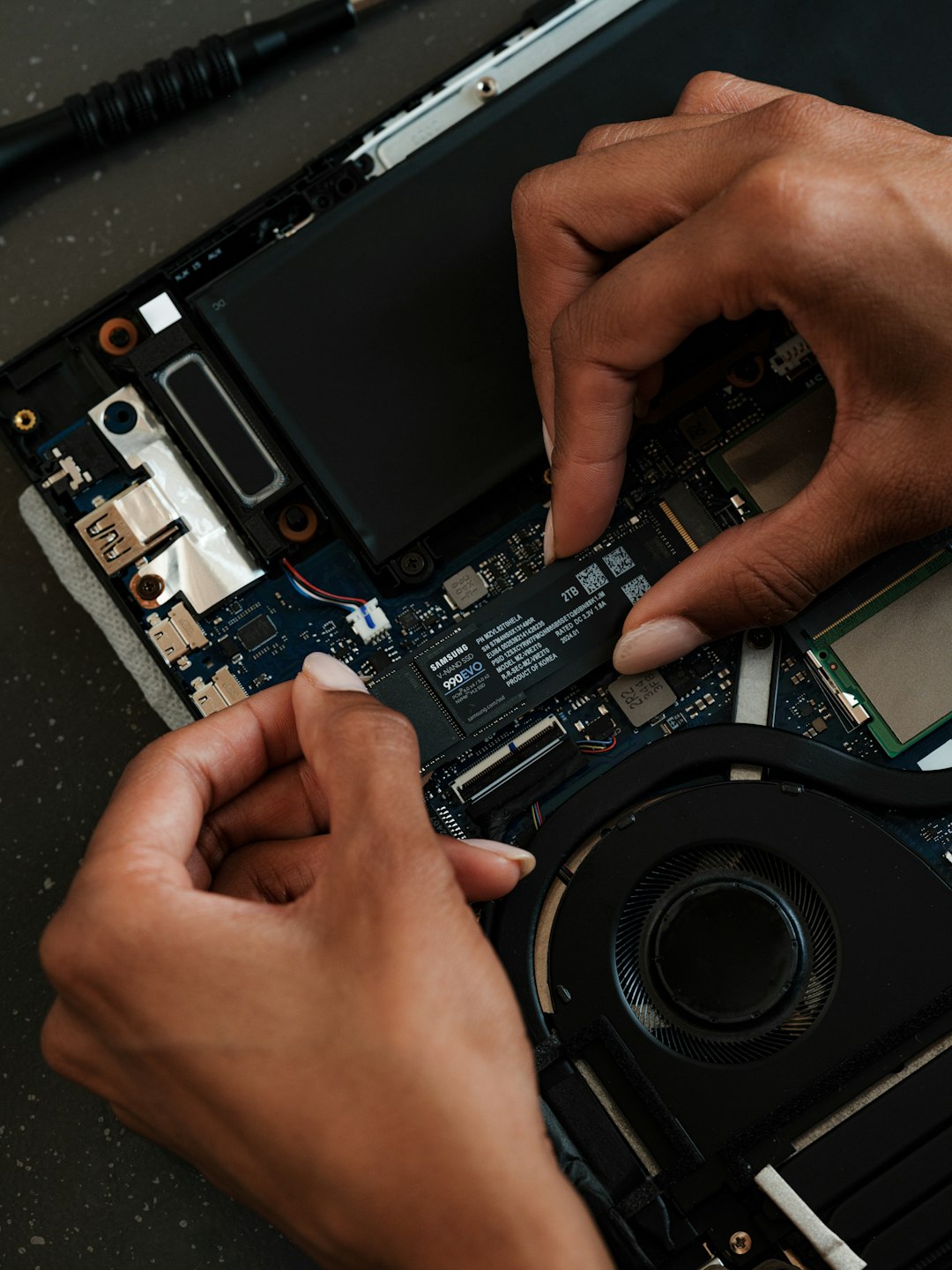
Professional service is recommended when the iPad still will not charge after basic troubleshooting. Hardware problems may involve the charging port, battery, logic board, power management chip, or internal connectors. These repairs require proper tools, parts, diagnostics, and experience.
The device should be inspected promptly if there are signs of liquid damage, burning smell, swelling, cracked casing, overheating, or a charging port that feels loose or damaged. Continuing to force the device to charge can make the damage worse.
If the iPad is under warranty or covered by a protection plan, official support may be the best option. Even outside warranty, a professional diagnosis can determine whether the device is worth repairing or replacing.
FAQ
Why does an iPad say “Not Charging” when plugged in?
This usually means the power source is not providing enough wattage. A low power USB port, weak adapter, or poor quality cable may not supply sufficient current for the iPad.
How long should a dead iPad be plugged in before it turns on?
A deeply drained iPad should generally be left connected for 20 to 30 minutes. If no battery icon, Apple logo, or charging response appears after that time, further troubleshooting is needed.
Can a dirty charging port stop an iPad from charging?
Yes. Lint, dust, and debris can prevent the connector from seating properly. Careful cleaning with a soft, dry, nonmetal tool may restore charging.
Is it safe to use a higher wattage charger with an iPad?
In most cases, a quality higher wattage USB C charger is safe because the iPad draws only the power it needs. Damaged, counterfeit, or unreliable chargers should be avoided.
What does it mean if the iPad only charges at a certain angle?
This often points to a damaged cable, loose connector, or worn charging port. Testing with another cable is the first step. If the problem continues, the port may need repair.
Should an iPad be charged after it gets wet?
No. Charging should be avoided if moisture may be present in the port or inside the device. The iPad should be disconnected, dried safely, and inspected if liquid exposure is suspected.
When should the battery be replaced?
Battery replacement may be needed if the iPad drains very quickly, shuts down unexpectedly, overheats, will not hold a charge, or shows signs of swelling.

I’m Sophia, a front-end developer with a passion for JavaScript frameworks. I enjoy sharing tips and tricks for modern web development.
