
ioh 3 fatal error can appear at the worst time. You click Play on Steam, the game starts loading, and then it suddenly crashes. Sometimes you see a fatal error popup. Sometimes the game closes without giving a clear reason. In some cases, it may crash after a logo screen, during a cutscene, or while you are already playing.
This kind of error is common on PC games because many things have to work together. The game files, Windows, Steam, GPU driver, DirectX, Visual C++, antivirus, overlays, and your graphics settings all play a part. If one of these things is not working properly, Nioh 3 may stop and show a fatal error.
The good thing is, you don’t need to reinstall the game right away. Start with the simple fixes first. Then move to driver, overlay, runtime, shader cache, and config fixes if the crash keeps happening.
What Does Nioh 3 Fatal Error Mean?
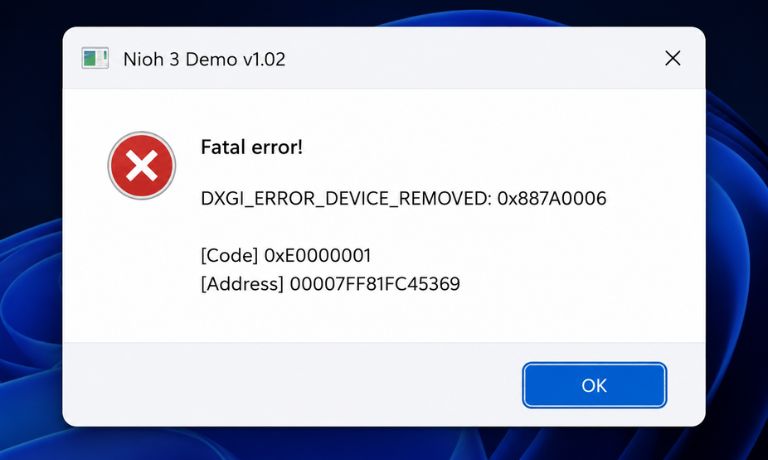
A fatal error means Nioh 3 hit a problem it could not continue from. The game did not just lag or freeze for a second. It reached a point where it had to close, so Windows or the game shows an error message.
This error can happen in different places. Some players may see it when launching the game. Some may crash after loading into a mission. Others may only get the error after changing graphics settings or playing for a longer time.
A simple way to think about it is this. The game needs stable files, stable drivers, and enough system resources to run. If something breaks that chain, Nioh 3 may crash instead of loading normally.
Why Does Nioh 3 Fatal Error Happen?
Nioh 3 fatal error can happen because of corrupted Steam files, outdated GPU drivers, broken runtime files, overlay conflicts, antivirus blocking, high graphics load, or damaged config settings. Sometimes the issue starts after a new game update or driver update too, so it is not always your fault.
Common causes include:
- Corrupted or missing Steam game files
- Outdated NVIDIA, AMD, or Intel GPU driver
- A new GPU driver causing problems
- Steam Overlay or Discord Overlay conflict
- MSI Afterburner or RivaTuner conflict
- Antivirus blocking game files
- Missing Visual C++ or DirectX files
- High graphics settings using too much VRAM
- Broken shader cache
- Damaged config file
- Game installed on a slow or unstable drive
- Windows update or system file issue
Not every fix will apply to your PC. So don’t change everything together. Try one fix, launch the game, then move to the next one.
How to Fix Nioh 3 Fatal Error?
Start with the easy fixes first because many fatal errors are caused by simple file or driver problems. If the game still crashes, move slowly toward deeper fixes like shader cache, config files, and reinstalling.
Some fixes need proper steps because you have to change something. Some fixes are better explained in paragraphs because they are more about checking the cause.
Fix #01. Restart Your PC and Launch Nioh 3 Again
Before doing anything complicated, restart your PC once. Not sleep mode, not just closing Steam. A full restart can clear stuck game processes, old Steam tasks, and temporary Windows issues that may stop Nioh 3 from launching properly.
After restarting, open Steam again and launch Nioh 3 without opening too many other apps. Keep Discord, browser tabs, recording software, and performance tools closed for the first test. If the game launches after a restart, the issue was likely a temporary process or memory problem.
It sounds basic, yes. But for PC game fatal errors, this is still worth doing before changing drivers or deleting files.
Fix #02. Verify Nioh 3 Game Files on Steam
Corrupted or missing files are one of the most common reasons for fatal errors on Steam games. A download may fail, a patch may not install cleanly, or one file may get damaged. The game then tries to load that file and crashes.
Use Steam’s file verification tool:
- Open Steam.
- Go to your Library.
- Right-click Nioh 3.
- Select Properties.
- Open Installed Files.
- Click Verify integrity of game files.
- Wait until Steam finishes checking.
- Launch the game again.
If Steam finds missing or damaged files, it will download them again. This fix is safe and should be tried early. It does not delete your normal game progress.
Fix #03. Update Your GPU Driver
Your GPU driver is very important for Nioh 3. If the driver is old, the game may crash at launch, show a black screen, or throw a fatal error during gameplay. Newer games often need recent driver support to run smoothly.
Update your graphics driver from the official NVIDIA, AMD, or Intel app or website. Don’t rely only on Windows automatic driver updates because those drivers may not always be the newest gaming version.
After installing the driver, restart your PC. Then launch Nioh 3 again. If the error was linked to an old graphics driver, this can fix it. But don’t assume driver update is always the final answer. Sometimes the next fix is needed too.
Fix #04. Roll Back the GPU Driver If the Error Started After Updating
This is where it gets tricky. A newer GPU driver is not always better for every game. If Nioh 3 started showing fatal error right after you updated the NVIDIA, AMD, or Intel driver, the new driver may be the problem.
In that case, try rolling back to the previous stable driver. You can do this from Device Manager in Windows if rollback is available. You can also install an older driver from the official GPU brand website.
Only do this if the crash clearly started after a driver update. If your driver is very old, update it first. If the new driver made things worse, rollback is a smart test.
Fix #05. Disable Steam, Discord, and GPU Overlays
Overlays can cause crashes because they attach themselves to the game while it is running. Steam Overlay, Discord Overlay, GeForce Overlay, AMD Overlay, MSI Afterburner, and RivaTuner can all create problems in some games.
You don’t need to remove these apps forever. Just turn them off for testing.
Check these overlays:
- Steam Overlay
- Discord Overlay
- NVIDIA GeForce Overlay
- AMD Software Overlay
- Xbox Game Bar
- MSI Afterburner
- RivaTuner Statistics Server
- Screen recording tools
After turning overlays off, restart Steam and launch Nioh 3 again. If the fatal error stops, one of those tools was likely causing a conflict. You can turn them back on one by one later to find the exact one.
Fix #06. Run Nioh 3 as Administrator
Sometimes Windows blocks a game from accessing files or folders it needs. Running Nioh 3 as administrator may help if the fatal error happens at startup or when the game tries to save settings.
Use these steps:
- Open Steam.
- Right-click Nioh 3.
- Select Manage.
- Click Browse local files.
- Find the game executable file.
- Right-click it and choose Properties.
- Open the Compatibility tab.
- Check Run this program as an administrator.
- Apply the change and launch the game.
This is not a magic fix, but it is useful for permission-related crashes. If Windows was blocking access to a needed file, this may help the game start normally.
Fix #07. Allow Nioh 3 Through Antivirus or Windows Security
Antivirus tools can sometimes block game files by mistake. This can happen after a game update, a Steam patch, or when the game creates new files in its folder. If a file is blocked or quarantined, Nioh 3 may crash with a fatal error.
Open Windows Security or your antivirus app and check if anything related to Nioh 3 or Steam was blocked. If you trust your Steam install, add the Nioh 3 game folder as an allowed folder or exclusion. Do not turn off antivirus permanently. That is not a good habit.
Also check Controlled Folder Access in Windows Security. If it is blocking the game from saving files, allow Nioh 3 and Steam there. After changing this, restart the PC and try launching the game again.
Fix #08. Lower Graphics Settings and Cap FPS
If Nioh 3 crashes during gameplay, not at launch, the issue may be graphics load. High texture settings, high resolution, unlocked FPS, and heavy effects can push your GPU or VRAM too hard. When that happens, the game may freeze or crash with a fatal error.
Lower the graphics settings before testing again. Start with texture quality, shadows, effects, resolution scale, and frame rate. If the game has upscaling options like DLSS, FSR, or XeSS, test them carefully based on your GPU.
A simple test is to cap FPS to a stable number and lower textures first. If the fatal error stops after lowering settings, your PC may have been struggling with the previous graphics load. This does not mean your PC is bad. It just means the game may need more stable settings for your setup.
Fix #09. Clear Shader Cache
Shader cache can also cause crashes if it becomes corrupted or outdated. Games use shader cache to load visuals faster, but bad cache files can create stutter, black screen, or fatal error in some cases.
You can clear DirectX shader cache from Windows:
- Open Windows Settings.
- Go to System.
- Open Storage.
- Select Temporary files.
- Find DirectX Shader Cache.
- Select it and remove it.
- Restart your PC.
- Launch Nioh 3 again.
The game may stutter a little when rebuilding shaders after this. That is normal. Give it some time. If the old shader cache was causing the fatal error, clearing it can help the game load cleanly again.
Fix #10. Install or Repair Visual C++ and DirectX Runtime
Many PC games need Microsoft runtime files to launch correctly. If Visual C++ Redistributable or DirectX files are missing or damaged, Nioh 3 may crash before it fully opens. Sometimes the error message may mention DLL files, but not always.
Repair or reinstall the official Microsoft Visual C++ Redistributable packages. Also make sure Windows is updated because DirectX components are often handled through Windows updates. Avoid downloading DLL files from random websites. That can create more problems.
After repairing the runtimes, restart your PC and launch the game again. This fix is especially useful if other games also crash or if Nioh 3 fails before reaching the main menu.
Fix #11. Move Nioh 3 to an SSD
If Nioh 3 crashes during loading screens, area transitions, or long loading moments, your storage drive may be part of the issue. A slow, full, or failing drive can make game loading unstable. It may not always show as a clear storage error.
If the game is installed on an old hard drive, move it to an SSD if possible. Steam lets you move installed games between library folders. After moving the game, verify the files again and test.
This does not guarantee a fatal error fix for everyone. But for loading-related crashes, an SSD can make the game much more stable and faster to load.
Fix #12. Delete or Reset Nioh 3 Config Files
A broken config file can make the game crash at launch. This can happen after changing resolution, fullscreen mode, graphics settings, or display options. The game keeps trying to load the bad setting, then crashes before you can change it back.
Be careful here. Do not delete save data. Only reset config files if you know where they are and back them up first.
A safe approach:
- Close Nioh 3 and Steam.
- Find the Nioh 3 config folder in Documents, AppData, or the game’s saved settings location.
- Copy the config folder to another place as backup.
- Delete only the graphics or config file, not save files.
- Launch the game again.
- Let the game create fresh settings.
If the game starts after resetting config files, then one of the saved settings was causing the fatal error. Set graphics options again slowly. Don’t max everything out right away.
Fix #13. Reinstall Nioh 3
Reinstalling should be the last software fix, not the first one. It takes time, and Steam file verification already fixes many install problems. But if nothing else works, a fresh install can remove deeper file issues that verification did not solve.
Before uninstalling, check your save data and cloud sync. Make sure your progress is backed up if needed. Then uninstall Nioh 3 from Steam, restart your PC, and install it again on a stable drive, preferably an SSD.
After reinstalling, launch the game with default settings first. Do not turn on overlays or high graphics settings right away. Test the clean install first, then adjust things slowly.
Prevention Tips for Nioh 3 Fatal Error
You can’t prevent every crash, especially if a patch has a bug, but you can keep your PC setup more stable. Most fatal errors come from broken files, unstable drivers, overlays, high settings, or background apps fighting with the game.
Helpful habits:
- Keep GPU drivers updated, but rollback if a new one causes crashes
- Verify Steam files after a failed update or sudden crash
- Keep Windows updated
- Avoid too many overlays while playing
- Don’t push graphics settings too high too quickly
- Keep some free space on the game drive
- Install the game on an SSD if possible
- Avoid random DLL download websites
- Restart your PC after driver and runtime updates
- Close heavy background apps before launching the game
The main thing is stability. A clean setup with updated files, fewer overlays, and reasonable graphics settings gives the game a better chance to run without fatal errors.
Final Thoughts
Nioh 3 fatal error can happen for many reasons, but most fixes are simple enough to try at home. Start with restarting your PC, verifying Steam files, updating or rolling back your GPU driver, and disabling overlays. These fixes cover a lot of common PC crash causes.
If the error still appears, move to antivirus permissions, lower graphics settings, shader cache, Visual C++ and DirectX repair, config reset, and reinstalling the game. Go step by step. Don’t change everything at once, because then you won’t know what actually fixed it.
Does your Nioh 3 fatal error happen at startup, during loading, after a cutscene, or while playing? Comment the exact moment it appears, because that usually gives the best clue.

I’ve been into SEO and blogging for over 7 years. I help websites show up higher on search engines. I really enjoy writing helpful guides, especially about gaming and tech stuff.
