
It feels pretty frustrating when you try to launch 2XKO and instead of getting into the game, you see a message saying “A critical error has occurred.” The game might close, freeze, or crash to the desktop. When this happens, you just want to know what went wrong and how to fix it fast. This guide shows you what the error means and the steps you can try to get the game running again.
What This 2XKO Critical Error Means?
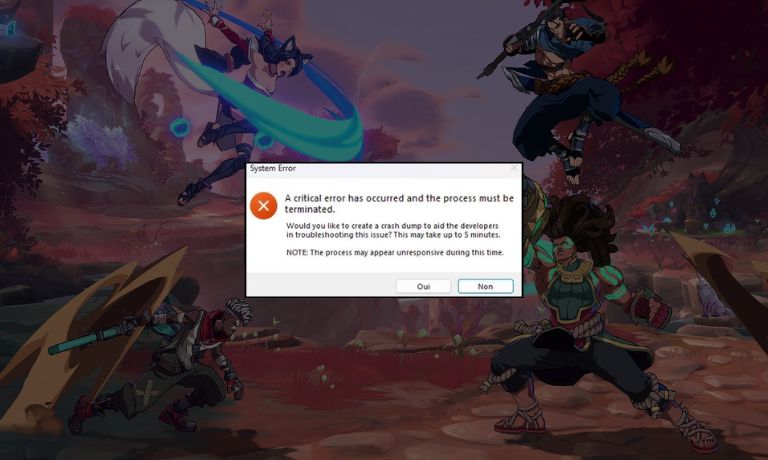
This error shows up when the game cannot load something important. It might be a missing file, a driver issue, or your system blocked something the game needs. When that happens, 2XKO stops to avoid crashing harder.
You may see the error when starting the game, joining a match, or after the loading screen. It usually means the game cannot reach a file, a service, or the anti cheat system that helps keep the game running safely.
Common Causes of 2XKO Critical Error
The problem can come from different places. Here are the most common causes players see:
- A missing or damaged game file
- Riot Vanguard not running correctly
- Old GPU drivers
- Windows updates causing conflicts
- Firewall blocking the Riot client
- Background apps fighting with the anti cheat
- Not enough system memory or system resources
How To Fix 2XKO “A Critical Error Has Occurred”?
Here are eight simple fixes you can try. Start with the easiest one and work down the list.
Fix 1: Restart the Game and Riot Client
Sometimes the game needs a fresh start. Close 2XKO. Close the Riot client fully. Open the Riot client again and start the game. This clears small loading errors.
Fix 2: Run the Riot Client as Administrator
2XKO sometimes needs extra permissions to reach system files.
Here are the following steps which help you do that:
- Right click the Riot client icon.
- Select Run as administrator.
- Start 2XKO again.
Fix 3: Update or Repair Riot Vanguard
The anti cheat system, Vanguard, can break when it is outdated or blocked.
Try these simple steps:
- Close all Riot apps.
- Restart your PC.
- Launch the Riot client and let it update Vanguard.
- Try starting 2XKO.
If the update is slow, give it time.
Fix 4: Verify 2XKO Game Files
Missing or corrupted files cause many critical errors.
You can perform the following steps:
- Open the Riot client.
- Go to your games list.
- Pick 2XKO.
- Look for a Repair or Verify option.
- Let the scan finish.
Then launch the game again.
Fix 5: Update Your GPU Drivers
Old Nvidia, AMD, or Intel drivers cause crashes or failed launches.
Follow the steps below:
- Open your GPU software (GeForce Experience, AMD Software, or Intel Arc).
- Check for updates.
- Install the newest driver.
- Restart your PC.
Then try the game again.
Fix 6: Turn Off VPN or Proxy
VPNs and proxies block Riot services. The game cannot reach servers correctly when this happens.
Turn off the VPN or proxy. Restart the Riot client. Start 2XKO again.
Fix 7: Close Background Apps That Clash With Anti Cheat
Apps like screen recorders, overlays, macros, or mod tools can break Vanguard.
Here’s how you can check this:
- Press Ctrl + Shift + Esc to open Task Manager.
- Close apps you don’t need.
- Avoid overlay tools like some recording apps or modding tools.
- Launch 2XKO.
Fix 8: Add 2XKO and Riot Games to Your Firewall Allow List
Your firewall might block the game or its services.
Perform the following steps carefully:
- Open Windows Security.
- Go to Firewall and network protection.
- Select Allow an app through firewall.
- Add the Riot client and 2XKO.
- Restart your PC.
Prevention Tips to Avoid Errors in Future
A few habits help avoid this error in the future:
- Keep GPU drivers updated
- Restart your PC before long play sessions
- Avoid running too many apps in the background
- Make sure Vanguard is always updated
- Keep enough free space on your system
- Install game patches as soon as they release
Conclusion
The “A critical error has occurred” message in 2XKO means the game ran into a problem it couldn’t fix on its own. Most of the time, it comes from missing files, outdated drivers, or anti cheat issues. The good news is that the fixes in this guide solve the problem for many players.
Try each fix one at a time. If the game still won’t launch, you may need to reach out to Riot support so they can check deeper issues. If this guide helped you, feel free to share it so other players can get back into the game too.

I’ve been into SEO and blogging for over 7 years. I help websites show up higher on search engines. I really enjoy writing helpful guides, especially about gaming and tech stuff.
