
Many Gmail users lose track of emails at some point. A message that was there suddenly disappears from the Inbox, or mail stops showing on the phone while it still appears on a laptop. These problems usually come from hidden filters, auto-archiving, wrong app sync settings or messages being moved by accident.
This guide explains why emails go missing and shows you, step by step, how to recover them in a simple, clear way.
Causes of Missing Emails in Gmail
Here are some of the most common reasons Gmail messages disappear or don’t show up where you expect them to:
- Email moved to Archive
- Deleted email still in Trash
- Gmail marked message as Spam
- Filters moved mail to another label
- Categories like Promotions or Social hiding messages
- Gmail app not syncing
- POP settings pulling emails off the server
- Forwarding sending mail to another address
- Storage full on your Google Account
- Third-party apps moving or deleting messages
- Someone else accessed your Gmail
- Gmail offline mode causing delay
How to Recover Missing Emails in Gmail
If your Gmail emails are missing, follow these recovery steps in order.
1. Use Gmail Search and Search Operators
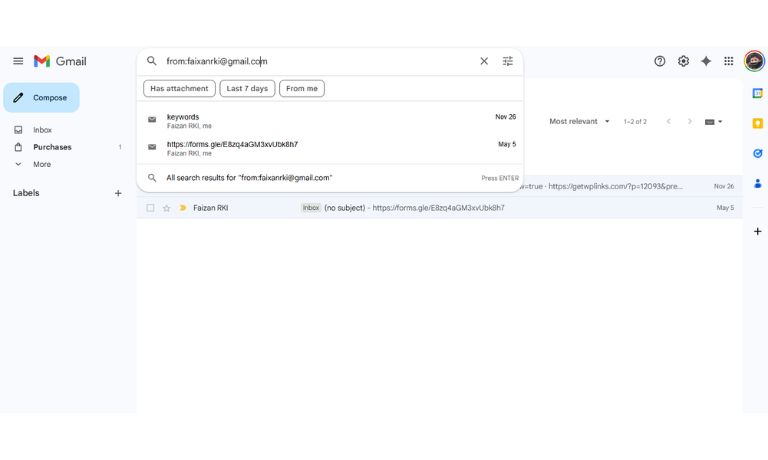
Many emails are not gone; they are just harder to find. Gmail has a powerful search engine that lets you find messages anywhere in your account, even if they are archived or labeled.
Use the search bar at the top of Gmail. Try searching the sender’s name, subject, or words from the message. You can also use advanced search operators to improve your results. Some helpful ones are:
- in:all – shows every email in your account
- from:example@gmail.com – shows all mail from a sender
- to:me – shows messages addressed to you
- subject:keyword – finds specific subjects
- has:attachment – finds emails with files
Using search helps you find emails even when they are not in the Inbox.
2. Check All Mail for Archived Emails
Archived emails skip the Inbox but stay in your account. If you swiped an email by accident, it might be in All Mail.
Open the left sidebar, scroll down, and click All Mail. Look through the timeline for the missing message. If you want the email back in the Inbox, open it and click Move to Inbox.
Archived messages are not deleted; they are just hidden from the main view.
3. Check Trash and Spam Folders
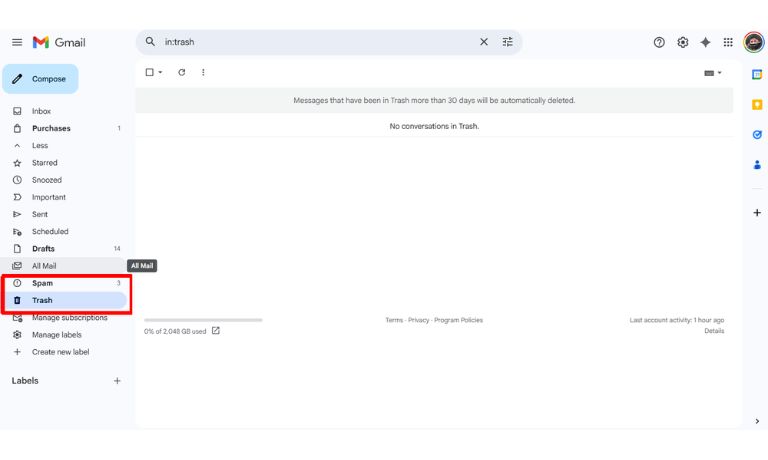
Deleted or flagged emails often end up in the Trash or Spam folder. Gmail deletes messages from the Trash and Spam folders after 30 days, so check them soon.
To restore them:
- Open Trash
- Select the message
- Click Move to Inbox or choose another label
Do the same in the Spam folder. Gmail sometimes mistakes real mail for spam, especially from new senders.
4. Fix Gmail Filters and Labels
Filters can move emails to labels automatically without showing them in the Inbox. Many users forget they created filters years ago.
To check this:
- Open Gmail
- Click the gear icon
- Choose See All Settings
- Open Filters and Blocked Addresses
Look for rules that archive mail, apply labels, or forward messages. Delete or edit any filter that is moving your emails to an unexpected location.
After removing the wrong filters, new messages appear normally in the Inbox again.
5. Check Gmail Categories (Primary, Social, Promotions)
Gmail sorts emails into categories. Important mail may land in Social or Promotions instead of Primary.
Open each tab at the top of your Inbox:
- Primary
- Social
- Promotions
- Updates
- Forums
If you find the message there, drag it into the Primary tab to train Gmail for the future.
6. Fix Gmail Sync Issues on Mobile
If emails appear on your computer but not on your phone, the Gmail app may not be syncing correctly.
Here is how to fix it:
- Open Gmail app
- Tap the profile icon
- Check if the right Google Account is selected
- Go to Settings inside the app
- Turn Sync Gmail on
- Clear Gmail app cache (Android)
- Check network connection
- Update the Gmail app to the latest version
A sync refresh often makes all missing emails show up again.
7. Check POP and IMAP Settings
POP can remove emails from the server after a third-party app downloads them. This means mail may show in Outlook or Apple Mail but not in Gmail.
To check this:
- Open Gmail on desktop
- Go to Settings
- Click Forwarding and POP/IMAP
- Make sure POP is off unless you need it
- Make sure IMAP is enabled for syncing across devices
If POP removed emails from Gmail, you may find them inside your email client’s local folders.
8. Review Gmail Forwarding and Third-Party Access
Your Gmail might be forwarding messages to another email address, or another app may have permissions to move mail.
To check forwarding:
- Open Settings
- Go to Forwarding and POP/IMAP
- Disable any unwanted forwarding address
To check security access:
- Open your Google Account
- Go to Security
- Review devices and third-party apps
This helps you confirm no one else is routing your emails away.
9. Recover Emails With Google Support
If emails were deleted or lost due to a glitch, Google Support can sometimes restore them. There is a limited time window, so request recovery soon.
Go to Google’s official “Mail Restore” form. Fill in the details, and Google will attempt to recover missing messages from your account’s server backup.
This option is helpful when emails disappear due to bugs, syncing errors or hacking.
Prevention Tips to Avoid Missing Emails in Gmail
Here are simple habits to keep your Gmail organized and avoid losing messages again:
- Review filters and labels regularly
- Keep your Gmail storage clean
- Update the Gmail app often
- Use IMAP instead of POP
- Avoid too many third-party email apps
- Check forwarding settings often
- Train Gmail by moving messages to correct tabs
- Clear app cache if Gmail stops syncing
Conclusion
Missing Gmail emails can be stressful, but most issues come from filters, archiving, spam sorting or simple sync problems. By checking All Mail, fixing filters, reviewing your settings and using Gmail search tools, you can recover almost any message. Follow each step in this guide, and you’ll bring your email back without losing important information. If this helped you, feel free to share it or leave your thoughts.

I’ve been into SEO and blogging for over 7 years. I help websites show up higher on search engines. I really enjoy writing helpful guides, especially about gaming and tech stuff.
