
You try to log in, but the game stops you before it even starts. A message appears about device registration, and suddenly you’re locked out. That feels confusing, especially if you’ve played before without issues. This problem shows up in Aion 2 when the system cannot confirm the device you’re using. In this article, you’ll learn what the device registration error means, why it happens, and how to avoid seeing it again.
What Is the Aion 2 Device Registration Error?
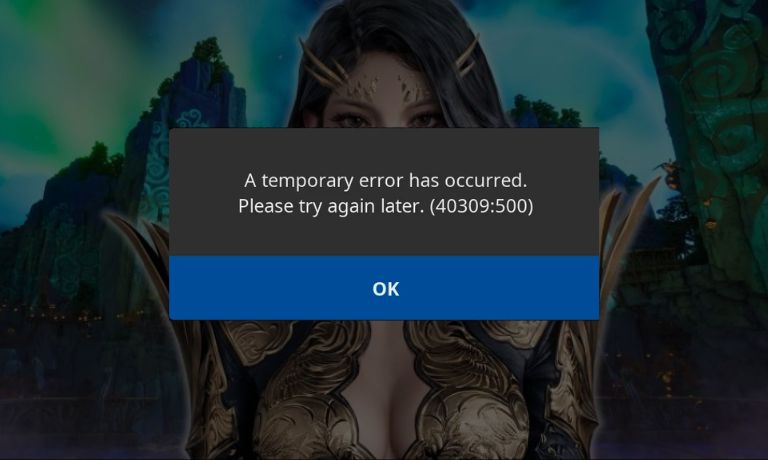
The Aion 2 device registration error is part of the game’s account security system. It appears when the game cannot verify the device trying to log in. In simple terms, the system checks whether your PC or phone matches what it expects for your account. If something looks different, login stops.
This error is not a permanent ban. It does not mean your account is deleted or restricted for cheating. It’s a safety step used by NCSoft to protect player accounts from unauthorized access.
When and Where This Error Appears?
Most players see this error on the login screen or inside the launcher. It often shows up right after entering account details. Some players encounter it after reinstalling the game, switching devices, or logging in from a new network.
The error can appear on both PC and mobile versions, depending on how Aion 2 is accessed. In many cases, the timing makes it feel random, but it usually follows a recent change.
Common Causes of Aion 2 Device Registration Error
This issue is usually triggered by changes around your account or connection. The system becomes cautious when it sees something new or unexpected.
Here are the most common causes linked to this error:
- Logging in from a new or unrecognized device
- Recent hardware change or system reinstall
- IP address change or different internet network
- VPN or proxy usage
- Multiple login attempts in a short time
- Launcher cache or session data problems
- Temporary delay in account verification
Any of these can make the system pause access until verification is complete.
How to Fix Aion 2 Device Registration Error?
This error shows up when the account security system can’t confirm your device. Most of the time, it’s caused by recent changes like a new device, network switch, or login pattern. Try these fixes in order. Apply one fix, then try logging in again. If it still blocks you, move to the next.
Fix #1: Verify the Device Through Account Settings
Some accounts require manual device confirmation.
Log into your game account on the official site. Check security or device settings. If you see a pending device request, approve it. Once confirmed, restart the launcher and try again.
Fix #2: Log Out Completely and Log Back In
Session data can break during failed logins.
Here are the steps you can follow:
- Close the game and launcher
- Log out from the account website
- Wait a few minutes
- Open the launcher again
- Log in carefully
- Try entering the game
This refreshes account authentication.
Fix #3: Disable VPN or Proxy Services
VPNs and proxies often trigger device checks.
Turn off any VPN or proxy software. Close the launcher. Open it again and try logging in from your normal connection. Many players fix the issue right after disabling VPNs.
Fix #4: Use the Same Network You Used Before
Network changes can look suspicious to security systems.
If possible, connect to the same Wi-Fi or internet connection you used previously. Avoid mobile hotspots or public networks. Then try logging in again.
Fix #5: Clear Launcher Cache or App Data
Broken cache files can interfere with device checks.
Follow these steps carefully:
- Close the launcher
- Open the launcher settings or folder
- Find cache or temporary data
- Clear or reset cache files
- Restart the launcher
- Log in again
This does not delete your account or progress.
Fix #6: Wait for the Security Cooldown Period
Sometimes the system blocks logins temporarily after multiple attempts.
Wait 30 minutes to a few hours before trying again. Avoid repeated login attempts during this time. Many device registration blocks clear on their own.
Fix #7: Update the Aion 2 Launcher or App
Outdated launchers can fail security checks.
Check for updates and install them fully. Restart your device after updating. Then try logging in again.
Fix #8: Contact Support if the Error Persists
If none of the fixes work, manual help may be required.
Contact NCSoft support. Provide account details and mention a device registration error. Support can reset or verify your device from their side.
Why Aion 2 Uses Device Registration?
Online games are frequent targets for account theft. Device registration helps reduce that risk. By linking an account to known devices, the system can block suspicious logins quickly.
This approach protects items, progress, and in-game currency. While it can feel inconvenient, it helps prevent bigger problems later. Many modern online games use similar checks, especially around new devices or networks.
How to Prevent Device Registration Errors in the Future?
You can’t avoid every security check, but you can lower how often this error appears. Prevention focuses on keeping your login behavior predictable.
- Use the same device whenever possible
- Avoid VPNs when logging into the game
- Stick to trusted networks
- Limit repeated login attempts
- Keep the launcher or app updated
- Log out properly before switching devices
- Avoid sudden network changes
Conclusion
To summarize, the Aion 2 device registration error is a security block, not a ban. It appears when the system cannot confirm the device or network trying to access your account. In most cases, it’s temporary and linked to recent changes.
If this article helped you understand the issue, consider sharing it with another player facing the same problem. You can also leave a comment below and mention when the error appeared for you. That detail can help others figure out what triggered it.

I’ve been into SEO and blogging for over 7 years. I help websites show up higher on search engines. I really enjoy writing helpful guides, especially about gaming and tech stuff.
