
You try to copy a file in Windows, and suddenly a message pops up saying, “An unexpected error is keeping you from copying the file.” The transfer stops, and File Explorer refuses to continue. That feels worrying, especially if the file is important. This error usually connects to file system issues, permissions, or disk problems.
In this guide, you’ll learn what this Windows copy error means and how to fix it safely.
What Does “An Unexpected Error Is Keeping You From Copying the File” Mean?
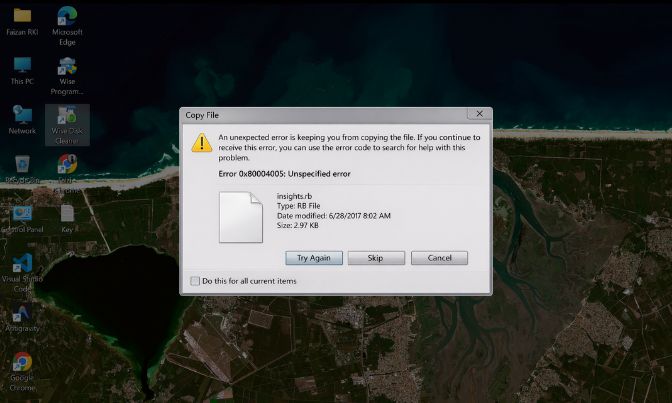
This Windows error appears when File Explorer cannot complete a file transfer from one location to another. The system attempts to read the source file and write it to the destination drive. If something blocks that process, Windows stops the copy operation. The problem may involve file system format like NTFS or FAT32, corrupted file data, permission conflicts, or disk errors.
Sometimes the error also includes codes such as 0x80070057, 0x80070052, or 0x80004005. These codes help indicate whether the issue relates to storage limits, corrupted sectors, or system-level restrictions.
You typically see this message in a File Explorer popup during transfers to a USB flash drive, external HDD or SSD, network drive, or another internal partition.
Common Causes of This Copy Error
This error can occur for several reasons related to storage, permissions, or file compatibility.
- Destination drive formatted as FAT32 with a 4GB file size limit
- File size exceeds storage file system limit
- Corrupted source file
- Bad sectors on external hard drive or SSD
- Permission or ownership restriction
- File path too long
- Antivirus blocking file transfer
- Network interruption when copying over SMB
Each cause prevents Windows from completing the write operation.
How to Fix An Unexpected Error Is Keeping You From Copying?
Start with basic solutions. If the problem continues, move to advanced checks.
Fix 1: Restart Your Computer
Temporary system glitches can interrupt File Explorer.
Close all programs. Restart Windows 10 or Windows 11. After reboot, try copying the file again. This clears background conflicts and resets memory processes.
Fix 2: Check the Drive File System Format
FAT32 cannot store files larger than 4GB. Follow these steps to check the file system.
- Open File Explorer.
- Right-click the destination drive.
- Select Properties.
- Look under File System.
If it shows FAT32 and your file is larger than 4GB, that is likely the problem.
Fix 3: Convert the Drive to NTFS
NTFS supports larger file sizes and better stability. Try these simple steps to convert the drive without formatting.
- Open Command Prompt as Administrator.
- Type convert D: /fs:ntfs
- Press Enter.
Replace D with your drive letter. This converts FAT32 to NTFS safely.
Fix 4: Take Ownership of the File
Permission conflicts can block copying. Below are the steps that will guide you to take ownership.
- Right-click the file.
- Select Properties.
- Open Security tab.
- Click Advanced.
- Change Owner to your user account.
- Apply changes.
After this, try copying again.
Fix 5: Run CHKDSK to Check for Disk Errors
Storage drives may contain bad sectors. The following steps will show you how to scan the drive.
- Open Command Prompt as Administrator.
- Type chkdsk E: /f
- Press Enter.
- Restart if prompted.
Replace E with your drive letter. This checks and repairs disk errors.
Fix 6: Shorten the File Path
Windows has limits on file path length.
Move the file to a simple location like C:\Temp. Rename folders with shorter names. Then attempt the copy again. Long paths often trigger unexpected errors.
Fix 7: Disable Antivirus Temporarily
Some antivirus programs block file transfers. Perform the following steps carefully.
- Open Windows Security.
- Turn off Real-time Protection.
- Try copying the file.
If it works, add the file or drive as an exclusion. Turn protection back on afterward.
Fix 8: Use Command Prompt or Robocopy
File Explorer may fail, but command tools often succeed. These are the exact steps you need to follow.
- Open Command Prompt.
- Type robocopy “C:\Source” “D:\Destination” filename.ext
- Press Enter.
Robocopy handles large files and unstable transfers more reliably.
Prevention Tips to Avoid Errors in the Future
Preventing file copy errors keeps your data safe. Use NTFS instead of FAT32 when storing large files. Safely eject USB drives to avoid corruption. Run disk scans occasionally to detect bad sectors. Keep Windows updated to maintain file system stability. Avoid sudden shutdowns while transferring files.
Maintain enough free disk space on both source and destination drives.
- Use NTFS for large files
- Safely remove external drives
- Scan disks regularly
- Keep Windows updated
- Avoid forced shutdowns
- Maintain free storage space
Conclusion
In short, “An unexpected error is keeping you from copying the file” appears when Windows cannot complete a transfer due to file system limits, disk issues, or permission conflicts. Many users solve it by converting FAT32 to NTFS, checking disk health, or fixing ownership settings.
If the issue continues and the drive shows repeated errors, consider backing up your data and checking the hardware condition. If this guide helped you fix the problem, share it and leave a comment about which solution worked for you.

I’ve been into SEO and blogging for over 7 years. I help websites show up higher on search engines. I really enjoy writing helpful guides, especially about gaming and tech stuff.
