
You open ChatGPT, the page starts to load, and then everything stops with a message that says “please unblock challenges.cloudflare.com to proceed.” That moment feels confusing because you did not block anything on purpose. This error matters because it can block ChatGPT from loading, stop you from sending prompts, or prevent replies from appearing. When this happens, work stops and frustration starts.
This guide explains what the error means, why it happens, how it is usually fixed, and how you can prevent it from coming back.
What Does “Please Unblock challenges.cloudflare.com to Proceed” Mean?
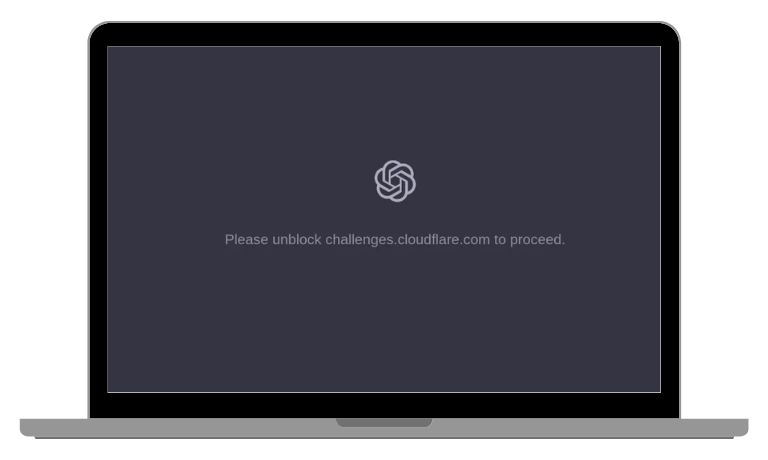
This message means a security check is blocking your access before ChatGPT fully loads. ChatGPT uses Cloudflare to protect its services from abuse, bots, and harmful traffic. When Cloudflare cannot run its security challenge correctly, it stops the page and shows this message. The problem is not that ChatGPT is broken. The system simply cannot confirm that your browser connection is allowed.
Most users see this error while trying to access ChatGPT from OpenAI in a web browser. It may appear as a blank page, a loop that keeps reloading, or a full-screen message asking you to unblock challenges.cloudflare.com.
Common Causes of the Cloudflare Unblock Error in ChatGPT
This error does not appear randomly. It usually shows up when something blocks Cloudflare from running its checks in your browser or network. The cause can be local, such as a browser setting, or external, such as a network restriction. Understanding the common causes helps you avoid guessing.
Common causes include:
- VPN or proxy services interfering with Cloudflare checks
- Ad blockers or privacy extensions blocking scripts
- JavaScript disabled in the browser
- Cookies blocked or cleared too aggressively
- Corporate, school, or office firewalls restricting access
- DNS filtering or ISP-level restrictions
- Corrupted browser cache or site data
How to Fix “Please Unblock challenges.cloudflare.com to Proceed”
This error appears when a security check cannot run in your browser or network. ChatGPT relies on Cloudflare to verify access before loading. If scripts, cookies, or network paths are blocked, the check fails and the page stops. Go through the fixes below one by one. After each fix, reload ChatGPT and test again.
Fix #1: Disable VPN or Proxy Services
VPNs and proxies often change how your traffic is routed. This can trigger Cloudflare security blocks. Turn off any VPN or proxy you are using, close the browser fully, reopen it, and then load ChatGPT again. If the page opens normally, the VPN or proxy was the cause.
Fix #2: Turn Off Ad Blockers and Privacy Extensions
Ad blockers and privacy extensions often block scripts that Cloudflare needs to run. When those scripts fail, the security check stops the page.
Follow these steps to disable extensions:
- Open your browser
- Go to Extensions or Add-ons settings
- Disable ad blockers and privacy extensions
- Close the ChatGPT tab
- Reload ChatGPT in a new tab
If ChatGPT works after this, add ChatGPT and Cloudflare domains to the extension allow list instead of keeping them disabled.
Fix #3: Enable JavaScript in Your Browser
Cloudflare challenges require JavaScript to run. If JavaScript is turned off, the page cannot complete the check and shows this error.
Follow the steps below to enable JavaScript:
- Open browser settings
- Go to Privacy, Security, or Site Settings
- Find JavaScript settings
- Set JavaScript to Allowed
- Close settings
- Reload ChatGPT
Once JavaScript is enabled, the page should load normally.
Fix #4: Allow Cookies for ChatGPT and Cloudflare
Cookies keep the security check active between page loads. If cookies are blocked or deleted too often, the check restarts and fails. Allow cookies for ChatGPT and Cloudflare, then refresh the page. This often fixes repeat blocks.
Fix #5: Clear Browser Cache and Site Data
Corrupted cache or site data can break the security challenge loop. Clearing it forces the browser to load fresh files.
- Open browser settings
- Go to Privacy or History
- Clear cache and site data
- Close the browser
- Reopen it and load ChatGPT again
Fix #6: Try a Different Browser or Incognito Mode
Sometimes the browser profile itself causes conflicts. Open ChatGPT in a different browser or use incognito or private mode. If it works there, the issue is tied to extensions or settings in your main browser profile.
Fix #7: Switch to a Different Network
Office, school, or public networks often block security challenge domains. If possible, switch to a home Wi-Fi or mobile hotspot and reload ChatGPT. If it works on another network, the original network has restrictions you cannot control.
Fix #8: Check Firewall or Network Restrictions
Firewalls, antivirus software, or network filters can block Cloudflare domains needed by ChatGPT. When this happens, the security check cannot complete.
Follow these steps to check restrictions:
- Open your firewall or antivirus settings
- Look for blocked websites or domains
- Allow Cloudflare-related domains
- Save changes and close settings
- Restart your browser
- Reload ChatGPT
If you are on a managed network, contact the network administrator and explain that ChatGPT from OpenAI requires Cloudflare verification to work.
Prevention Tips to Avoid This Cloudflare Error in the Future
Preventing this error saves time and avoids repeated access problems. Small habits can keep ChatGPT loading smoothly without interruptions. You do not need technical skills. Simple awareness helps the most.
Here are easy prevention tips you can follow:
- Avoid using VPNs while accessing ChatGPT
- Keep JavaScript enabled in your browser
- Allow cookies for ChatGPT and Cloudflare domains
- Use a trusted, up-to-date browser
- Avoid aggressive ad blockers or privacy tools
- Use a stable home or mobile network instead of restricted networks
Conclusion
In short, the “please unblock challenges.cloudflare.com to proceed” error appears when Cloudflare cannot verify your browser connection. It usually happens because of VPNs, browser restrictions, blocked scripts, or network firewalls. The issue is about access control, not a broken ChatGPT account.
If the error keeps showing up, take things step by step instead of rushing. Review your browser and network setup calmly. When the problem comes from a restricted network, switching connections may be the only option. If this article helped you, share it with others and leave a comment about what worked for you.

I’ve been into SEO and blogging for over 7 years. I help websites show up higher on search engines. I really enjoy writing helpful guides, especially about gaming and tech stuff.
