
This error usually means Windows cannot verify the integrity of the stored data. Something went wrong while reading the disk. In this guide, you will learn what the CRC error means, why it appears, and several practical fixes that may help you access the data again.
What Does “Data Error Cyclic Redundancy Check” Mean?
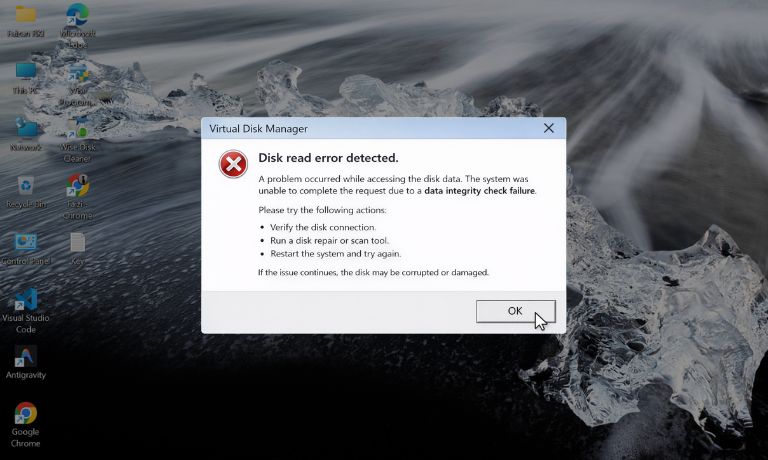
A cyclic redundancy check, often called CRC, is a method used to verify the integrity of digital data stored on a storage device. When data is written to a disk such as a hard disk drive or solid state drive, the operating system calculates a checksum value based on the binary data. Later, when the system reads the file again, it recalculates the checksum and compares the two values. If the values do not match, the system knows that the stored data has changed or become corrupted.
Windows then reports a data error cyclic redundancy check because the information read from the disk no longer matches the original data.
Users often encounter this message in Windows File Explorer while copying files between drives, opening large files, installing software from a disk, or transferring data from an external storage device. The error may appear with files stored on external hard drives, USB flash drives, memory cards, or damaged optical discs.
Common Causes of the CRC Data Error
This error usually indicates a problem reading data from the storage medium. Both software and hardware issues can trigger the problem.
Common causes include:
- Bad sectors on a hard disk drive
- Corrupted files stored on the disk
- Damaged external storage devices
- Faulty SATA or USB connection cables
- Interrupted file transfers during copying
- Disk controller or storage interface problems
- Failing hard drive hardware
How to Fix Data Error Cyclic Redundancy Check
The solution depends on what caused the error. Sometimes the problem comes from disk corruption. In other cases the storage device itself may be failing. The fixes below help repair disk errors or recover data.
Fix 1 – Run the CHKDSK Command
The CHKDSK utility built into Windows scans the file system and checks for bad sectors on a disk. It may repair file system errors and recover readable data.
Follow these steps to run the command.
- Press Windows key + X.
- Select Command Prompt (Admin) or Windows Terminal (Admin).
- Type the command below:
chkdsk /f /r - Press Enter.
- Allow Windows to scan the disk and repair errors.
After the scan completes, try opening or copying the file again.
Fix 2 – Restart and Reconnect the Storage Device
Sometimes the problem occurs because the connection between the storage device and the computer becomes unstable.
Try these simple steps.
- Disconnect the USB drive or external hard disk.
- Restart the computer.
- Connect the device again.
- Use a different USB port if available.
This refreshes the connection between the storage device and the system.
Fix 3 – Inspect and Replace Storage Cables
A damaged SATA cable or loose USB connection may cause CRC errors when reading disk data.
Follow these steps to check the connection.
- Turn off the computer.
- Inspect the SATA cable or USB cable connected to the drive.
- Replace the cable if it appears damaged.
- Restart the computer and test the drive again.
Stable connections help the system read disk sectors correctly.
Fix 4 – Copy Files Using Command Prompt
Sometimes Windows File Explorer stops copying files when it detects a CRC error. Command line tools may still recover readable parts of the data.
Follow the steps below.
- Open Command Prompt.
- Use the robocopy command to copy files.
- Copy the files to another drive or storage device.
Command line utilities can sometimes bypass minor file read errors.
Fix 5 – Scan the Disk for Bad Sectors
Bad sectors are physical areas on a disk that can no longer store data correctly. When the system attempts to read those sectors, CRC errors appear.
You can perform the following steps to scan for bad sectors.
- Open This PC in Windows.
- Right-click the storage drive.
- Select Properties.
- Open the Tools tab.
- Click Check to scan the disk.
This scan identifies damaged sectors and marks them so the system avoids them.
Fix 6 – Use Data Recovery Software
If the disk contains important files, data recovery software may help extract readable information from damaged sectors.
Typical recovery steps include:
- Install a data recovery program on the computer.
- Select the affected disk.
- Run a full scan of the storage device.
- Recover files to another disk or external drive.
This method helps recover files when the disk cannot be repaired completely.
Fix 7 – Backup Important Files Immediately
When CRC errors appear, the storage device may already be developing hardware problems. Copying important files to another disk helps prevent permanent data loss.
You can perform the following steps.
- Connect another external storage device.
- Copy important files that are still accessible.
- Store the backup on another disk or cloud storage.
Creating a backup protects data if the disk fails completely.
Fix 8 – Replace the Failing Storage Device
If CRC errors continue to appear, the storage hardware may be failing. Hard drives and SSDs eventually wear out.
Follow these steps to replace the device.
- Check disk health using a SMART monitoring tool.
- Confirm whether the disk shows hardware warnings.
- Replace the damaged drive with a new storage device.
- Restore files from backup if available.
Replacing the drive prevents further data corruption.
Prevention Tips to Avoid CRC Errors
Preventing disk errors helps keep your files safe. Good maintenance practices reduce the risk of storage corruption.
Helpful tips include:
- Monitor disk health using storage diagnostic tools
- Create regular backups of important files
- Safely remove external storage devices before disconnecting
- Avoid interrupting file transfers during copying
- Keep Windows system updates installed
- Use reliable USB and SATA cables
- Scan disks periodically for bad sectors
Maintaining storage devices and backups helps protect data integrity.
Conclusion
The data error cyclic redundancy check message appears when Windows cannot verify the integrity of data stored on a disk. The system detects a mismatch between the original checksum and the data read from the storage device. This often indicates corrupted files, damaged disk sectors, unstable connections, or failing hardware.
Many users resolve the issue by running CHKDSK, repairing disk errors, reconnecting the storage device, or recovering files with data recovery tools. If the drive continues to produce CRC errors, replacing the storage device may be necessary to prevent permanent data loss.
If this guide helped you solve the CRC problem, consider sharing it with others who face the same disk error. You can also leave a comment describing which solution worked for your system.

I’ve been into SEO and blogging for over 7 years. I help websites show up higher on search engines. I really enjoy writing helpful guides, especially about gaming and tech stuff.
