
Getting the error “error at hooking API LoadStringA” when you try to start Rainbow Six Siege can stop everything. The game fails before the menu loads, and the message looks technical and worrying. Many players see this during startup on PC, especially when anti-cheat runs. This guide explains what the error means, why it happens, how to fix it safely, and how to avoid it later.
What Is Error at Hooking API LoadStringA in Rainbow Six Siege?
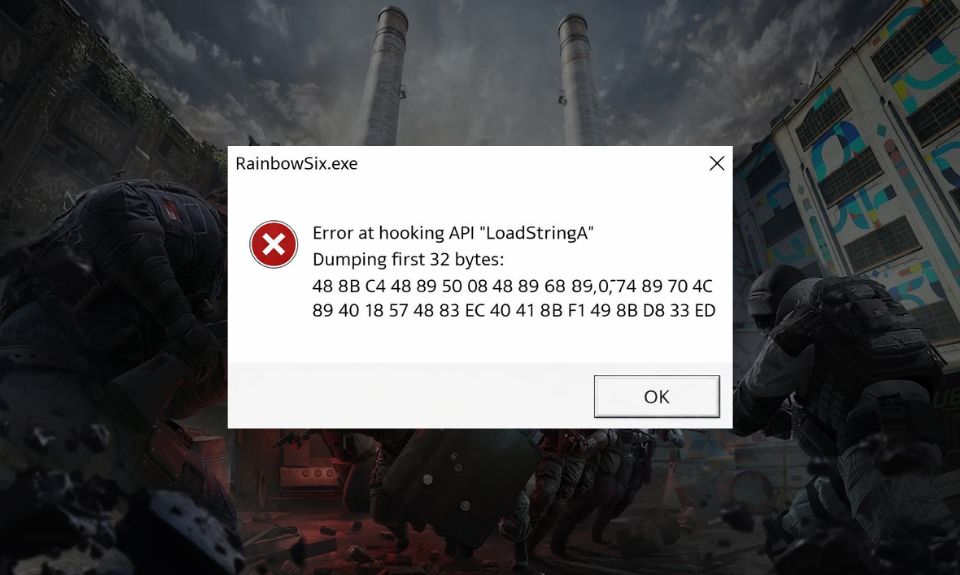
LoadStringA is a Windows API function used by programs to load text resources. When Rainbow Six Siege starts, its anti-cheat checks how system APIs behave. If another process tries to intercept or modify that function, the anti-cheat blocks the launch. This check protects the game from unwanted interference. Rainbow Six Siege relies on anti-cheat systems to keep matches fair, and those systems run before gameplay begins.
Players usually see this error right after pressing Play, during the anti-cheat loading phase. The game closes or never reaches the main menu. This can happen on systems running Windows and does not automatically mean cheating. It often points to a background app or security tool interfering at launch.
Common Causes of Error at Hooking API LoadStringA
This error appears when anti-cheat detects something interfering with Windows APIs. The cause is often normal software running in the background.
- Overlay software injecting into the game
- Antivirus real-time protection blocking game behavior
- Screen recording or performance monitoring tools
- Corrupted anti-cheat files
- Incomplete or damaged game files
- Running the game with restricted permissions
- Background debugging or development tools
- Outdated Windows system components
How to Fix Error at Hooking API LoadStringA in Rainbow Six Siege?
Fixing this error works best when you keep things simple and safe. Avoid changing system files or using unofficial tools. Try one fix at a time and restart the system between attempts when needed.
Fix #1: Restart the System and Launch Clean
Temporary hooks can stay in memory after long system uptime. A clean restart clears them.
Here are the following steps which help you do this:
- Close all running programs
- Restart the computer
- Do not open extra apps after login
- Launch Rainbow Six Siege directly
- Check if the error appears
This often clears temporary conflicts.
Fix #2: Disable Overlay and Monitoring Software
Overlays can inject into games and trigger anti-cheat checks.
Follow the steps below to easily test this:
- Disable overlays from game launchers
- Turn off GPU overlays if enabled
- Close performance monitoring tools
- Restart the system
- Launch the game again
Common overlays cause false detections.
Fix #3: Temporarily Disable Antivirus Real-Time Protection
Security software may block normal game behavior during launch.
You can perform the following steps to test this safely:
- Temporarily disable real-time protection in your antivirus
- Launch the game
- Check if it loads normally
- Re-enable antivirus protection afterward
If this works, add the game to exclusions. Do not leave protection disabled.
Fix #4: Verify Game Files in Ubisoft Connect or Steam
Damaged files can cause anti-cheat checks to fail.
Below are the steps that will guide you to verify files:
- Open Ubisoft Connect or Steam
- Locate Rainbow Six Siege
- Start file verification
- Wait for the process to finish
- Restart the launcher and try again
This restores missing or broken files.
Fix #5: Reinstall Anti-Cheat Components
Anti-cheat files can become corrupted over time.
Follow these easy instructions to reinstall them:
- Navigate to the game’s anti-cheat folder
- Run the uninstall option if available
- Restart the system
- Launch the game to reinstall anti-cheat
- Wait until setup completes
Rainbow Six Siege uses anti-cheat to protect matches.
Fix #6: Run Rainbow Six Siege as Administrator
Permission limits can block proper API access.
Here’s how you can do this:
- Right-click the game shortcut
- Select Run as administrator
- Approve the permission prompt
- Let the game launch fully
This can resolve permission-related blocks.
Fix #7: Perform a Clean Boot of Windows
A clean boot helps find hidden conflicts from background apps.
Try these steps carefully:
- Open system configuration
- Disable non-essential startup services
- Restart the computer
- Launch the game before opening other apps
- Observe if the error is gone
This helps isolate the conflict source.
Fix #8: Contact Ubisoft Support
If the error keeps appearing, contact Ubisoft support. Share the exact error message, system details, and logs if requested. Avoid editing game files manually or using injectors. Support can confirm if the issue links to known conflicts or updates.
Prevention Tips to Avoid LoadStringA Errors in the Future
Prevention helps keep the game launching smoothly.
- Avoid using overlays while playing
- Keep Windows updated
- Use official launchers only
- Add the game to antivirus exclusions
- Close background debuggers
- Restart the system before gaming
- Keep anti-cheat files intact
Conclusion
In short, “error at hooking API LoadStringA” appears when anti-cheat detects interference during Rainbow Six Siege startup. The issue usually comes from background software, security tools, or corrupted files. Most players can fix it with clean restarts, disabling overlays, or repairing files.
Try the fixes one by one and stop once the game launches normally. If the error continues, Ubisoft support is the safest next step. If this guide helped you, share it with other players and leave a comment about which fix worked for you.

I’ve been into SEO and blogging for over 7 years. I help websites show up higher on search engines. I really enjoy writing helpful guides, especially about gaming and tech stuff.
