
You try to join a friend in Fortnite, but instead of entering the party, the screen shows Error Code 91. The game suddenly blocks the connection and the multiplayer lobby fails to load.
This guide explains what Fortnite Error Code 91 means, why it happens, and how you can fix the problem so you can reconnect to Epic Games servers and play with friends again.
What Is Fortnite Error Code 91?
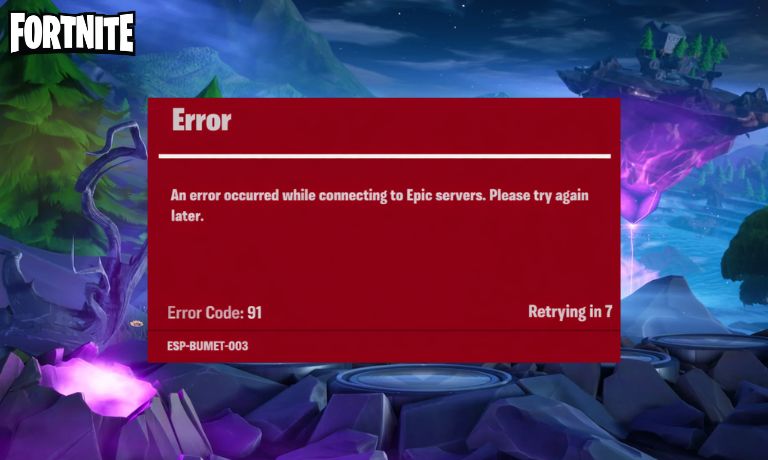
Fortnite Error Code 91 appears when the Fortnite game client cannot establish a stable connection with the Epic Games online service responsible for party communication. The game uses several server systems to manage multiplayer sessions, including the Epic Games matchmaking service, the party invitation system, and the player lobby network.
When the client attempts to connect to these services, it sends a request to the server infrastructure.
If the connection fails because of network interruptions, authentication delays, or blocked communication channels, the game cannot join the party. At that moment, the system displays error code 91 and stops the connection attempt.
Players usually see this message when they try to join a party, accept a party invitation, or connect to the Fortnite multiplayer lobby.
Common Causes of Fortnite Error Code 91
Several technical issues can cause this connection error. Some come from local network settings, while others relate to Epic Games server communication.
Common causes include:
- unstable internet connection
- temporary issues with Epic Games servers
- strict NAT type configuration
- firewall rules blocking Fortnite network traffic
- router configuration problems
- outdated Fortnite game client
- active VPN service interfering with server routing
These factors interrupt communication between the Fortnite client and the Epic Games party system.
How to Fix Fortnite Error Code 91?
Fixing this error usually requires restoring communication between your device and the Epic Games multiplayer servers. Fortnite relies on stable connections for the party system, matchmaking services, and player lobby synchronization.
When the connection becomes unstable or blocked, the client cannot complete the request and the error appears.
The solutions below help refresh the connection, repair configuration problems, and restore access to the online party system.
Fix #1 Restart Fortnite
Temporary glitches inside the Fortnite client or the Epic Games Launcher may cause the connection request to fail.
Follow these steps to restart the game.
- Close Fortnite completely.
- Exit the Epic Games Launcher.
- Open Task Manager and end launcher processes if needed.
- Restart the Epic Games Launcher.
- Launch Fortnite again.
Restarting the game refreshes the connection request to the servers.
Fix #2 Check Epic Games Server Status
Sometimes the issue comes from Epic Games servers, not your device.
Follow these steps.
- Open a web browser.
- Visit the Epic Games server status page.
- Check the status of Fortnite services.
- Look for maintenance announcements or outages.
If servers are under maintenance, the problem will resolve after the service returns.
Fix #3 Restart Your Router
Network hardware sometimes builds temporary routing problems that affect online games.
Here are the steps to restart the router.
- Turn off the router or modem.
- Unplug it from power.
- Wait about 60 seconds.
- Plug the device back in.
- Turn the router on again.
- Reconnect your device to the internet.
This refreshes your local network connection.
Fix #4 Change DNS Server
Your DNS server translates website and server names into IP addresses. If the DNS response becomes slow or inaccurate, Fortnite may fail to locate the correct server.
Follow these steps.
- Open Windows network settings.
- Select your active internet connection.
- Open IPv4 settings.
- Enter Google DNS addresses 8.8.8.8 and 8.8.4.4.
- Save the settings and reconnect.
Public DNS services often improve server routing.
Fix #5 Check NAT Type
Your NAT type determines how your device communicates with other players online. A strict NAT configuration can block party connections.
Open your router settings and check the NAT status. If possible, switch the connection to Open NAT or Moderate NAT, which improves multiplayer connectivity.
Fix #6 Disable VPN Services
A VPN connection changes your internet route and may interfere with the connection to Epic Games servers.
Disconnect from the VPN service and launch Fortnite again using your normal internet connection.
Fix #7 Update Fortnite
Older game versions may fail to connect with updated server services.
Follow these steps.
- Open the Epic Games Launcher.
- Go to your game library.
- Check for Fortnite updates.
- Install the latest version.
Updated game clients maintain compatibility with server systems.
Fix #8 Reinstall Fortnite
If game files become corrupted, reinstalling the game may restore the missing components.
Uninstall Fortnite from your system, then download the latest version through the Epic Games Launcher and install it again.
Prevention Tips to Avoid Fortnite Error 91
Stable network settings and updated software help reduce multiplayer connection errors. Since Fortnite relies on constant communication with Epic Games online servers, small network problems can interrupt party connections.
Helpful tips include:
- keep Fortnite updated through the Epic Games Launcher
- maintain a stable internet connection
- restart your router periodically
- use reliable DNS servers
- avoid using VPN services while playing
- allow Fortnite through firewall settings
- keep router firmware updated
These practices help maintain smooth communication between the Fortnite client and Epic Games servers.
Conclusion
Fortnite Error Code 91 usually appears when the game cannot establish a stable connection with the Epic Games party system. Network interruptions, strict NAT settings, firewall restrictions, or server maintenance can prevent the client from joining multiplayer parties. Because Fortnite relies on constant server communication, even a short connection failure may trigger the error.
Most players fix the problem by restarting the game, checking server status, adjusting network settings, or updating the game client. If the issue continues, reinstalling Fortnite or reviewing router configuration may help.
If this guide helped you fix Fortnite Error Code 91, share it with other players who might face the same issue. You can also leave a comment and explain which solution worked for you.

I’ve been into SEO and blogging for over 7 years. I help websites show up higher on search engines. I really enjoy writing helpful guides, especially about gaming and tech stuff.
