
Seeing GeForce Experience error code 0x0003 can be annoying, especially when you just want to update drivers or open the app. You click the icon, wait a second, and the app fails to load. This error matters because it blocks access to NVIDIA features like driver updates and game settings. Sometimes it shows up after a Windows update, and sometimes it appears without warning.
This guide explains what the error means, why it happens, how to fix it, and how to prevent it later.
What Is GeForce Experience Error Code 0x0003?
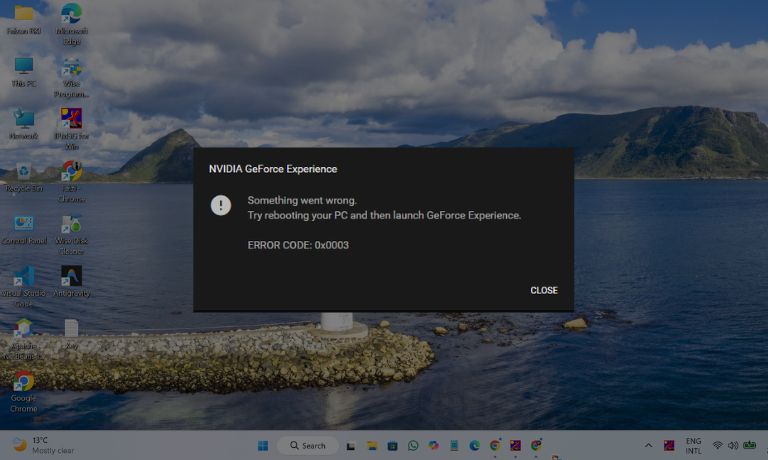
GeForce Experience error code 0x0003 is a service-related error. It appears when NVIDIA background services fail to communicate with the app. These services handle driver updates, network checks, and app startup tasks. When one or more services stop or lose permission, GeForce Experience cannot open properly. This error does not mean your graphics card is broken or failing.
Most users see error code 0x0003 when launching GeForce Experience on Windows. It may appear as a popup or cause the app to close immediately. In many cases, the app never reaches the login screen.
Common Causes of GeForce Experience Error Code 0x0003
This error can happen for several reasons, and most of them relate to NVIDIA services or Windows settings. Small system changes can break the connection between the app and its services. Below are the most common causes.
-
NVIDIA services are not running
-
NVIDIA Telemetry service is disabled
-
Network adapter is inactive
-
Corrupted GeForce Experience files
-
Outdated or broken NVIDIA driver
-
Firewall or security software blocking access
-
Windows update conflict
How to Fix GeForce Experience Error Code 0x0003?
In most cases, this error goes away after restoring NVIDIA services or fixing network access. However, the right fix depends on what stopped the app from working. Try the fixes below in order. Stop once GeForce Experience opens normally.
Fix #1: Restart NVIDIA Services
GeForce Experience depends on several NVIDIA services to run. If one service stops, the app cannot start. Restarting these services refreshes the connection and clears temporary issues. This fix works for many users.
After restarting the services, the app usually opens without errors.
Follow the steps below to restart NVIDIA services:
-
Press Windows key + R
-
Type services.msc and press Enter
-
Find all services that start with NVIDIA
-
Right-click each service
-
Click Restart
-
Close the Services window
-
Open GeForce Experience again
Fix #2: Allow NVIDIA Telemetry Service to Interact With Desktop
The NVIDIA Telemetry service helps the app communicate with system components. If this service cannot interact with the desktop, GeForce Experience may fail to load. Allowing interaction restores proper communication.
Once enabled, the app can access required system data and start normally.
Here are the following steps which help you to allow NVIDIA Telemetry interaction:
-
Press Windows key + R
-
Type services.msc and press Enter
-
Find NVIDIA Telemetry Container
-
Right-click and select Properties
-
Open the Log On tab
-
Check Allow service to interact with desktop
-
Click Apply and restart the service
Fix #3: Restart Network Adapter
GeForce Experience needs an active and stable network connection to open correctly. If the network adapter is disabled or stuck, the app may fail to connect and show error code 0x0003. Restarting the adapter refreshes the connection and clears temporary network issues.
Once the adapter restarts, the system reconnects to the network, and GeForce Experience can reach NVIDIA services again.
Follow these easy instructions to restart the network adapter without any confusion:
- Press Windows key + R
- Type ncpa.cpl and press Enter
- Find your active network adapter
- Right-click the adapter
- Click Disable
- Wait 10 to 15 seconds
- Right-click again and select Enable
- Close the window and open GeForce Experience
Fix #4: Reset NVIDIA Network Services
NVIDIA uses background services to handle network communication and updates. If these services stop or freeze, GeForce Experience cannot load properly. Resetting them clears stuck connections and restores service communication.
After restarting these services, the app usually opens without errors.
Perform the following steps carefully to reset NVIDIA network services:
- Press Windows key + R
- Type services.msc and press Enter
- Locate NVIDIA Network Service
- Right-click the service
- Click Restart
- Repeat for other NVIDIA-related services
- Close the Services window
- Launch GeForce Experience again
Fix #5: Reinstall GeForce Experience
If the app files become corrupted, GeForce Experience may stop working. Reinstalling the app replaces damaged files without touching your graphics driver. This fix is safe and often effective.
Download the latest version from the NVIDIA website, install it, and restart your system before launching the app again.
Fix #6: Update or Reinstall NVIDIA Graphics Driver
An outdated or damaged graphics driver can break communication between GeForce Experience and NVIDIA services. Updating or reinstalling the driver restores compatibility and fixes service-level issues that cause error code 0x0003.
After updating the driver, GeForce Experience often starts normally.
The following steps will show you how to update or reinstall the NVIDIA graphics driver properly:
- Right-click the Start button
- Select Device Manager
- Expand Display adapters
- Right-click your NVIDIA graphics card
- Click Update driver
- Choose Search automatically for drivers
- If issues continue, uninstall the driver
- Restart your PC and reinstall the latest driver from NVIDIA
Fix #7: Check Firewall and Security Software
Firewall and antivirus programs can block NVIDIA services without clear warnings. When this happens, GeForce Experience cannot connect to the internet and fails to open. Allowing NVIDIA apps through security software fixes this issue.
Once permissions are added, the app can communicate freely with NVIDIA servers.
Here are the exact steps you need to follow to allow GeForce Experience through firewall and security software successfully:
- Open Windows Security
- Click Firewall and network protection
- Select Allow an app through firewall
- Click Change settings
- Find GeForce Experience and NVIDIA services
- Check both Private and Public boxes
- If missing, click Allow another app and add it manually
- Save changes and restart GeForce Experience
Fix #8: Perform a Clean NVIDIA Installation
If none of the fixes work, a clean installation may help. This removes old NVIDIA files and installs fresh components. It clears deep conflicts caused by updates or broken services.
After a clean install, GeForce Experience usually works without errors. Use this fix only after trying the others.
Prevention Tips to Avoid Error Code 0x0003 in the Future
Preventing this error saves time and avoids repeated frustration. Simple habits help keep GeForce Experience running smoothly.
-
Keep NVIDIA drivers updated
-
Do not disable NVIDIA services
-
Restart your PC after driver updates
-
Avoid aggressive system-cleaning tools
-
Keep the network adapter enabled
-
Allow NVIDIA apps through the firewall
-
Install Windows updates fully
Conclusion
In short, GeForce Experience error code 0x0003 is a service and network issue. It appears when NVIDIA services stop working or lose access. Most causes involve disabled services, network problems, or driver conflicts.
Try the fixes calmly and give each one time to work. If the error continues, contacting NVIDIA support is the best next step. If this guide helped you, share it with others and leave a comment about which fix worked for you.

I’ve been into SEO and blogging for over 7 years. I help websites show up higher on search engines. I really enjoy writing helpful guides, especially about gaming and tech stuff.
