
Seeing GLFW error 65542 is annoying because the app stops before it even opens. In most current cases, this error shows up with the message “WGL: The driver does not appear to support OpenGL,” and the strongest evidence points to a graphics driver problem, wrong display driver, or older hardware that cannot provide the OpenGL support the app needs.
This guide explains what the error means, why it happens, how to fix it, and how to stop it from coming back.
What Is GLFW Error 65542?
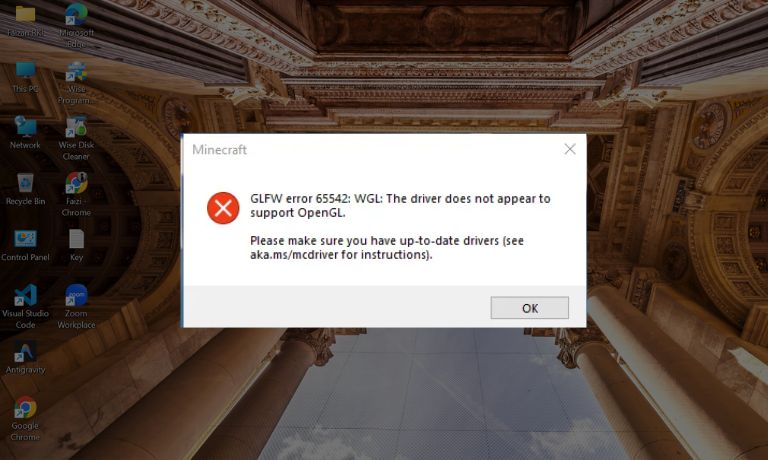
GLFW error 65542 means Windows is not exposing the OpenGL support the program expects. In simple words, the app asks your graphics driver for OpenGL, but the installed driver does not respond with the right support. Intel’s support article for this exact error says the main fix on integrated-graphics systems is to install the latest graphics driver and then restart the device.
Most users see this error while launching Minecraft Java Edition, but it can also appear in other OpenGL-based apps on Windows 10 or Windows 11. It usually happens at startup, before the program fully loads, which is why it feels sudden and confusing.
Microsoft Answers threads also show that users often run into it after a driver change, a Windows update, or a graphics issue that replaced the normal GPU driver.
Common Causes of GLFW Error 65542
This error can happen for several reasons, but the strongest pattern is still driver-related. Intel’s official guidance points first to updating the graphics driver, while Microsoft Answers posts repeatedly mention bad NVIDIA drivers, wrong Microsoft-installed drivers, corrupted display drivers, and older unsupported graphics hardware.
- An outdated Intel, NVIDIA, or AMD graphics driver can stop OpenGL from working correctly.
- Windows Update may install the wrong display driver or a generic driver with poor OpenGL support.
- A corrupted GPU driver can break OpenGL even if the hardware itself is fine.
- Laptop OEM driver mismatch can cause issues when a generic vendor driver does not behave well on that model. Intel says to contact the OEM if the issue continues on integrated graphics.
- A recent driver update may be unstable, and some Microsoft Answers guidance suggests testing slightly older stable drivers.
- Very old integrated graphics may not support the OpenGL level the app now needs. Community Intel posts note, for example, that UHD 630 supports OpenGL 4.6, which also implies older lines vary by model and generation.
- Some systems are running on the wrong adapter state, like a generic display adapter, instead of the proper vendor driver.
How to Fix GLFW Error 65542
In most cases, the best fix is to correct the graphics driver first. Start with the official driver path, then move to clean reinstall steps, OEM drivers, and hardware checks if the error stays. That order makes the troubleshooting easier and reduces the chance of changing too many things at once.
Fix #1: Update your graphics driver
This is the clearest official fix path. Intel’s article for GLFW error 65542 says to download the latest graphics driver and then restart the device. That makes driver update the first thing to try, especially on systems using Intel integrated graphics.
Follow the steps below to easily update your graphics driver.
- Press Windows + X and open Device Manager.
- Expand Display adapters.
- Note the exact GPU name, such as Intel UHD Graphics, NVIDIA GeForce, or AMD Radeon.
- Go to the official driver page for that graphics vendor or your laptop maker.
- Download the recommended driver for your model and Windows version.
- Install the driver fully.
- Restart your PC after the installation finishes.
Fix #2: Restart your PC after the driver update
A restart matters here because Intel explicitly includes rebooting after driver installation. Without a reboot, Windows may still be holding part of the old display-driver state in memory. So even if the new driver is installed, OpenGL may not work properly until the system starts fresh again.
Fix #3: Install the driver from your laptop or PC manufacturer if needed
On many laptops, the best driver is not always the generic Intel, NVIDIA, or AMD package. OEM systems often use customized drivers for power control, switching graphics, or display behavior. Intel’s support article says that if the issue continues on integrated-graphics systems, users should contact the original equipment manufacturer. That means the Lenovo, Dell, HP, ASUS, Acer, or MSI support driver may be the safer choice on some systems.
Fix #4: Do a clean reinstall of the graphics driver
Sometimes updating over the current driver is not enough. Recent Microsoft Answers guidance for this error mentions fully removing the bad NVIDIA driver and then installing a stable version from the vendor or PC maker. That points to clean reinstall as a strong next step when standard updating fails.
The following steps will show you how to do a cleaner driver reinstall properly.
- Download the driver you want to install first from the official GPU vendor or your PC manufacturer.
- Uninstall the current graphics driver from Device Manager or use a trusted driver-removal method.
- Restart the PC.
- Run the downloaded driver installer.
- Complete the installation.
- Restart the PC again.
- Launch Minecraft or the OpenGL app and test it.
Fix #5: Check whether Windows installed the wrong display driver
Some Microsoft Answers reports say the issue came from Microsoft-provided or WHQL-installed drivers that did not expose OpenGL support correctly on certain Intel systems. If OpenGL stopped working after a Windows update, there is a real chance the display driver changed behind the scenes.
You can perform the following steps to check the active display driver.
- Open Device Manager.
- Expand Display adapters.
- Check the name shown there.
- If you see a generic adapter or an unexpected driver version, note it.
- Compare that version with the driver listed on your GPU vendor site or laptop support page.
- Install the correct recommended driver if the current one looks wrong.
- Restart the PC and test the app again.
Fix #6: Try an older stable driver if a recent update broke it
This step is useful when the app worked before and then failed right after a driver update. Recent Microsoft Answers guidance specifically suggests trying slightly older stable NVIDIA drivers in some cases. So if the newest driver triggered the problem, rolling back to a known stable version can be worth testing.
Fix #7: Confirm your GPU still supports the required OpenGL version
Not every system can be fixed with drivers alone. Some older Intel HD graphics chips and discontinued GPUs simply do not meet modern OpenGL requirements. Microsoft Answers discussions around older hardware show that some users hit a real hardware limit, not just a bad driver situation. If your GPU is very old, check its official OpenGL support before spending too much time on driver experiments.
Fix #8: Avoid downloading random OpenGL DLL files
A lot of users search for a quick DLL fix when this error appears. That is risky. Official guidance centers on proper graphics drivers, not on copying random opengl32.dll files from third-party sites. Community Intel threads also show users trying manual OpenGL workarounds, but that is not the recommended first path and can make the system less stable or less secure.
Prevention Tips to Avoid GLFW Error 65542 in Future
Prevention mostly comes down to keeping the right graphics driver installed and not letting Windows or random downloads replace it with something worse. A few simple habits can reduce the chance of OpenGL breaking again after the game, launcher, or operating system changes.
- Keep Intel, NVIDIA, or AMD graphics drivers updated from official sources.
- Prefer OEM drivers on laptops when the manufacturer recommends them.
- Restart the PC after major driver changes.
- Watch for Windows Update replacing your normal GPU driver with a weaker one.
- Create a restore point before major driver changes so rollback is easier if OpenGL breaks. This is a practical Windows safety step.
- Avoid random OpenGL DLL downloads from unofficial sites.
- Check the game’s graphics requirements against your GPU if the hardware is old.
Conclusion
To summarize, GLFW error 65542 is mainly an OpenGL and graphics-driver problem on Windows. The strongest current evidence points to outdated, wrong, corrupted, or unstable GPU drivers, while some cases are true hardware-limit cases on older graphics chips. Intel’s official guidance puts driver update and reboot first, and recent Microsoft Answers discussions support clean reinstall and stable-driver testing when newer drivers fail.
Start with the official driver update first. Then reboot, check for the correct OEM driver, and try a clean reinstall if needed. If the GPU is too old for the required OpenGL support, the fix may be a hardware limit rather than a software bug. If this article helped, share it with someone else or leave a comment with the fix that worked for you.

I’ve been into SEO and blogging for over 7 years. I help websites show up higher on search engines. I really enjoy writing helpful guides, especially about gaming and tech stuff.
