
It’s annoying when the Google Play Store shows a 403 error and refuses to download or update apps. You tap install and nothing works. The message pops up again and again. When this happens, the Play Store blocks your request because something is wrong with your account, your network, or your device settings. In this guide, you’ll learn what this error means, why it happens, how to fix it, and how to stop it from coming back.
What Is Google Play Store 403 Error?
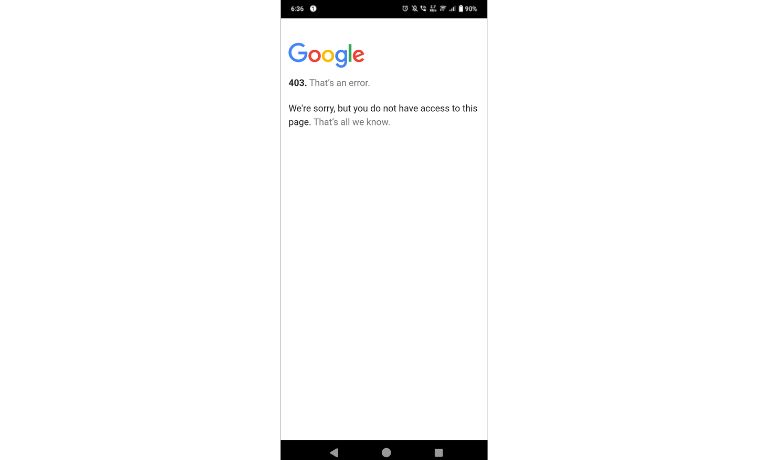
The Google Play Store 403 error happens when the Play Store or Google servers block your download request. It means the app store cannot approve the request your device is sending. This might be because of account issues, a bad network, blocked permissions, or corrupted Play Store data. The error connects to HTTP 403, which means access denied.
You usually see this error when trying to install or update apps, make in app purchases, switch from mobile data to Wi Fi, or log in with different Google accounts. Sometimes the error appears on devices with old Android versions or outdated Google Play Services.
Common Causes of Google Play Store 403 Error
This error can show up for different reasons depending on your phone and network. These are the most common causes you should check.
- Conflicting Google accounts signed in on the device
- Wrong Play Store region settings or content restrictions
- Corrupted Google Play Store or Google Play Services cache
- Download Manager disabled in system settings
- Unstable Wi Fi or mobile data
- VPN or proxy blocking Google servers
- Outdated Play Store or Android components
How To Fix Google Play Store 403 Error?
Fixes may change based on your phone, network, and account settings. However, the fixes below solve the problem for most users.
Fix 1: Remove and Re-add Your Google Account
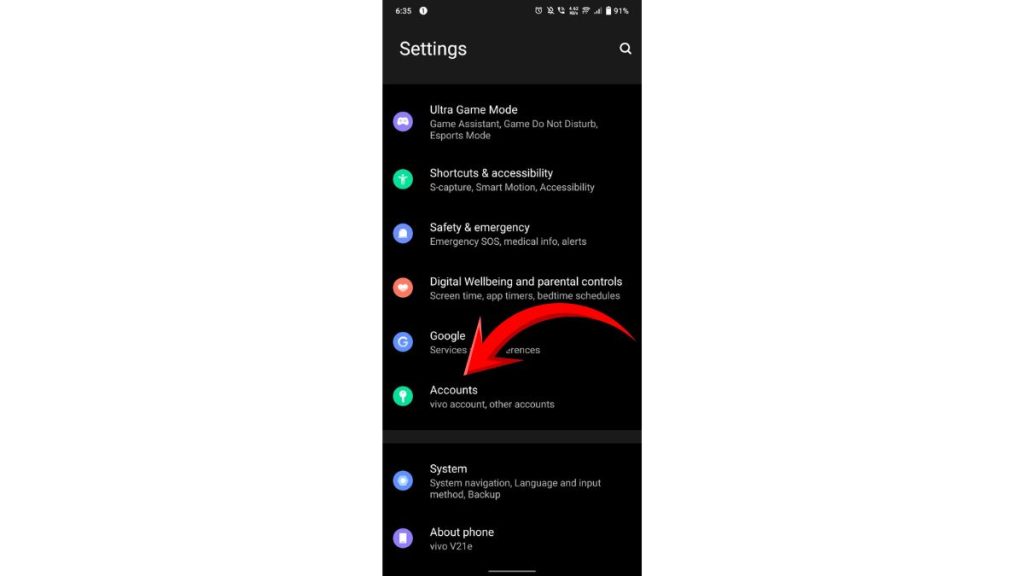
Account conflicts can cause the Play Store to reject your requests. Removing the account resets the authentication and clears blocked sessions. After you add the account back, downloads often work again.
Here’s how you can remove and add your Google account.
- Open Settings.
- Tap Accounts.
- Select your Google account.
- Tap Remove account.
- Restart your phone.
- Add the account again.
Fix 2: Clear Google Play Store Cache
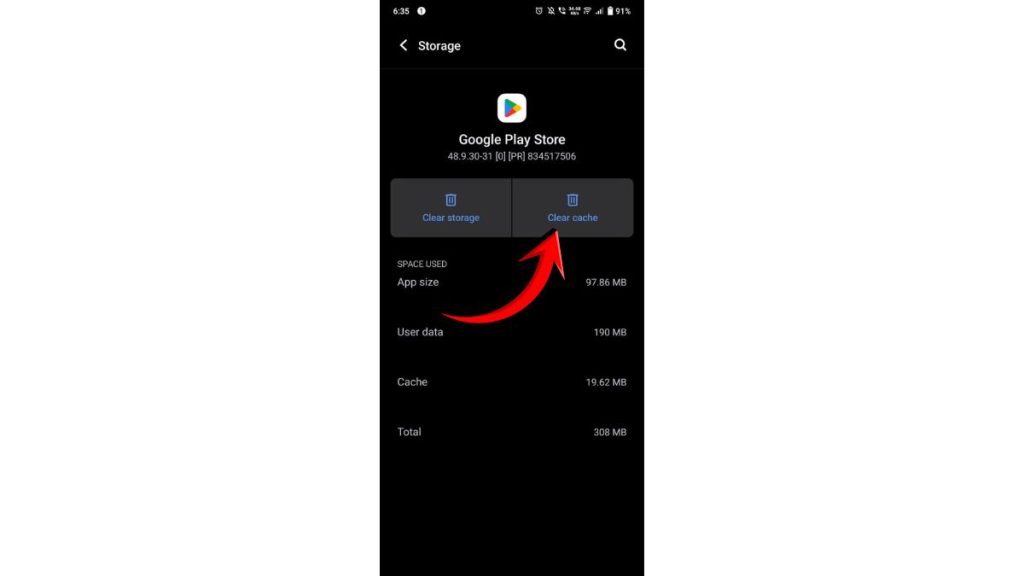
The Play Store stores cache files that help load pages faster. When these files get corrupted, you may see the 403 error. Clearing the cache resets the app and fixes most temporary problems.
Follow the steps below to clear the Play Store cache.
- Open Settings.
- Tap Apps.
- Find Google Play Store.
- Tap Storage.
- Tap Clear cache.
Fix 3: Clear Google Play Services Data
Google Play Services controls account sync, Play Store authentication, and app permissions. When it fails, the Play Store returns errors like 403.
You can perform the following steps to clear its data.
- Open Settings.
- Tap Apps.
- Find Google Play Services.
- Tap Storage and cache.
- Tap Clear storage.
- Restart your phone.
Fix 4: Enable Download Manager
The Play Store cannot download anything without Download Manager. If this system app is disabled, you will see errors.
Here are the steps that will guide you to enable it.
- Open Settings.
- Tap Apps.
- Tap Show system apps.
- Find Download Manager.
- Tap Enable.
Fix 5: Switch Between Wi Fi and Mobile Data
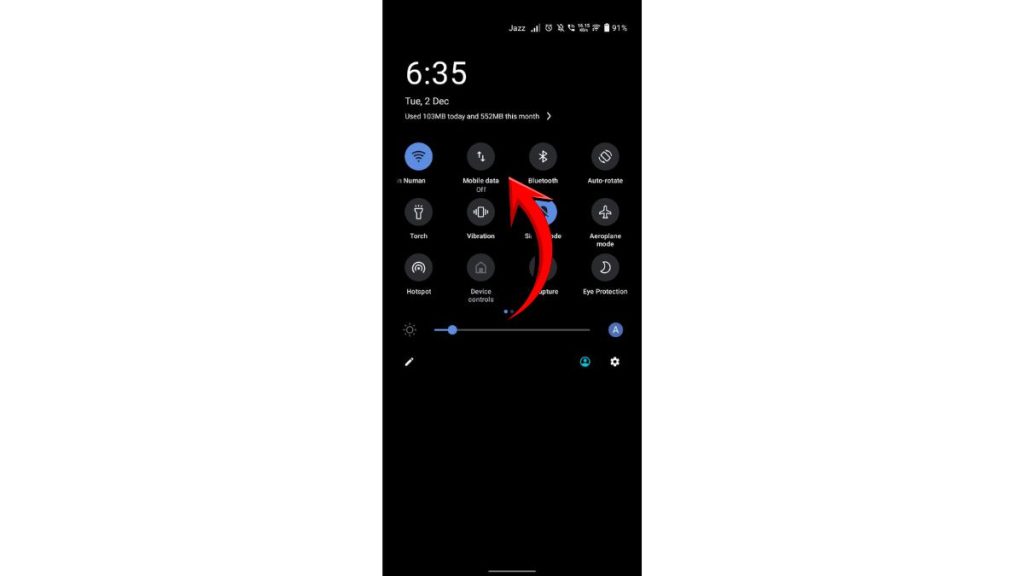
Sometimes your internet connection blocks the request. Switching between Wi Fi and mobile data gives you a new IP address. This might bypass a temporary block from Google servers or your ISP.
Try both connections to see which one works.
Fix 6: Turn Off VPN or Proxy
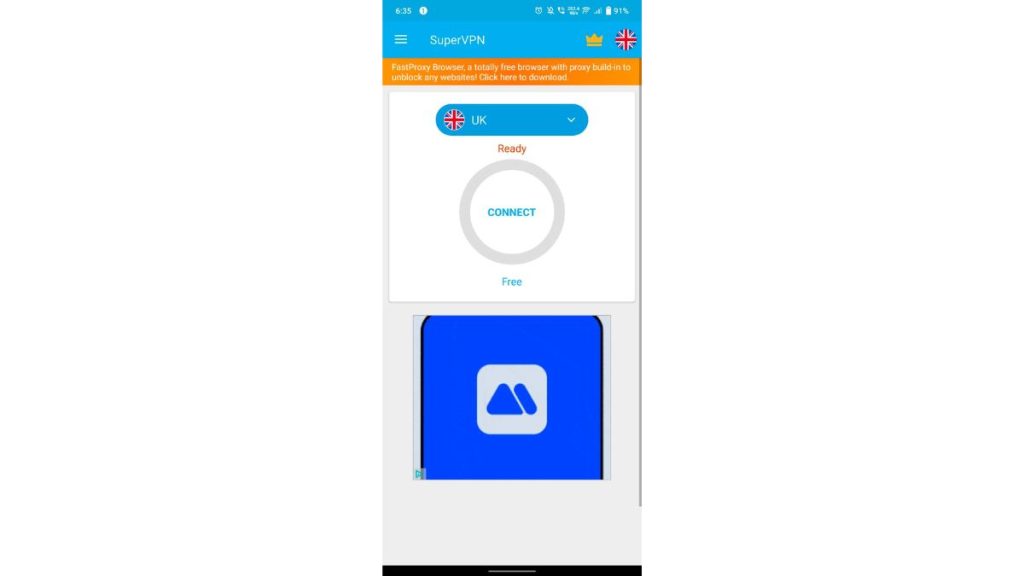
VPNs and proxies often block Google Play’s secure requests. They change your IP address and sometimes route you through restricted regions. Turning off the VPN can fix the 403 error right away.
Disable your VPN or proxy and try the Play Store again.
Fix 7: Update Google Play Store
An outdated Play Store may fail to send the correct request to Google servers. Updating the Play Store installs new files and fixes known bugs.
Here’s how you can update it quickly.
- Open Google Play Store.
- Tap your profile icon.
- Go to Settings.
- Tap About.
- Tap Update Play Store.
Fix 8: Update Android System WebView
Android System WebView helps many Google apps load content. If it is outdated or corrupted, the Play Store may return install errors.
Open the Play Store and update Android System WebView to the latest version.
Fix 9: Check Family Link or Parental Controls
Google Family Link can block certain downloads. If a restricted app is requested, you might see a 403 error. Changing these settings lets the download go through.
Open Family Link or Play Store settings and turn off restrictions if needed.
Fix 10: Change DNS to Google DNS
Sometimes the ISP blocks Google servers. Changing DNS to Google DNS can fix this problem.
Use these DNS addresses:
- 8.8.8.8
- 8.8.4.4
You can add them in your Wi Fi settings.
Fix 11: Reset Network Settings
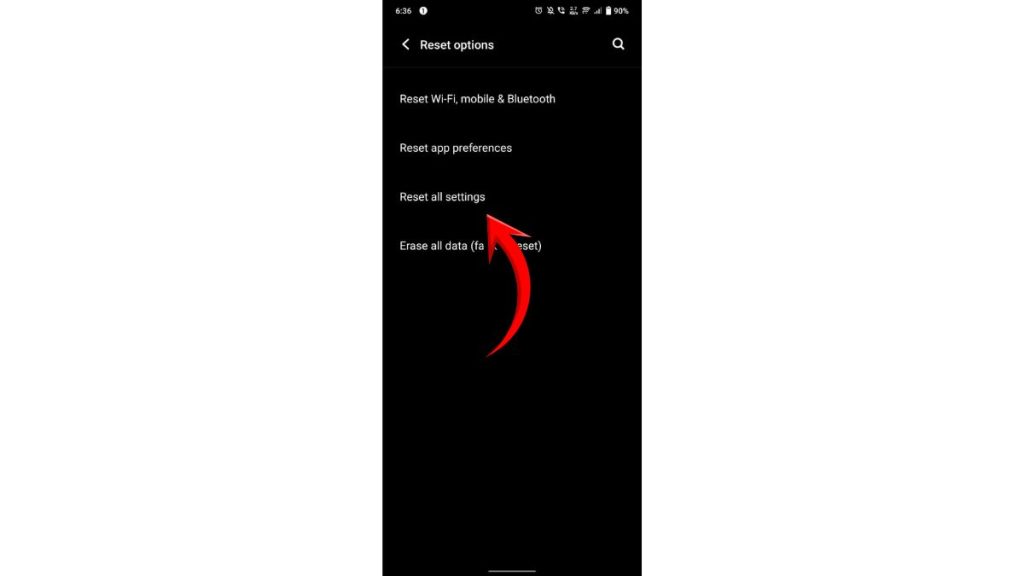
If nothing works, your phone’s network settings might be broken. Resetting them gives you a clean network setup.
Perform the following steps carefully to reset your network settings.
- Open Settings.
- Tap System.
- Tap Reset options.
- Choose Reset Wi Fi, mobile, and Bluetooth.
- Restart your phone.
Prevention Tips To Avoid The 403 Error
Keeping your device clean and updated helps avoid Google Play Store errors in the future. Try these simple tips.
- Keep your Android phone updated
- Update Google Play Store and Play Services
- Restart your phone once a week
- Avoid unstable VPN apps
- Make sure you have enough storage
- Remove unused Google accounts
- Use trusted Wi Fi networks
Conclusion
The Google Play Store 403 error happens when the Play Store or Google servers block your download request. It usually comes from account issues, a bad network, corrupted cache, or blocked permissions. Most users can fix the error by clearing Play Store data, updating Google Services, switching networks, or removing and adding their Google account.
Try the fixes one by one. If the problem keeps showing up, contact Google Support or your mobile carrier for extra help.
If this guide helped you, share it or leave a comment so others can fix the same issue too.

I’ve been into SEO and blogging for over 7 years. I help websites show up higher on search engines. I really enjoy writing helpful guides, especially about gaming and tech stuff.
