
Seeing “error invoking client start” in the HDHomeRun app is frustrating because the app may open and then fail before the guide, channel list, or live TV works the way it should. Current reports point to two main patterns: a temporary SiliconDust-side service problem, or a local discovery and network issue that stops the app from starting its client session correctly. This guide explains what the error means, why it happens, how to fix it, and how to stop it from coming back.
What Is HDHomeRun “Error Invoking Client Start”?
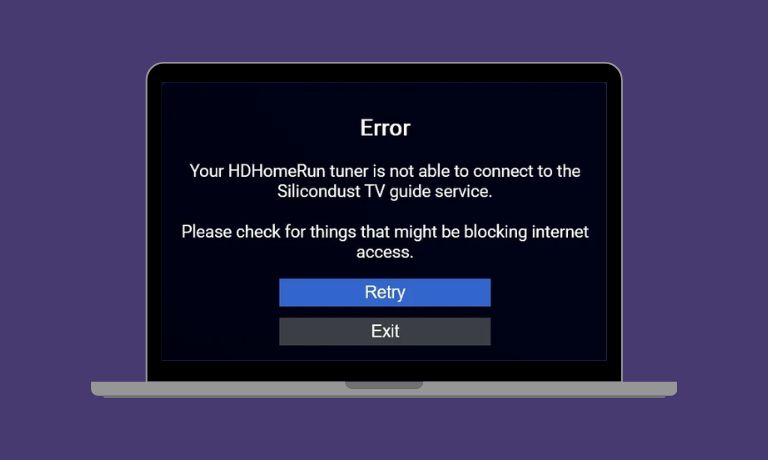
This message usually means the HDHomeRun app failed while starting its client session. In simple words, the app could not fully finish startup, guide-service contact, or tuner discovery. A SiliconDust forum report tied this exact message to a temporary SiliconDust outage, which shows the error is not always caused by the tuner hardware itself.
Users often see this message during app launch on Windows or Android TV devices. In related reports, the app may also show no guide information, no channels on the side, or a partially working live TV screen where the channel cannot be changed. Some users also report that the tuner still works in another app like Channels, which suggests the problem can sit in the HDHomeRun app or its service path rather than in the tuner alone.
Common Causes of HDHomeRun “Error Invoking Client Start”
This error can happen for several reasons, but the strongest pattern is still split between a SiliconDust-side outage and a local-network discovery problem. SiliconDust’s own networking guide supports the local-network side clearly, while current user reports support the temporary outage side.
- A temporary SiliconDust server or guide-service outage can stop the HDHomeRun app from starting correctly. A forum post directly linked this exact error to a SiliconDust outage.
- A backend issue can leave the app open but with no guide data, no sidebar channels, or missing navigation. Current user reports describe that symptom cluster on Windows and NVIDIA Shield.
- A VPN can block local tuner discovery. SiliconDust explicitly says VPNs can interfere with HDHomeRun networking, and even mentions Google Fi VPN by name in its troubleshooting page.
- Third-party antivirus or firewall software can block the app. SiliconDust says local firewall software and antivirus tools can disrupt HDHomeRun networking.
- The device may be on a guest network or another isolated network. SiliconDust says the tuner and playback device need to be on the same network and that guest Wi-Fi is a common problem.
- Weak 2.4 GHz Wi-Fi can cause discovery or streaming trouble. SiliconDust recommends 5 GHz Wi-Fi or Ethernet and notes that weak Wi-Fi often causes issues.
- Stale app cache or app data can also keep the app from loading channels or guide data properly. Current community troubleshooting around HDHomeRun and related TV apps often points to clearing app data or reinstalling.
How to Fix HDHomeRun Error Invoking Client Start?
The best way to handle this error is to start with the simplest checks first. If SiliconDust services are having trouble, local changes may not help right away. If the problem is on your network or inside the app, the fixes below are the ones most strongly supported by SiliconDust’s own guidance and user reports.
Fix #1: Wait a few minutes and try again
If many users are seeing the same issue at the same time, the problem may be on SiliconDust’s side. A SiliconDust forum post directly connected “error invoking client start” with a SiliconDust outage, and other recent posts describe guide and channel problems that later cleared without a local hardware change.
So if the error appears suddenly and your setup was working before, waiting a few minutes and trying again is a smart first move.
Fix #2: Restart the HDHomeRun app
A full app restart can clear a stale startup session. This is useful when the error is brief and local to the app state rather than to the tuner or the whole network. Close the app fully, open it again, and see whether the guide and channel list return.
This is simple, but it is still worth trying before bigger changes. User reports around blank guide and missing channels often begin with app-side symptoms rather than complete tuner failure.
Fix #3: Reboot the HDHomeRun tuner and your router
Power cycling the tuner and restarting the router can clear device discovery and network-state problems. This helps most when the tuner previously worked and then suddenly stopped being found correctly, or when the guide stopped loading for no obvious reason.
Follow the steps below to reboot the HDHomeRun tuner and router.
- Close the HDHomeRun app on every device.
- Unplug the HDHomeRun tuner’s power.
- Restart your router.
- Wait for the router to come fully back online.
- Plug the HDHomeRun tuner back in.
- Wait a minute for network discovery to return.
- Open the app again and test it.
Older user reports also show that power cycling the HDHomeRun device restored normal behavior in some cases.
Fix #4: Disable VPN and security software that may block local discovery
SiliconDust’s networking guide is very clear here. VPNs can break HDHomeRun access, and some third-party firewall or antivirus tools can stop the app from seeing the tuner or talking to local-network services.
Try these simple steps to quickly check VPN and security software.
- Close the HDHomeRun app.
- Turn off any active VPN.
- Temporarily pause third-party antivirus or firewall software.
- Make sure the app is allowed on your local network.
- Open the HDHomeRun app again.
- Check whether the guide and channel list appear.
- If it works, re-enable tools one at a time to find the blocker.
SiliconDust specifically lists VPNs and local security software as common causes of networking trouble.
Fix #5: Make sure the device is on the main home network
This app usually works best when the tuner and the playback device are on the same normal home LAN. SiliconDust says guest networks, isolated Wi-Fi, and weak 2.4 GHz connections can cause problems. If possible, connect both the HDHomeRun device and the playback device to the same main network, and use 5 GHz Wi-Fi or Ethernet instead of weaker setups.
That is especially important for Windows PCs, Shields, and Android TV boxes that move between networks or adapters.
Fix #6: Set Windows to Private Network and check permissions
SiliconDust says Windows should be on a Private Network, not a Public Network, for HDHomeRun networking to work properly. A Public profile can restrict discovery and app access in ways that look like a tuner or guide failure.
The following steps will show you how to check that setting.
- Open Windows Settings.
- Go to Network & Internet.
- Open the active network connection.
- Find the network profile setting.
- Change it from Public to Private if needed.
- Reopen the HDHomeRun app.
- Test tuner discovery and guide loading again.
This is one of the clearest Windows-specific fixes in SiliconDust’s own networking guide.
Fix #7: Clear app cache or reinstall the HDHomeRun app
When the app keeps failing to initialize even after the network looks fine, stale cache or damaged app data may be the issue. Current SiliconDust forum advice for Windows problems includes uninstalling and reinstalling the HDHomeRun app from the Microsoft Store. Community troubleshooting for similar guide and startup issues also points to clearing app data.
Here are the following steps which help you to refresh the app state.
- Close the HDHomeRun app.
- Clear app cache or app data if your device supports it.
- If that does not help, uninstall the app.
- Restart the device.
- Reinstall the app from the official app store.
- Open the app again.
- Check whether the guide, channels, and startup work normally.
Fix #8: Check local-network permission on Apple devices
SiliconDust’s networking guide says iPhone, iPad, and Mac devices need local-network permission for the HDHomeRun app. If that permission is missing, the app may not be able to find the tuner correctly even though the tuner is on the same network.
On Apple devices, go to the app’s settings and confirm that Local Network access is turned on. If the app is not listed, SiliconDust says to delete and reinstall it, then allow local-network access when prompted.
Prevention Tips to Avoid HDHomeRun “Error Invoking Client Start” in Future
You cannot prevent every SiliconDust-side outage, but you can reduce the chance of local startup and discovery problems. These simple habits line up well with SiliconDust’s own networking guidance.
- Keep the HDHomeRun app updated. This helps reduce startup and compatibility issues.
- Avoid VPN use while watching or launching HDHomeRun. SiliconDust says VPNs can interfere with access.
- Keep the tuner and playback device on the same LAN. Guest networks and isolated networks can break discovery.
- Prefer 5 GHz Wi-Fi or Ethernet over weak 2.4 GHz Wi-Fi.
- Use Private Network on Windows, not Public Network.
- Reduce third-party firewall interference by allowing the HDHomeRun app and related traffic.
- Reboot networking gear if tuner discovery starts acting strangely. Older reports show power cycling can restore normal behavior.
Conclusion
To summarize, “error invoking client start” usually points to an HDHomeRun app startup, discovery, or SiliconDust service-contact problem. The strongest current patterns are a temporary SiliconDust-side outage or a local-network issue involving VPNs, firewall software, network isolation, weak Wi-Fi, or stale app state. It is not usually the first sign of a dead tuner by itself.
Start with the simple fixes first: wait and retry, restart the app, reboot the tuner and router, then review VPN, firewall, network, and app-state problems. If the app still fails after that, reinstall it or contact SiliconDust support. And if this article helped, share it with someone else or leave a comment with the fix that worked for you.

I’ve been into SEO and blogging for over 7 years. I help websites show up higher on search engines. I really enjoy writing helpful guides, especially about gaming and tech stuff.
