
During Windows Autopilot setup, a device may stop the enrollment process and display Intune Autopilot Error 80180014. The setup process cannot continue, so the device fails to join the organization.
This guide explains what the error means, why it happens, and what steps can help complete Microsoft Intune device enrollment successfully.
What Is Intune Autopilot Error 80180014?
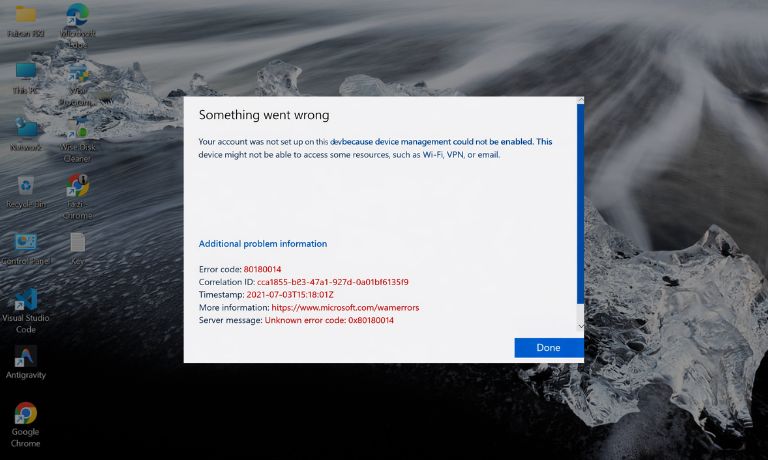
Intune Autopilot Error 80180014 appears when a Windows device cannot complete the device enrollment process through Microsoft Intune during the Windows Autopilot provisioning workflow. Autopilot is a deployment technology used by organizations to configure new corporate devices automatically. During setup, the device connects to Azure Active Directory, also known as Microsoft Entra ID, and then enrolls into Microsoft Intune for device management.
The system verifies the device identity, applies an Autopilot deployment profile, and registers the device in the organization’s tenant. When one of these steps fails, the provisioning process stops and the system displays error code 80180014.
The error usually appears during the Windows Out-of-Box Experience (OOBE) while the device attempts to join Azure Active Directory or apply the organization’s Intune enrollment profile.
Common Causes of Intune Autopilot Error 80180014
Several configuration or policy issues can trigger this error. Most problems occur during device registration or policy validation inside the organization’s Microsoft Intune tenant.
Common causes include:
- device already registered in Azure Active Directory
- restrictive Intune device enrollment policy
- incorrect Autopilot deployment profile
- unstable internet connection
- incorrect tenant configuration
- device enrollment limit reached for the user
- missing Microsoft Intune license assignment
These issues prevent the device from completing the Autopilot enrollment workflow.
How to Fix Intune Autopilot Error 80180014?
Fixing this issue usually requires reviewing device records and enrollment settings inside Microsoft Intune and Azure Active Directory. During Autopilot provisioning, the system must verify the device identity, apply the correct deployment profile, and enroll the device into the organization tenant.
If duplicate records exist or policy restrictions block enrollment, the process stops and displays error code 80180014.
The solutions below help correct configuration problems so the device can complete the enterprise device provisioning process.
Fix #1 Check Device Enrollment Restrictions
Enrollment restriction policies in Microsoft Intune may block device registration.
Follow these steps to review the policy.
- Open the Microsoft Intune admin center.
- Navigate to Devices.
- Select Enrollment restrictions.
- Review the device type restriction policy.
- Confirm that the device platform is allowed.
Adjust the policy if necessary so the device can enroll.
Fix #2 Remove Duplicate Azure AD Device Records
A duplicate device record inside Azure Active Directory can block the Autopilot process.
Follow these steps.
- Open the Azure portal.
- Navigate to Azure Active Directory.
- Select Devices.
- Search for the device name or hardware ID.
- Remove any duplicate device entries.
Removing old records allows the device to register again.
Fix #3 Reset the Windows Device
Sometimes the device setup must restart to begin a fresh Autopilot enrollment.
Follow these steps.
- Open Windows Settings.
- Navigate to System.
- Select Recovery.
- Choose Reset this PC.
- Start the reset process.
After the reset, the device begins the Autopilot setup sequence again.
Fix #4 Verify the Autopilot Deployment Profile
Incorrect configuration inside the Autopilot deployment profile can interrupt enrollment.
Follow these steps.
- Open the Microsoft Intune admin center.
- Navigate to Devices.
- Select Windows enrollment.
- Open Deployment profiles.
- Confirm the correct profile assignment.
Ensure the device is assigned to the correct deployment profile.
Fix #5 Check Network Connectivity
The device must communicate with several Microsoft cloud services during the enrollment process.
Confirm the following:
- the device has a stable internet connection
- required Microsoft service endpoints are reachable
- no firewall blocks the connection
Reliable network access is required for Autopilot provisioning.
Fix #6 Verify User License Assignment
The user account must have a valid Microsoft Intune license or Microsoft Endpoint Manager license.
Follow these steps.
- Open the Microsoft 365 admin center.
- Navigate to Users.
- Select the user account.
- Check assigned licenses.
- Confirm Intune license activation.
Without the correct license, device enrollment cannot proceed.
Fix #7 Re-register the Device in Autopilot
Sometimes the device must be removed and added again to the Autopilot device list.
Follow these steps.
- Open the Microsoft Intune admin center.
- Navigate to Windows Autopilot devices.
- Remove the existing device record.
- Upload the device hardware hash again.
- Assign the correct deployment profile.
This creates a fresh registration entry.
Fix #8 Contact the IT Administrator
If the error continues, the problem may involve deeper tenant configuration issues inside the organization’s Microsoft Intune environment.
In this situation, the IT administrator or Endpoint Manager administrator may need to review:
- tenant configuration
- device enrollment policies
- Autopilot profile assignments
Administrative review may resolve configuration conflicts.
Prevention Tips to Avoid Intune Autopilot Error 80180014
Organizations can reduce enrollment problems by maintaining proper configuration across Autopilot deployment profiles, Azure Active Directory, and Microsoft Intune policies. Autopilot works best when device records and licensing settings remain consistent inside the tenant environment.
Helpful practices include:
- verify Autopilot deployment profiles before rollout
- review device enrollment restrictions regularly
- assign Intune licenses correctly
- maintain stable internet connectivity during provisioning
- avoid duplicate Azure AD device records
- update Windows devices before deployment
- test Autopilot configuration in pilot deployments
These practices help ensure smooth enterprise device enrollment.
Conclusion
Intune Autopilot Error 80180014 usually occurs when the Windows device cannot complete registration with Azure Active Directory or Microsoft Intune during the Autopilot setup process. Duplicate device records, restrictive enrollment policies, missing licenses, or network issues can interrupt the provisioning workflow and trigger the error.
Most organizations resolve the issue by reviewing device records in Azure Active Directory, verifying Autopilot deployment profiles, assigning proper licenses, or resetting the device to restart enrollment. If the error persists, the organization’s Intune administrator may need to review tenant configuration settings.
If this guide helped you resolve Autopilot Error 80180014, consider sharing it with colleagues managing Windows Autopilot deployments. You can also leave a comment describing which solution worked for your environment.

I’ve been into SEO and blogging for over 7 years. I help websites show up higher on search engines. I really enjoy writing helpful guides, especially about gaming and tech stuff.
