
You start installing a game, everything looks normal, and then the setup suddenly stops with an isdone.dll error. The installer fails. Sometimes you also see “Unarc.dll returned an error code.” It feels serious, maybe even scary. Don’t worry. This guide explains what the isdone.dll error means and shows you 8 safe fixes that work on Windows 10 and Windows 11.
What Is isdone.dll Error During Game Installation?
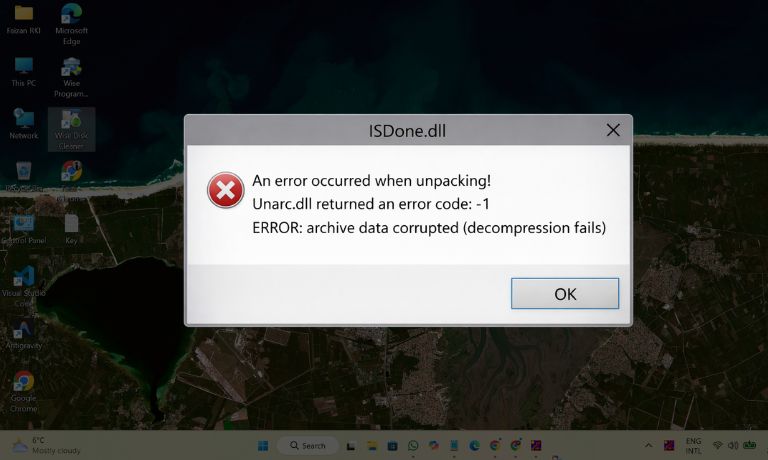
The isdone.dll file is a Dynamic Link Library used during installation and extraction of compressed game archives. Many PC games use compressed setup files. During installation, Windows loads isdone.dll and unarc.dll to unpack large data containers. If the system cannot extract files correctly, the installer stops and shows the isdone.dll error.
This usually happens because of corrupted installation files, insufficient RAM, low virtual memory, disk errors, or antivirus interference. The error is not a virus by default. It is a system extraction failure. You should never download random DLL files from unknown websites, because that can damage your system.
You usually see this error while installing a large PC game, extracting setup files, or running a compressed installer. It often appears with messages about unarc.dll or memory allocation failure.
Common Causes of isdone.dll Error
The isdone.dll error appears when Windows cannot complete the extraction process. Installation requires stable memory, free disk space, and healthy storage. If the system detects corrupted data or insufficient resources, it blocks the process. Sometimes antivirus software interferes with setup.exe. Other times, disk sectors are damaged. Below are the most common causes.
- Corrupted or incomplete installation files
- Interrupted download
- Insufficient RAM
- Low virtual memory (page file size)
- Disk errors on SSD or HDD
- Antivirus blocking setup files
- Damaged hard drive sectors
- Installation path too long
Each cause affects how Windows handles compressed data.
How to Fix isdone.dll Error During Game Installation on Windows?
Start with simple fixes before changing advanced settings. Many installation failures resolve after adjusting virtual memory or repairing disk errors. Try each solution carefully and test the installer again.
Fix #1: Restart Your Computer
Temporary memory conflicts can interrupt extraction. Restarting Windows clears RAM usage and background processes. After rebooting, run the installer again.
Fix #2: Increase Virtual Memory
Low virtual memory is one of the most common reasons for isdone.dll errors. The Windows page file supports RAM during heavy extraction tasks.
Follow these steps to increase virtual memory:
- Right-click This PC and choose Properties.
- Click Advanced system settings.
- Open the Advanced tab and select Performance Settings.
- Click Virtual Memory and choose Change.
- Uncheck automatic management.
- Set a custom size. Use at least 1.5x your RAM size.
- Click OK and restart your PC.
After restart, try installing again.
Fix #3: Run CHKDSK to Repair Disk Errors
Disk errors can corrupt extraction data. CHKDSK repairs NTFS file system problems.
Steps:
- Press Windows + S and search for Command Prompt.
- Right-click and select Run as administrator.
- Type: chkdsk C: /f
- Replace C with your drive letter if needed.
- Restart the system if prompted.
This checks and fixes bad sectors.
Fix #4: Run System File Checker
Corrupted Windows system files may trigger installation failures.
Steps:
- Open Command Prompt as administrator.
- Type: sfc /scannow
- Press Enter and wait for completion.
- Restart your PC.
System File Checker repairs damaged Windows components.
Fix #5: Disable Antivirus Temporarily
Windows Defender or third-party antivirus software may block compressed game files. Temporarily disable real-time protection before running setup.exe. If the installation succeeds, add the installer folder to your antivirus exclusion list before enabling protection again.
Fix #6: Re-download the Installation Files
If the download was interrupted, archive files may be incomplete. Delete the current installer and download it again from the official source. Avoid pausing the download. Make sure your internet connection remains stable during the process.
Fix #7: Run Setup as Administrator
Permission restrictions may prevent file extraction.
Steps:
- Right-click setup.exe.
- Select Run as administrator.
- Confirm permission prompt.
- Start installation again.
Administrator privileges allow full access to system directories.
Fix #8: Check RAM for Errors
Faulty RAM can cause extraction failure. Windows includes a built-in diagnostic tool.
Steps:
- Press Windows + R.
- Type mdsched.exe and press Enter.
- Choose Restart now and check for problems.
- Let Windows Memory Diagnostic complete the test.
If memory errors appear, hardware replacement may be required.
Prevention Tips to Avoid Windows Error in Future
Preventing isdone.dll errors saves time during future installations. Keep your system stable and clean.
- Download installation files from trusted sources
- Avoid interrupting downloads
- Maintain enough free disk space
- Keep Windows updated
- Increase virtual memory properly
- Scan disk health regularly
- Avoid extremely long installation paths
Conclusion
The isdone.dll error appears when Windows fails to extract compressed installation files. It usually relates to low virtual memory, corrupted files, disk errors, or antivirus interference. In most cases, increasing virtual memory and verifying disk health solves the issue. It is not typically a virus problem, and downloading random DLL files is not recommended.
If the error continues after trying all 8 fixes, consider contacting the software provider or checking your hardware condition. If one of these solutions worked for you, share your experience. It might help someone else fix the issue faster.

I’ve been into SEO and blogging for over 7 years. I help websites show up higher on search engines. I really enjoy writing helpful guides, especially about gaming and tech stuff.
