
Trying to log in to X and seeing “Login Error – Attestation Denied” can feel confusing. You enter your password, maybe even your two-factor code, and then the app blocks you. This usually happens because X cannot verify your device security. The platform checks device integrity before allowing access. If something looks unsafe, the login fails.
In this guide, you’ll learn what this error means, why it happens, how to fix it with clear steps, and how to prevent it.
What Is Login Error Attestation Denied on X?
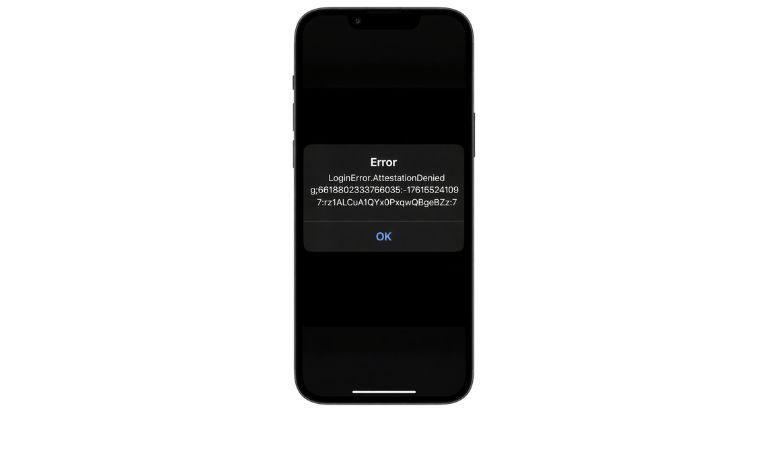
Login Error Attestation Denied means X could not verify that your device meets security requirements. X uses device integrity systems such as Google Play Integrity API or SafetyNet on Android to check whether the device is genuine and secure. If your phone is rooted, running a modified system, or using an emulator, the attestation check may fail. The same can happen if the system detects suspicious network conditions. When the integrity check fails, X blocks the login to protect the account from possible abuse or automated access. This security layer helps prevent bots, fake environments, and compromised devices from accessing user accounts.
You usually see this error after entering your password or after completing two-factor authentication. It can appear in the X Android app, iPhone app, or even in a mobile browser session.
Common Causes of Login Error Attestation Denied
This error often relates to device security or network settings. Below are the most common causes.
- Rooted Android device or unlocked bootloader
- Jailbroken iPhone
- Using an Android emulator on PC
- VPN or proxy server enabled
- Outdated X app version
- Corrupted app cache or stored login data
- Google Play Services not updated
If any of these affect device verification, X may deny login access.
How to Fix Login Error Attestation Denied on X
To resolve this issue efficiently, check your device security settings and network configuration. In most cases, one of the fixes below restores normal login access.
Fix #1: Disable VPN or Proxy
A VPN or proxy can change your IP address, which may trigger X security checks.
Follow the steps below to easily disable VPN.
- Open your device Settings.
- Go to Network or VPN settings.
- Turn off any active VPN connection.
- Disable proxy if configured.
- Restart the X app and try logging in again.
Once the direct network connection restores, attestation may pass.
Fix #2: Update X App and Google Play Services
Outdated app versions or system services can fail integrity verification.
Here are the following steps which help you update the app.
- Open Google Play Store or Apple App Store.
- Search for X.
- Tap Update if available.
- Also update Google Play Services on Android.
- Restart your device after updating.
Keeping apps updated ensures compatibility with the latest security checks.
Fix #3: Clear App Cache and Data
Corrupted login data can interfere with verification.
Try these simple steps to quickly clear app cache.
- Open Settings on your Android device.
- Tap Apps.
- Select X.
- Tap Storage.
- Clear Cache and Clear Data.
Then reopen the app and log in again.
Fix #4: Check Device Integrity (Root or Jailbreak)
If your Android device is rooted or your iPhone is jailbroken, X may deny access. Root access changes system files, which causes Google Play Integrity or SafetyNet to fail. The same applies to modified firmware or unlocked bootloaders. In such cases, restore the device to official firmware. Remove root access or reinstall official software. Once the device passes integrity checks, login should work normally.
Fix #5: Try Logging in Through Web Browser
Sometimes the mobile app blocks login while the browser works.
The following steps will show you how to log in through browser properly.
- Open Chrome, Safari, or another browser.
- Visit x.com.
- Enter your login details.
- Complete verification steps.
- Check if login succeeds.
If browser login works, the issue may be app-related.
Fix #6: Restart Device and Reconnect Network
A simple restart can reset temporary system conflicts.
Perform the following steps carefully.
- Power off your device completely.
- Wait 30 seconds.
- Turn it back on.
- Connect to a stable Wi-Fi network.
- Open X and try again.
Sometimes system services need a fresh restart.
Prevention Tips to Avoid Login Error Attestation Denied in Future
Preventing this error helps maintain stable account access. Because X uses device integrity checks and security validation, keeping your device clean and updated reduces login failures.
- Keep X app updated regularly
- Avoid rooting or jailbreaking your device
- Do not use emulators for account login
- Disable VPN before logging in
- Update Google Play Services frequently
- Keep Android or iOS system software updated
Conclusion
In short, Login Error Attestation Denied happens when X cannot verify your device security. The most common reasons include rooted devices, VPN usage, outdated apps, emulator environments, or corrupted cache data. When integrity verification fails, the platform blocks login access to protect accounts.
Try each fix step by step. Most users resolve the issue by disabling VPN, updating apps, or clearing cache. If the error continues, contact X support through the official help center. If this guide helped you, leave a comment and share it with others facing the same issue.

I’ve been into SEO and blogging for over 7 years. I help websites show up higher on search engines. I really enjoy writing helpful guides, especially about gaming and tech stuff.
