
You try to open Minecraft Java Edition, the launcher starts, and then the game fails with a message saying GLFW error 65542. Nothing loads after that. This feels confusing, especially if Minecraft worked before or other games run fine. Since this error stops the game from launching at all, it quickly becomes frustrating.
This guide explains what Minecraft GLFW error 65542 means, where it appears, why it happens, how to fix it step by step, and how to avoid running into it again.
What Is Minecraft GLFW Error 65542?
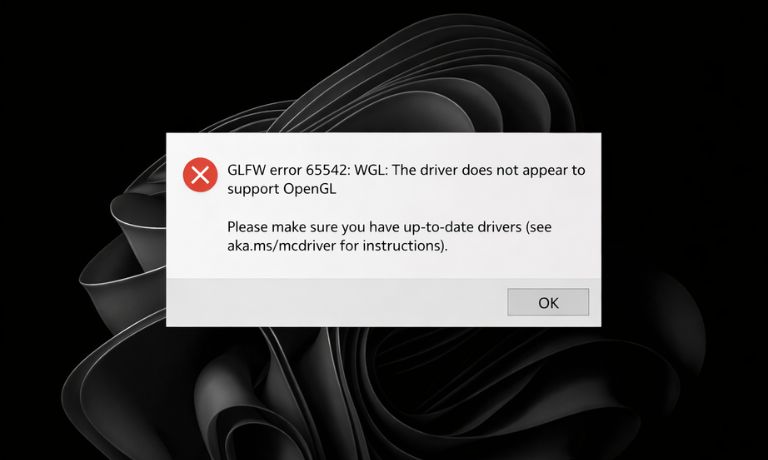
Minecraft GLFW error 65542 means the game cannot start because OpenGL did not load correctly. Minecraft Java Edition uses GLFW to communicate with your graphics system and create the game window. When OpenGL support is missing, outdated, or blocked by drivers, Minecraft cannot continue and shows this error. This usually points to a graphics driver or hardware issue, not a problem with your Minecraft account.
You normally see this error during startup, right after clicking Play in the Minecraft Launcher. The game window may never appear, or it may close instantly with an error message. The issue happens on Windows, macOS, and Linux, depending on graphics drivers and system setup.
Common Causes of Minecraft GLFW Error 65542
This error can happen for several reasons related to graphics support and system configuration. Below are the most common causes.
- Outdated or missing graphics drivers
- Unsupported OpenGL version
- Microsoft Basic Display Adapter in use
- Corrupted GPU driver installation
- Minecraft using the wrong GPU
- Outdated Java Runtime Environment
- Very old or unsupported graphics hardware
How to Fix Minecraft GLFW Error 65542?
Minecraft GLFW error 65542 appears when the game cannot load OpenGL during startup. This usually means the graphics driver, Java setup, or GPU support is missing or not working correctly. Since Minecraft Java Edition depends on OpenGL to create the game window, the game stops before loading anything.
The fixes below focus on restoring graphics support, correcting Java files, and confirming hardware compatibility. Apply each fix one at a time. After every fix, launch Minecraft again to check if the error is resolved.
Fix #1: Update Graphics Drivers
Outdated graphics drivers are the most common reason for GLFW error 65542. When drivers do not support the OpenGL version Minecraft needs, the game cannot start. Updating the driver allows your graphics card to communicate correctly with Minecraft.
Follow the steps below to update your graphics drivers.
- Press Windows + X
- Open Device Manager
- Expand Display adapters
- Note your graphics card name
- Visit the Intel, NVIDIA, or AMD official website
- Download the latest driver for your GPU
- Install the driver and restart your PC
Fix #2: Reinstall Graphics Drivers Cleanly
Sometimes drivers are installed incorrectly or become corrupted over time. Even updated drivers can fail if old files remain on the system. A clean reinstall removes broken driver data and resets OpenGL support.
Try these simple steps to reinstall graphics drivers cleanly.
- Open Control Panel
- Go to Programs and Features
- Uninstall the current graphics driver
- Restart your computer
- Download the latest driver from the official website
- Install the driver and restart again
Fix #3: Make Sure Minecraft Uses the Dedicated GPU
On systems with both integrated and dedicated graphics, Minecraft may launch using the weaker GPU. Integrated graphics often lack full OpenGL support, which leads to GLFW error 65542 during startup.
Here’s how you can force Minecraft to use the dedicated GPU.
- Open your GPU control panel
- Go to graphics or program settings
- Add Minecraft or javaw.exe
- Select the high-performance GPU
- Save changes and restart Minecraft
Fix #4: Install or Update Java
Minecraft Java Edition relies on Java to load game files and handle graphics libraries. When Java is outdated or damaged, it may load incorrect OpenGL files and trigger this error. Updating Java ensures Minecraft uses a clean runtime.
Follow these easy instructions to install or update Java properly.
- Open Control Panel
- Uninstall all old Java versions
- Restart your system
- Visit the official Java website
- Download the latest Java version
- Install Java and restart your PC
Fix #5: Remove OpenGL32.dll from Java Folder (Windows)
Some systems load an incorrect OpenGL file from the Java folder instead of using the graphics driver. This file conflicts with proper OpenGL loading and causes GLFW error 65542.
Perform the following steps carefully to remove the conflicting file.
- Open File Explorer
- Go to the Java installation folder
- Search for opengl32.dll
- Delete the file if it exists
- Restart your computer
Fix #6: Reset Minecraft Launcher Settings
Corrupted launcher settings can block proper graphics initialization. Resetting the launcher forces it to rebuild clean configuration files needed to start the game.
Follow these easy instructions to reset the launcher settings.
- Open the Minecraft Launcher
- Go to Settings
- Reset settings to default
- Close the launcher
- Reopen the launcher
- Launch Minecraft again
Fix #7: Check Graphics Card OpenGL Support
Some older graphics cards do not support the OpenGL version required by newer Minecraft updates. If the hardware cannot meet this requirement, the game will not launch.
You can perform the following steps to check OpenGL support.
- Identify your graphics card model
- Visit the official GPU website
- Check the supported OpenGL version
- Compare it with Minecraft requirements
- Confirm whether the GPU is supported
Fix #8: Update or Change Graphics Hardware
If your graphics hardware does not support the required OpenGL version, software fixes will not work. This usually affects very old systems or unsupported GPUs.
Here are the following steps which help you decide the next action.
- Confirm your GPU does not support required OpenGL
- Check Minecraft system requirements
- Choose a supported graphics card
- Install the new hardware or use another system
- Install drivers and launch Minecraft
Prevention Tips to Avoid GLFW Error 65542 in Future
Prevention helps reduce startup errors and saves time later. These habits help keep Minecraft running smoothly.
- Keep graphics drivers updated
- Avoid generic display drivers
- Use supported graphics hardware
- Keep Java updated
- Update Minecraft regularly
- Avoid manual OpenGL file changes
- Monitor system updates
Conclusion
In short, Minecraft GLFW error 65542 means the game cannot access proper OpenGL support from your system. This usually happens because of outdated drivers, wrong GPU usage, Java issues, or unsupported graphics hardware. While the error looks serious, most players fix it by updating drivers or correcting system settings.
Try the fixes one by one and follow the prevention tips to avoid future problems. If the error continues, contact Mojang support with your system and graphics details. If this article helped you, leave a comment and share it with other Minecraft players who may be stuck on the same error.

I’ve been into SEO and blogging for over 7 years. I help websites show up higher on search engines. I really enjoy writing helpful guides, especially about gaming and tech stuff.
