
Seeing MPUException: no MPUs detected in imu.py can stop your project right away. Your script runs, then fails before reading any motion data. This is common in robotics, sensor projects, or test setups using an IMU. The message sounds serious, but most of the time the issue is basic and fixable.
This guide explains what the error means, why it happens, how to fix it step by step, and how to avoid it later.
What Does MPUException: No MPUs Detected Mean?
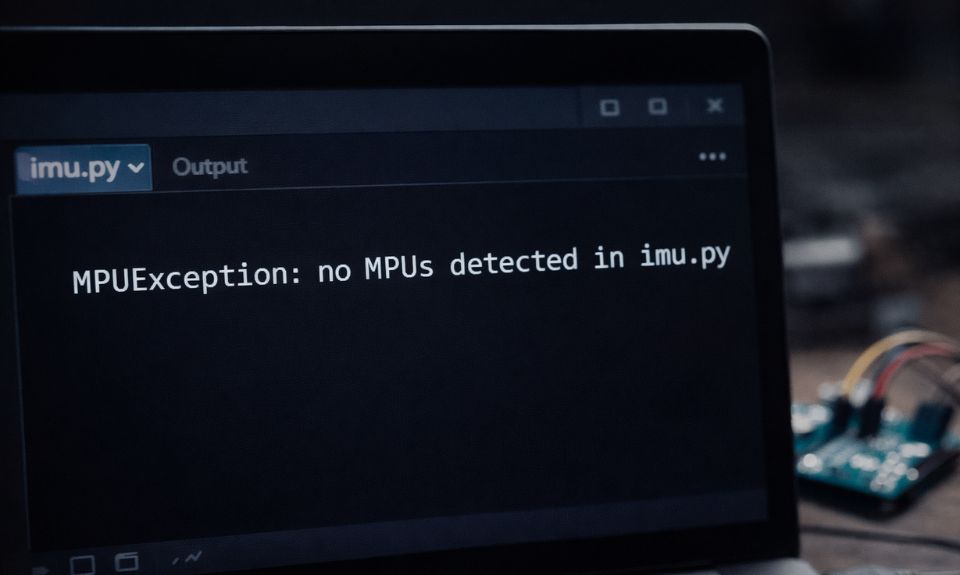
This error means the Python script could not find any supported MPU sensor when it started. The file imu.py tries to detect an IMU over a communication bus and expects a response. When no device replies, the script raises an exception. This usually happens in projects written in Python that read motion data from an IMU.
Most users see this error as soon as the script runs, often during initialization. It appears in the terminal output or logs before any sensor data prints. At this stage, the code has not started reading values yet. It simply cannot detect a connected MPU sensor.
Common Causes of MPUException No MPUs Detected
This error usually happens because the sensor is not reachable or not configured correctly. Detection depends on power, wiring, and communication setup.
- I2C interface disabled on the system
- Incorrect wiring between the board and the IMU
- Wrong I2C address used in imu.py
- Missing or incompatible Python library
- Insufficient power to the sensor
- Unsupported MPU sensor model
- Faulty or damaged IMU hardware
How to Fix MPUException No MPUs Detected in imu.py?
Start with simple hardware checks before changing code. Many issues come from wiring or configuration, not the script itself. Try one fix at a time and test after each step.
Fix #1: Enable the I2C Interface on the System
If I2C is disabled, the system cannot see the IMU at all.
Here are the following steps which help you enable it:
- Open system configuration
- Go to interface settings
- Enable I2C support
- Save changes
- Restart the system
After this, the bus becomes available for detection.
Fix #2: Check IMU Wiring and Power Connections
Loose or incorrect wiring is a very common cause.
Follow the steps below to easily check connections:
- Power off the system
- Check SDA and SCL connections
- Verify ground and power pins
- Ensure correct voltage level
- Power the system back on
A single loose wire can block detection.
Fix #3: Scan the I2C Bus for Connected Devices
Scanning the bus confirms whether the sensor responds at all. You can perform the following steps to scan:
- Open a terminal
- Run an I2C scan command
- Observe listed device addresses
- Confirm the IMU appears
- Note the detected address
If no device appears, the issue is hardware or wiring.
Fix #4: Verify the I2C Address in imu.py
IMU sensors may use different I2C addresses. Below are the steps that will guide you:
- Open imu.py
- Locate the I2C address setting
- Compare it with scan results
- Update the address if needed
- Save and rerun the script
Address mismatch causes detection failure.
Fix #5: Confirm Required Python Libraries Are Installed
imu.py depends on external libraries to talk to hardware.
Here’s how you can check this:
- Review project documentation
- Confirm required packages
- Install missing libraries
- Match library versions if specified
- Restart the script
Missing dependencies stop communication.
Fix #6: Test With a Known Supported MPU Sensor
Some MPU models are not supported by all scripts.
I don’t know about the exact MPU models supported by your version of imu.py.
If documentation lists supported sensors, test with one of those models. This helps confirm whether compatibility is the issue.
Fix #7: Replace or Reseat the IMU Hardware
If everything looks correct and the sensor still does not appear, the hardware may be faulty. Reseat the IMU carefully or test it on another system. Sensors can fail due to static damage or wiring mistakes. Replace the IMU only after confirming all other fixes.
Prevention Tips to Avoid MPU Detection Errors
Small habits help prevent this error in future projects.
- Enable I2C before writing code
- Double-check wiring diagrams
- Use short, secure cables
- Verify sensor address early
- Keep libraries updated
- Power down before rewiring
- Test sensors one at a time
Conclusion
In short, MPUException: no MPUs detected means the script cannot find a connected IMU sensor. The issue usually comes from disabled I2C, wiring problems, wrong addresses, or unsupported hardware. Most cases are solved with careful checks and simple fixes.
Work through each fix slowly and test after every change. If the error continues, review documentation for imu.py or your sensor vendor. If this guide helped you, share it and leave a comment about which fix worked for you.

I’ve been into SEO and blogging for over 7 years. I help websites show up higher on search engines. I really enjoy writing helpful guides, especially about gaming and tech stuff.
