
You open Netflix in Google Chrome, click on a show, and instead of streaming, you see error code M7361. The video refuses to start, even though your internet works fine. That’s frustrating, especially when it worked before. This guide explains what Netflix Error Code M7361 means, why it appears in your browser, and how you can fix it quickly.
What Is Netflix Error Code M7361?
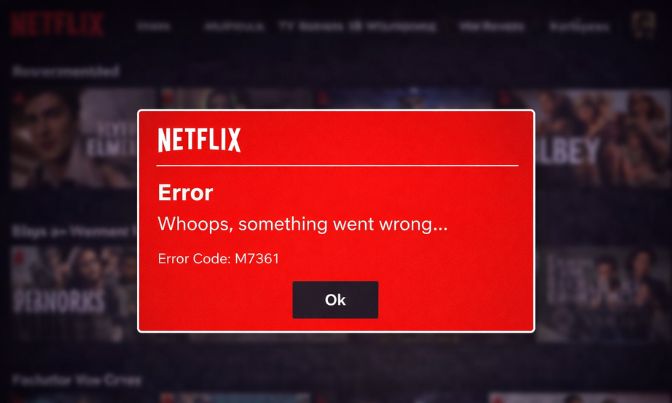
Netflix Error Code M7361 is a browser playback issue that prevents the Netflix web player from starting a video. When you press play, Netflix uses the HTML5 video player and checks Digital Rights Management through the Widevine Content Decryption Module. Widevine is responsible for secure streaming and license validation.
If the browser cannot validate playback authorization, the video will not load. This problem often appears in Google Chrome, though it can also affect Microsoft Edge or other Chromium-based browsers. The issue usually connects to browser configuration, corrupted cache, or DRM component problems rather than your Netflix account.
You typically see variants such as M7361-1253 or M7361-1260-00000026 on Windows 10, Windows 11, or macOS. The error appears right when playback begins.
Common Causes of Netflix Error M7361
This error usually relates to browser settings or playback components. Below are common triggers.
- Corrupted browser cache or cookies
- Outdated Google Chrome version
- Disabled or outdated Widevine Content Decryption Module
- Conflicting browser extensions such as ad blockers
- Hardware acceleration conflict with GPU
- VPN or proxy interfering with streaming
- Incorrect system date or time
- Temporary Netflix server issue
Each of these can interrupt the streaming session and block playback authorization.
How to Fix Netflix Error Code M7361?
Start with simple fixes. Most users resolve the issue without reinstalling the browser.
Fix 1: Refresh the Netflix Page
Sometimes the streaming session fails temporarily. Press F5 to refresh the page. If that doesn’t work, close the tab and reopen Netflix. This forces a new playback request.
Fix 2: Clear Browser Cache and Cookies
Corrupted cache files often cause DRM errors. Follow these steps to easily clear browser data.
- Open Chrome.
- Click the three dots in the top right.
- Select Settings.
- Go to Privacy and Security.
- Click Clear Browsing Data.
- Choose Cached Images and Files and Cookies.
- Click Clear Data.
Restart Chrome after clearing the cache.
Fix 3: Update Google Chrome
An outdated browser may not support the latest Netflix streaming requirements. Try these simple steps to update Chrome.
- Open Chrome.
- Click the three dots.
- Select Help.
- Click About Google Chrome.
- Install available updates.
- Restart the browser.
Updates often fix compatibility and DRM issues.
Fix 4: Check Widevine Content Decryption Module
Widevine handles Netflix license validation. Below are the steps that will guide you to check Widevine.
- Type chrome://components in the address bar.
- Press Enter.
- Locate Widevine Content Decryption Module.
- Click Check for Update.
If it updates successfully, restart Chrome and test Netflix.
Fix 5: Disable Browser Extensions
Some extensions block scripts or interfere with video playback. Perform the following steps carefully.
- Open Chrome.
- Click Extensions from the menu.
- Disable all extensions.
- Restart Chrome.
- Test Netflix again.
If Netflix works, enable extensions one by one to find the conflict.
Fix 6: Turn Off Hardware Acceleration
Hardware acceleration can sometimes conflict with your GPU driver. These are the exact steps you need to follow.
- Open Chrome Settings.
- Scroll to System.
- Turn off Use hardware acceleration when available.
- Restart Chrome.
This shifts video decoding back to software mode.
Fix 7: Disable VPN or Proxy
VPN services can interfere with Netflix license checks.
Disconnect your VPN. Restart Chrome. Try streaming again. Netflix sometimes restricts playback when IP routing appears unusual.
Fix 8: Try Another Browser
Testing another browser helps confirm whether Chrome is the issue.
Open Netflix in Microsoft Edge or Mozilla Firefox. If playback works there, your Chrome configuration likely caused the error.
Prevention Tips to Avoid Errors in Netflix
Preventing Netflix Error M7361 is simple with regular maintenance. Keep Google Chrome updated to the latest version. Clear browser cache once a month to prevent corruption. Avoid installing unnecessary extensions.
Keep Widevine Content Decryption Module updated automatically. Maintain stable internet with good bandwidth. Avoid unstable VPN services during streaming.
- Keep browser updated
- Limit extensions
- Clear cache regularly
- Maintain stable internet
- Avoid VPN while streaming
- Restart browser weekly
Conclusion
In short, Netflix Error Code M7361 appears when the browser fails to complete DRM validation through Widevine. It often connects to corrupted cache, outdated Chrome versions, or extension conflicts. Most users fix it by clearing cache, updating Chrome, or disabling extensions.
If the error continues, try another browser or contact Netflix Support for help. Follow each step carefully, and you should be able to stream again without interruption. If this guide helped you, share it and leave a comment about which fix worked for you.

I’ve been into SEO and blogging for over 7 years. I help websites show up higher on search engines. I really enjoy writing helpful guides, especially about gaming and tech stuff.
