
You click a video on YouTube, but instead of playing, the screen shows the message “this video is unavailable error code: 4.” It can be frustrating, especially when the video should normally load in seconds.
This problem usually happens when the YouTube video player, your web browser, or the internet connection cannot connect properly to YouTube servers. The good news is that the issue is often easy to fix. In this guide, you will learn what the error means, why it happens, how to solve it step by step, and how to prevent the playback error from returning.
What Is “YouTube This Video Is Unavailable Error Code: 4”?
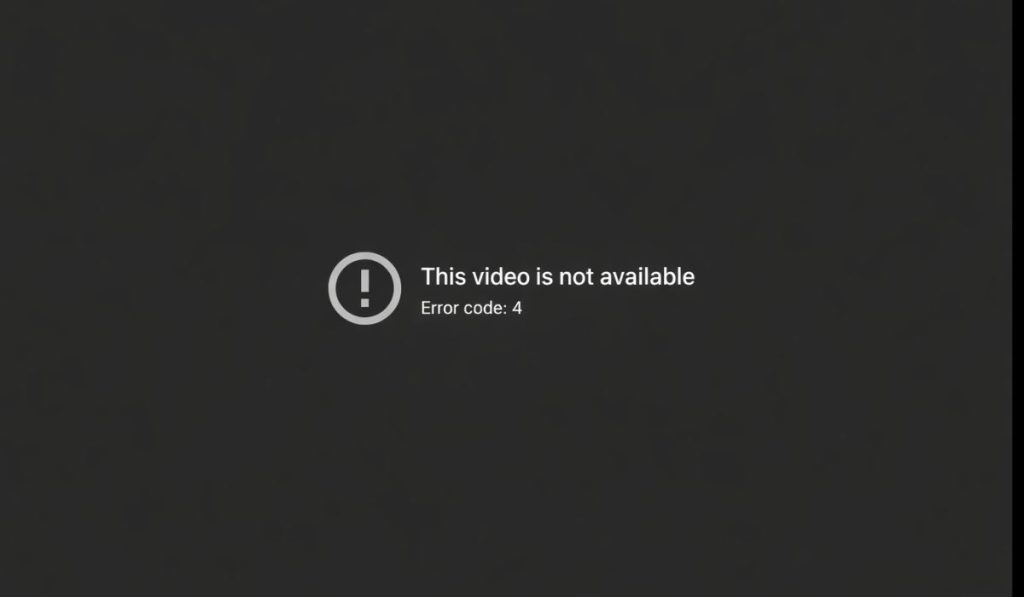
The message “this video is unavailable error code: 4” appears when the YouTube HTML5 video player fails to load the video stream from Google’s servers. When you open a video, the browser sends a request to YouTube’s streaming system, which delivers the video data through the internet connection. If that communication breaks, the video player cannot retrieve the stream and the platform displays this error.
This situation usually does not mean the video has been deleted. Instead, it points to a connection problem between the device, the browser, and the YouTube platform. Network configuration issues, blocked scripts, or browser data errors can interrupt the connection. Because of that, the YouTube player stops the playback process to avoid loading corrupted or incomplete video data.
Users normally see this message in the YouTube web player while watching videos in browsers such as Google Chrome, Mozilla Firefox, Microsoft Edge, or Safari. The error can also appear when a video loads through an embedded YouTube player on another website or when streaming on a smart TV, Android phone, or iPhone.
Common Causes of YouTube Error Code 4
The error can occur for several reasons related to internet settings, browser configuration, or device compatibility. Sometimes the connection between your device and YouTube streaming servers becomes unstable. In other cases, the browser cannot load the HTML5 video player correctly.
Here are the most common causes:
- Weak or unstable internet connection from the Wi-Fi router
- Incorrect DNS server configuration or network routing problems from the Internet Service Provider
- Corrupted browser cache or cookies stored by Chrome, Firefox, or Edge
- VPN or proxy settings interfering with the YouTube connection
- Disabled JavaScript, which the YouTube HTML5 player requires
- Outdated browser version that cannot run modern streaming scripts
- Temporary problems with YouTube servers or streaming infrastructure
Each of these conditions interrupts communication between the device and the Google video streaming system.
How to Fix YouTube This Video Is Unavailable Error Code 4?
Solving the error usually involves checking browser settings, internet configuration, and device software. Many users fix the issue by refreshing the page or restarting the router. Others need to clear browser data or adjust network settings.
Below are several solutions that help restore the connection between the YouTube player, the web browser, and the Google streaming servers.
Fix #1: Refresh the YouTube Page
Sometimes the problem happens because the browser lost connection to the streaming server for a moment. Reloading the page forces the YouTube player to reconnect and request the video again.
Simply refresh the page in your browser or close the tab and open the video again. In many cases the video starts playing normally after the refresh.
Fix #2: Restart Your Internet Router
A weak or unstable network often causes streaming errors. Restarting the Wi-Fi router resets the network connection and clears temporary connection problems.
Follow these steps to restart the router:
- Turn off the router using the power button.
- Wait about 30 seconds.
- Turn the router back on.
- Allow the device to reconnect to the network.
- Open YouTube again and test the video.
Once the router reconnects to the internet service provider, the video player usually loads normally.
Fix #3: Clear Browser Cache and Cookies
Browsers store temporary files to load websites faster. These files are known as cache and cookies. Sometimes they become outdated and cause errors in web applications like YouTube.
Follow the steps below to clear browser data:
- Open the browser settings menu.
- Go to privacy and security settings.
- Select the option to clear browsing data.
- Choose cached images, files, and cookies.
- Click the clear data button.
- Restart the browser and open YouTube again.
Clearing cached data forces the browser to load fresh files from YouTube servers.
Fix #4: Disable VPN or Proxy Services
Some people use a VPN service or proxy connection to change their location or protect privacy. However, these services route internet traffic through different servers, which can interrupt communication with YouTube streaming servers.
If you are using a VPN, temporarily disable it and reload the video. Many users notice the video begins playing immediately after the VPN is turned off.
Fix #5: Update Your Web Browser
Modern streaming platforms rely on updated browser technology. An outdated browser may not support the scripts required by the YouTube HTML5 player.
Follow these steps to update the browser:
- Open the browser settings menu.
- Find the About or Update section.
- Check for updates.
- Install the latest version.
- Restart the browser.
Updated browsers provide better compatibility with Google web services and improve video playback stability.
Fix #6: Enable JavaScript in Browser Settings
The YouTube player uses JavaScript to load video controls, streaming requests, and playback functions. If JavaScript is disabled in the browser settings, the video player may fail to load the video stream.
Open your browser settings and check the JavaScript permissions. If it is disabled, enable it and reload the YouTube page.
Fix #7: Change DNS Server
Sometimes the problem comes from slow or unreliable DNS servers used by the internet provider. Switching to a public DNS service can improve connection stability.
Follow these steps to change the DNS server:
- Open the network settings on your computer.
- Select your active internet connection.
- Choose manual DNS configuration.
- Enter a public DNS server such as Google DNS.
- Save the settings and reconnect to the network.
Once the network uses a faster DNS service, the browser can locate YouTube streaming servers more quickly.
Fix #8: Check YouTube Server Status
Occasionally the problem does not come from your device at all. The issue may occur when YouTube servers experience temporary technical problems.
If many users report playback errors at the same time, the best solution is to wait until the platform restores normal service. Streaming usually returns to normal once the server issue is resolved.
Prevention Tips to Avoid YouTube Error Code 4
Preventing playback errors is easier than fixing them later. Most streaming issues occur because browsers or network settings become outdated over time. Maintaining a stable internet connection and updated software helps prevent these problems.
Here are some helpful prevention tips:
- Keep browsers like Google Chrome, Mozilla Firefox, or Microsoft Edge updated
- Clear browser cache occasionally to remove outdated files
- Use a stable Wi-Fi network with a reliable router
- Restart your router periodically to refresh the connection
- Avoid unreliable VPN or proxy services when streaming videos
- Keep your device operating system updated
- Check internet speed to ensure it supports video streaming
These habits help maintain smooth communication between your device and the YouTube streaming platform.
Conclusion
The message “YouTube this video is unavailable error code: 4” usually appears when the video player cannot connect properly to YouTube streaming servers. In most cases the issue comes from network problems, browser settings, DNS configuration, or outdated software.
Trying the fixes above often restores the connection quickly. Refreshing the page, clearing browser cache, updating the browser, or restarting the router usually solves the issue. If the error continues, checking the YouTube service status or contacting your internet service provider may help identify the problem.
Have you seen this error while watching YouTube videos? Share your experience in the comments and tell others which fix worked for you. If this guide helped you solve the issue, feel free to share it with friends or anyone who streams videos online.

I’ve been into SEO and blogging for over 7 years. I help websites show up higher on search engines. I really enjoy writing helpful guides, especially about gaming and tech stuff.
