
Hosting your own GZoom multiplayer server gives you full control over gameplay, performance, and player experience. Whether you are setting up a private server for friends or a larger public environment, proper configuration is essential for smooth, low-latency matches. This guide provides a complete, step-by-step walkthrough designed to help you launch, optimize, and maintain a reliable GZoom multiplayer server with confidence.
TLDR: Hosting a GZoom multiplayer server requires the right hardware, stable internet, proper port configuration, and optimized server settings. Choose between self-hosting or a cloud provider depending on your performance needs and budget. Secure your server with firewall rules and regular updates. Monitor performance continuously to ensure smooth gameplay for all players.
1. Understand the Requirements Before You Begin
Before setting up your server, it is critical to understand the technical requirements. Multiplayer servers demand stable resources, and underestimating this can result in lag, crashes, or poor player experiences.
Minimum Hardware Requirements
- CPU: Modern quad-core processor (Intel i5 / Ryzen 5 or equivalent)
- RAM: 8 GB minimum (16 GB recommended for 20+ players)
- Storage: SSD with at least 20 GB free space
- Network: Minimum 20 Mbps upload speed
For larger communities, scale these specifications accordingly. More players mean higher CPU processing and memory usage.
Operating System Compatibility
- Windows Server 2019 or later
- Windows 10/11 (for small private servers)
- Linux distributions such as Ubuntu 22.04 LTS
Linux servers often provide better long-term stability and resource efficiency, especially for 24/7 hosting.
2. Choose Your Hosting Method
You can host GZoom either locally on your own machine or through a third-party hosting provider. Your choice depends on technical expertise, budget, and performance needs.
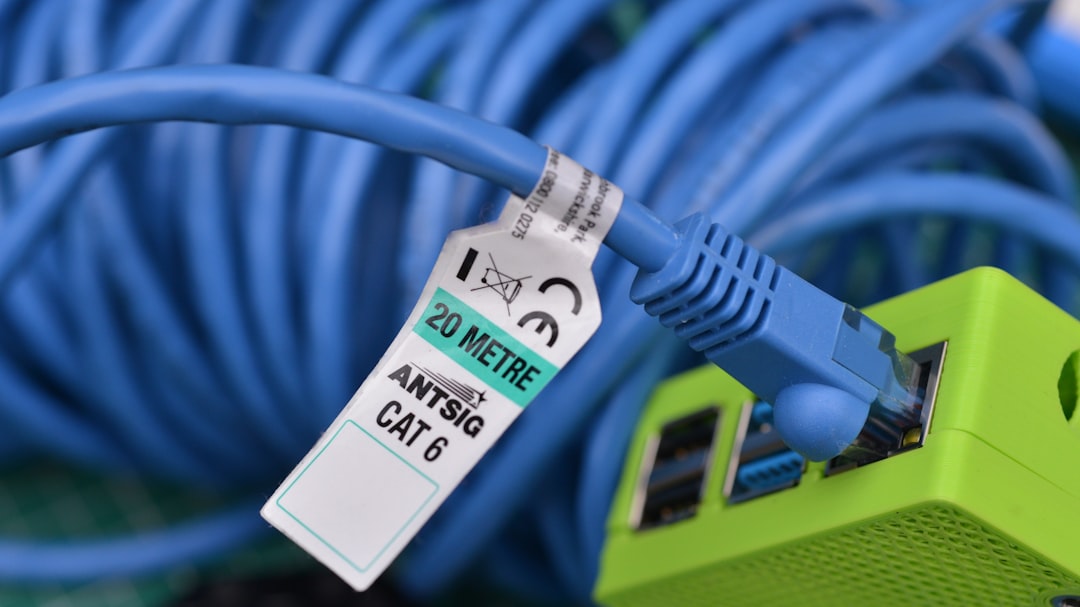
Option A: Self-Hosting (Home Server)
Advantages:
- No monthly hosting fees
- Full hardware control
- Ideal for small private groups
Disadvantages:
- Dependent on home internet stability
- Requires manual port forwarding
- Hardware wear and tear
Option B: Virtual Private Server (VPS) or Dedicated Host
Advantages:
- High uptime (99.9%+)
- Professional infrastructure
- Scalable resources
Disadvantages:
- Monthly costs
- May require Linux server knowledge
Hosting Option Comparison
| Feature | Home Hosting | VPS Hosting | Dedicated Server |
|---|---|---|---|
| Cost | Low (hardware only) | Moderate monthly fee | Higher monthly fee |
| Performance | Dependent on ISP | Strong | Excellent |
| Scalability | Limited | Easy to upgrade | Highly scalable |
| Technical Skill Required | Medium | Medium to High | High |
| Best For | Small private groups | Growing communities | Large competitive servers |
3. Install the GZoom Server Software
Once your environment is ready, install the official GZoom dedicated server package.
Step-by-Step Installation
- Download the latest server build from the official GZoom developer portal.
- Extract files into a dedicated folder (e.g., /gzoom-server/).
- Install required dependencies (Visual C++ Redistributables or Linux libraries).
- Run the initial setup script or executable.
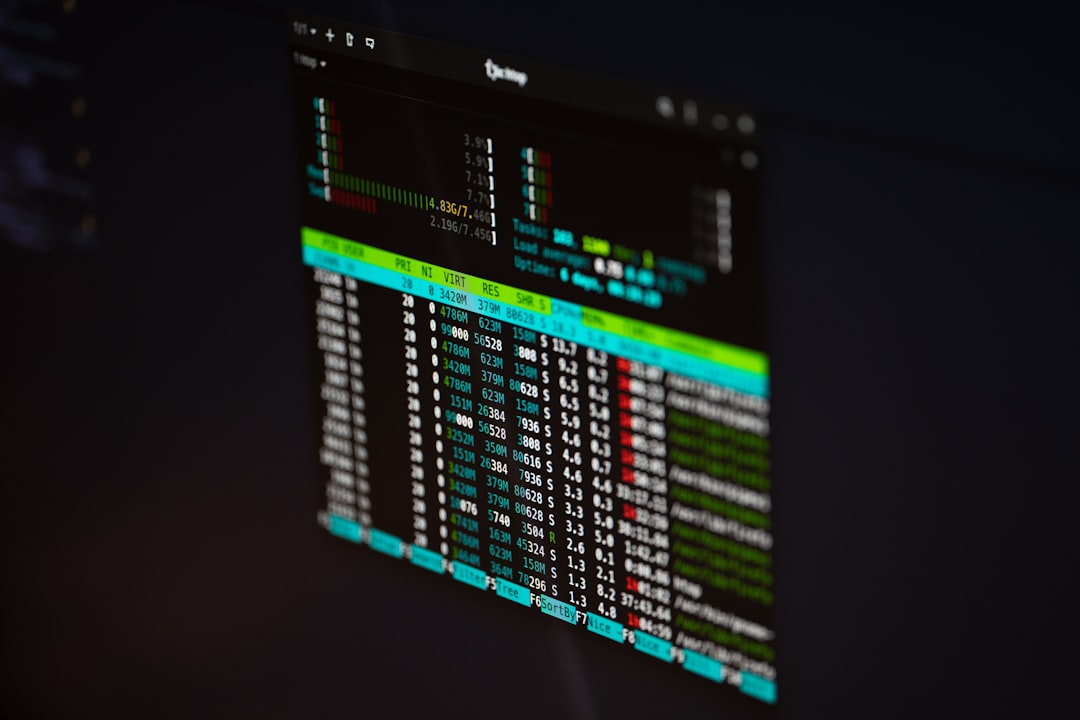
After launching the server executable, configuration files will automatically generate. Do not modify these until the server has successfully performed its first boot.
4. Configure Server Settings for Optimal Performance
Editing the server.config file allows you to customize gameplay and optimize performance.
Key Configuration Parameters
- MaxPlayers: Set according to hardware capacity
- TickRate: 60–128 recommended for competitive play
- Region: Select nearest geographic match
- Password: Secure private sessions
- AutoSave Interval: Every 5–10 minutes
A higher tick rate improves gameplay responsiveness but increases CPU usage. Balance performance with hardware limits.
5. Configure Port Forwarding and Firewall Rules
If you are hosting from home, you must allow external players to reach your server.
Port Forwarding Steps
- Access your router’s admin panel (typically 192.168.1.1).
- Locate the Port Forwarding section.
- Forward the GZoom default port (e.g., 27015 UDP/TCP).
- Assign the rule to your server’s local IP address.
Then configure your firewall:
- Allow inbound TCP and UDP traffic on the designated port.
- Block unused inbound ports.
- Whitelist trusted IP ranges if running a private server.
Failure to configure firewall rules correctly is one of the most common causes of connection issues.
6. Optimize Network Performance
Low latency is crucial for smooth multiplayer sessions. Take the following steps to reduce lag:
- Use wired Ethernet instead of Wi-Fi
- Enable Quality of Service (QoS) on your router
- Close bandwidth-heavy applications
- Choose a centrally located hosting region
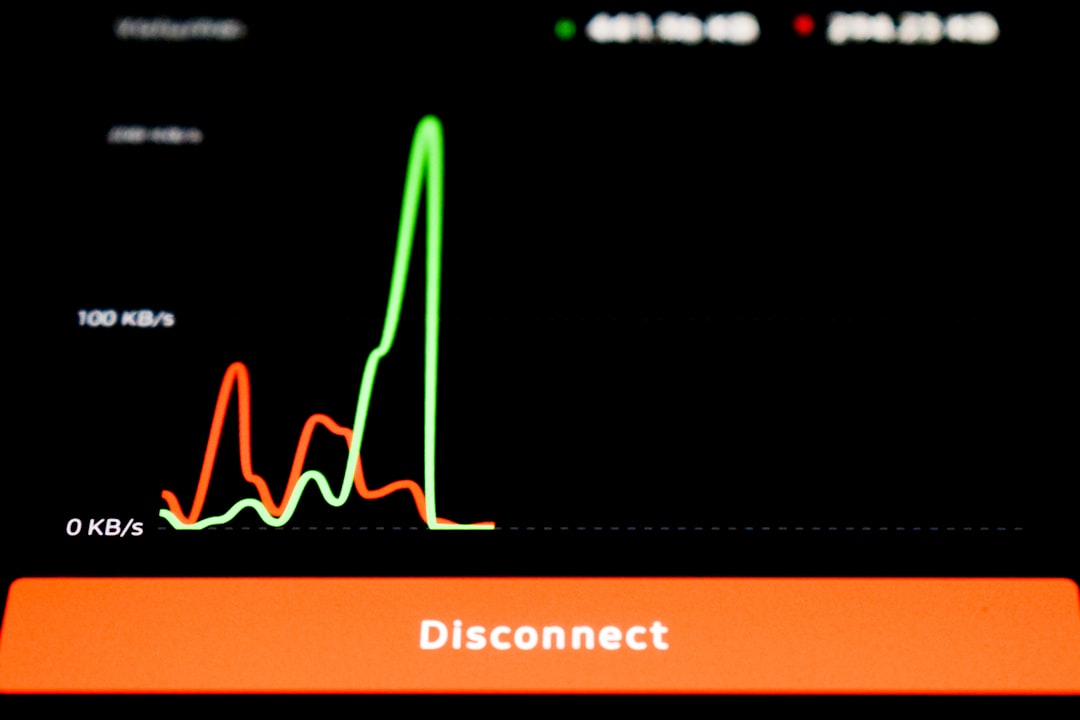
If hosting via VPS, select a data center geographically close to your primary player base.
7. Implement Security Best Practices
Security is not optional. An exposed server can become a target for DDoS attacks or unauthorized access.
Essential Security Measures
- Change default admin credentials immediately
- Install automatic security updates
- Use server-side authentication
- Enable DDoS protection if available
- Backup world data daily
For Linux systems, consider using:
- Fail2Ban for intrusion prevention
- UFW or iptables for firewall control
- SSH key authentication instead of passwords
8. Monitor and Maintain the Server
Launching your server is only the beginning. Ongoing monitoring ensures consistent performance.
Useful Monitoring Tools
- System resource monitors (CPU and RAM usage)
- Network bandwidth analyzers
- Uptime monitoring services
- Log file review
Schedule weekly reviews of:
- Server logs for errors
- Latency metrics
- Player activity spikes
Proactively upgrading memory or scaling infrastructure prevents performance degradation over time.
9. Troubleshooting Common Issues
High Ping or Lag
- Check bandwidth congestion
- Lower tick rate
- Confirm server location proximity
Players Cannot Connect
- Verify port forwarding
- Confirm firewall rules
- Ensure server is publicly listed
Server Crashes
- Review crash logs
- Update to latest server build
- Check for mod incompatibility
Document every configuration change. Being able to revert quickly minimizes downtime.
10. Scaling for Growth
If your player base expands, prepare to scale intelligently.
- Upgrade to higher CPU cores
- Increase available RAM
- Move from shared VPS to dedicated hardware
- Implement load balancing if necessary
Cloud providers allow seamless upgrades, making them a practical choice for ambitious or competitive communities.
Final Recommendations for Smooth Gameplay
Hosting a GZoom multiplayer server is a responsibility that requires technical discipline. Stability, security, and performance optimization are continuous processes rather than one-time actions. Prioritize hardware reliability, network quality, and secure configurations from the start.
For small groups, home hosting may be sufficient, provided your internet connection is stable and upload speeds are strong. For larger or public communities, investing in VPS or dedicated hosting is strongly recommended to ensure low latency and maximum uptime.
A well-maintained server reflects professionalism. Players notice smooth gameplay, quick loading times, and stable connections. With proper configuration, monitoring, and optimization, your GZoom server can deliver a seamless multiplayer experience that keeps players engaged long-term.
Approach the setup methodically, follow best practices, and regularly evaluate performance metrics. Doing so will ensure your server operates efficiently and reliably — providing the competitive edge and stability every multiplayer community demands.

I’m Sophia, a front-end developer with a passion for JavaScript frameworks. I enjoy sharing tips and tricks for modern web development.
