
Spotify suddenly stops playing music and it feels confusing. Songs won’t load, playlists appear empty, or the app keeps buffering. This kind of issue can interrupt work, workouts, or simple relaxation time.
This guide helps you understand why Spotify is not working, whether the problem is global or only affecting you, how to fix it, and how to reduce the chances of it happening again.
Why Spotify Is Not Working?
When Spotify is not working, there are two main reasons. Either Spotify itself is having server problems, or something on your device, app, or internet connection is blocking playback.
The tricky part is that both situations look very similar at first. That’s why users often restart the app or reinstall it when the real issue is actually a Spotify outage.
Common Causes of Spotify Not Working
Spotify issues usually come from a mix of service and user-side problems.
Common causes include:
- Spotify servers are experiencing an outage
- Weak or unstable internet connection
- Offline mode turned on by mistake
- Outdated Spotify app
- App cache problems
- Account sync or login issues
- Network restrictions on Wi-Fi or mobile data
Any one of these can stop music from playing.
How to Fix Spotify If It’s Not Working
If Spotify is not fully down, the issue is usually local. That means something on your device, app, or network is blocking playback. Start with the easiest checks and move forward only if needed.
Fix #1: First, Check If Spotify Is Actually Down
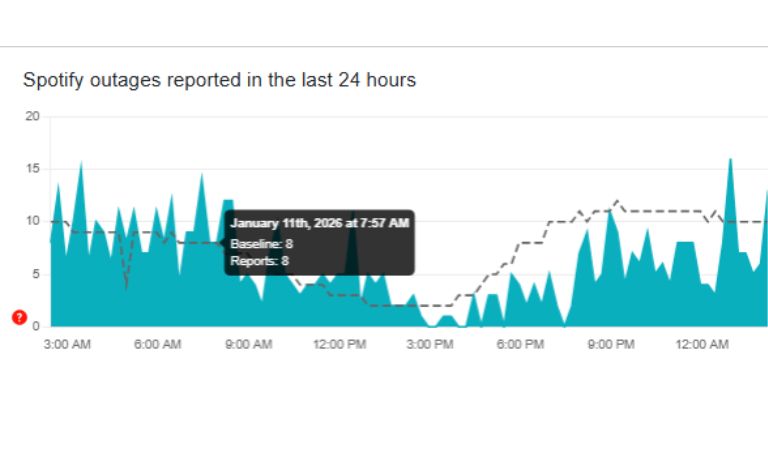
Before doing anything else, confirm whether Spotify is having a real outage.
When Spotify servers go down, the app may open, but songs won’t play, playlists won’t load, or accounts may appear offline. In this situation, restarting or reinstalling will not help. Checking Spotify’s official status page (@SpotifyStatus ) or recent outage reports can save a lot of time.
If many users report problems simultaneously, the best course of action is to wait. Spotify outages usually don’t last long.
Fix #2: Restart Spotify, Then Restart Your Device
This fix sounds simple, but it solves more problems than people expect.
Close Spotify fully and make sure it’s not running in the background. Open it again and test playback. If the app still struggles, restart your phone, computer, or tablet.
A device restart clears memory issues and background tasks that can quietly block Spotify from working correctly.
Fix #3: Check Your Internet Connection More Carefully
Spotify relies on a steady connection, even for small actions like skipping tracks or loading playlists.
If you’re on Wi-Fi, switch to mobile data and try again. If you’re already on mobile data, connect to Wi-Fi. If Spotify suddenly works on one network but not the other, the problem is not the app itself.
You can also try:
- Moving closer to the router
- Restarting the router
- Avoiding crowded or public Wi-Fi
Network quality matters more than people realize.
Fix #4: Make Sure Offline Mode Is Not Blocking Playback
Offline mode can stay enabled without being obvious, especially after travel or airplane mode use.
Open Spotify settings and manually check offline mode. Turn it off and wait a few seconds. Sometimes playback starts working right away after this.
If it still doesn’t, log out of your Spotify account and log back in. This refreshes your account session and forces Spotify to reconnect to its servers.
Fix #5: Update Spotify and Clear App Cache (When Things Load but Don’t Play)
This fix matters when Spotify opens normally but songs never start or stay stuck loading.
First, update Spotify to the latest version from the app store. Old versions can break after system updates. If updating doesn’t help, clear the Spotify cache from app settings.
Cache files help the app load faster, but when they become corrupted, they can block playback completely. Clearing cache removes only temporary data, not your playlists or account.
Fix #6: Try a Different Network If Nothing Else Works
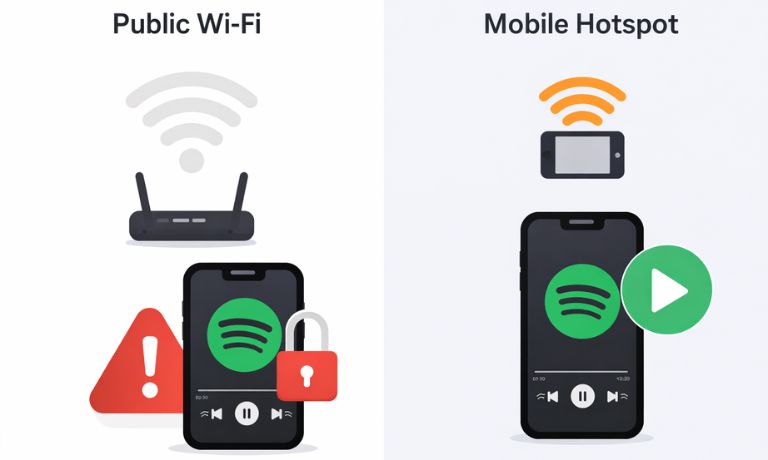
Sometimes Spotify is blocked by the network itself.
This is common on school Wi-Fi, office networks, and public hotspots. The app may open, but streaming is restricted behind the scenes. If Spotify works fine on mobile data but fails on Wi-Fi, the network is the cause.
In this case, switching networks is usually the only solution unless the network owner allows streaming.
Prevention Tips to Avoid Spotify Issues in the Future
You can reduce Spotify problems with a few simple habits.
- Keep the Spotify app updated
- Avoid unstable internet connections
- Turn off offline mode when not needed
- Restart your device regularly
- Clear app cache occasionally
These steps help keep Spotify running smoothly.
Conclusion
When Spotify stops working, the issue is usually either a server outage or a local problem on your device or network. Checking Spotify’s status first saves time. If it’s not an outage, simple fixes usually solve the problem quickly.
If this article helped you understand what was wrong, share it with others or leave a comment about what fixed Spotify for you.

I’ve been into SEO and blogging for over 7 years. I help websites show up higher on search engines. I really enjoy writing helpful guides, especially about gaming and tech stuff.
