
Javascript is what makes many of your favorite websites come alive! It helps pages load interactive maps, videos, and cool animations. If something doesn’t look right on a page, or buttons don’t work, Javascript might be turned off on your iPhone. Don’t worry — turning it back on is super easy!
TL;DR:
Javascript lets websites work properly on your iPhone. If things aren’t loading right or look strange, you might need to turn it back on. Just open your Settings, tap Safari, and then enable Javascript from the Advanced section. Boom! You’re back to smooth browsing.
Wait, what exactly is Javascript?
Great question! Javascript is a type of code. It helps web pages move, interact, and react to your taps and swipes. Without it, websites can feel frozen or broken.
Imagine going to a website and clicking a menu… nothing happens. Or trying to watch a video… but it never plays. That’s what happens when Javascript is off.
Wanna see gifs, image sliders, pop-up menus, or animated buttons? Javascript makes the web fun. So let’s get it working on your iPhone!
How to Enable Javascript on iPhone
Here comes the fun part. Follow these super short steps.
- Grab your iPhone and unlock it (you know the drill).
- Find the Settings app. It’s the one with gears!
- Scroll down and tap on Safari. Yes, the browser!
- Keep scrolling till you see Advanced. It’s near the bottom.
- Tap Advanced.
- Now you’ll see a little switch for Javascript. Make sure it’s green (that means ON).
And ta-da! You’re done. Seriously, that’s all it takes.

What If It’s Already On?
If Javascript is already enabled, then the issue might be something else. Try refreshing the page or restarting your browser. You can even close all tabs and start again. If nothing works, maybe the site is broken. It happens!
Why Would Javascript Get Turned Off?
Sometimes people turn it off to speed up websites or save battery. Other times, it gets turned off by accident. Maybe a parent used parental controls. Or maybe you toggled the switch while tapping around. It happens to the best of us!
Bonus Tip: Clear Safari Cache Too
If turning on Javascript didn’t fix things, here’s a little bonus tip.
- Go back to Settings.
- Tap on Safari.
- Tap Clear History and Website Data.
- Restart Safari and try your site again!
This helps get rid of any junk Safari saved that might be causing problems.
Does This Work for All iPhones?
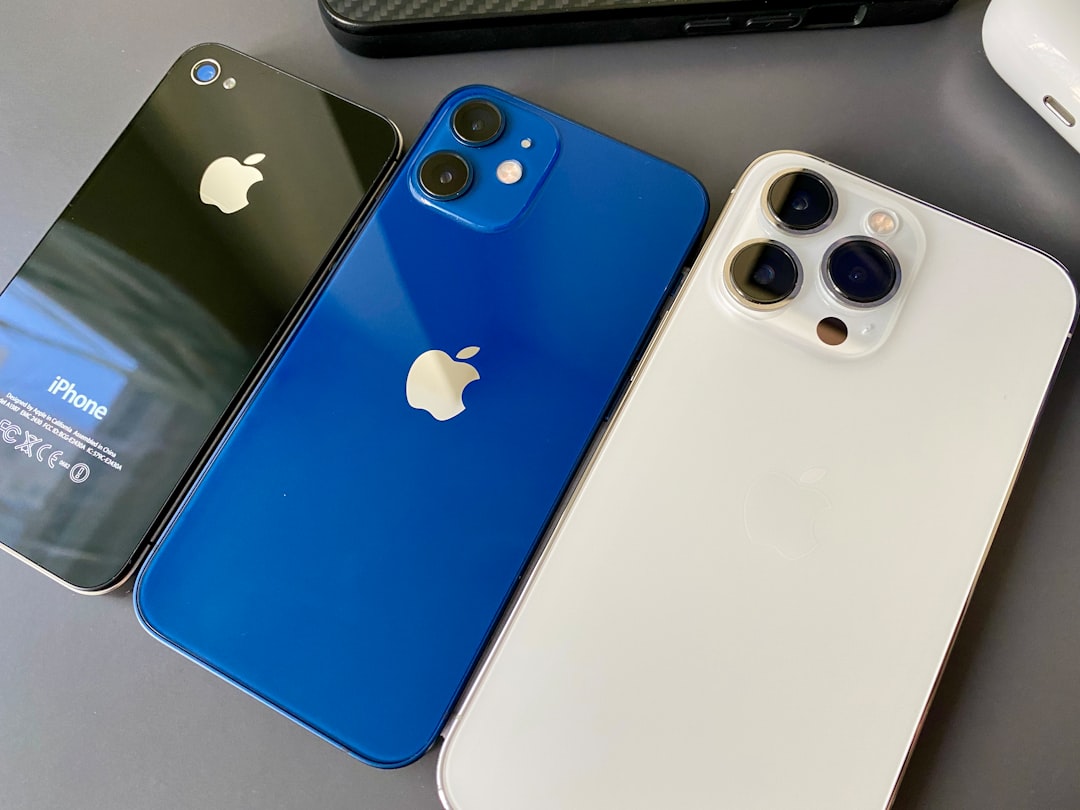
Pretty much! Whether you have an iPhone 6, iPhone 12, or the latest iPhone whatever-number-they’re-on, these settings are mostly the same. Just make sure your iOS is fairly updated. If you’re still rocking iOS 10, maybe it’s time for a quick upgrade.
Do I Really Need Javascript?
Honestly, yes — for most websites. Not all of them, but a whole lot. If you love online shopping, streaming videos, or reading articles with colorful pop-ups, Javascript is your friend.
But if you’re all about security and minimalism, you might choose to keep it off. Just remember, many sites won’t work as expected.
How to Know If Javascript Is Off?
Here are a few clues:
- Menus don’t open when you tap.
- Videos don’t load.
- Buttons do nothing.
- Weird blank spaces on sites.
If you notice any of that, Javascript might be the culprit.
What If I Use Chrome or Firefox on iPhone?
Ah yes, the browser rebels! Sadly, Apple’s iOS doesn’t let Chrome or Firefox use their own engines. They all use Safari underneath. That means the Javascript settings still come from Safari. Surprise!
So you still need to turn it on the same way — inside Safari’s settings.
Testing: Is Javascript Really Working?
Want to test if Javascript works on your iPhone now?
Open Safari and search: Javascript test page. Lots of handy test websites will tell you in seconds if it’s working. Or try visiting a site with slick animations — if everything loads smoothly, you’re golden.
Quick Summary of Steps
- Open Settings app
- Scroll and select Safari
- Tap Advanced
- Switch Javascript ON
- Enjoy a fun, interactive web!
Still Not Working?
If you followed all the steps and Javascript still seems broken, try these:
- Restart your iPhone (classic fix!)
- Check your internet connection
- Update your iPhone to the latest iOS
- Try a different website
If nothing helps, maybe something else is wrong. In very rare cases (like super rare), a security setting or parental control might block things. Ask a techie friend or head to the Apple Store for extra help.
Wrap Up!
Javascript is kind of a big deal in the world of websites. It makes things fun, interactive, and functional. If your iPhone isn’t playing nice with the internet, toggling that little Javascript switch in Safari’s settings could be the magic fix.
And now… you’re a Javascript ninja. Go ahead, tap that menu, play that video, and scroll that page like a boss.
Happy browsing!

I’m Sophia, a front-end developer with a passion for JavaScript frameworks. I enjoy sharing tips and tricks for modern web development.
